

Basic Layout of Space
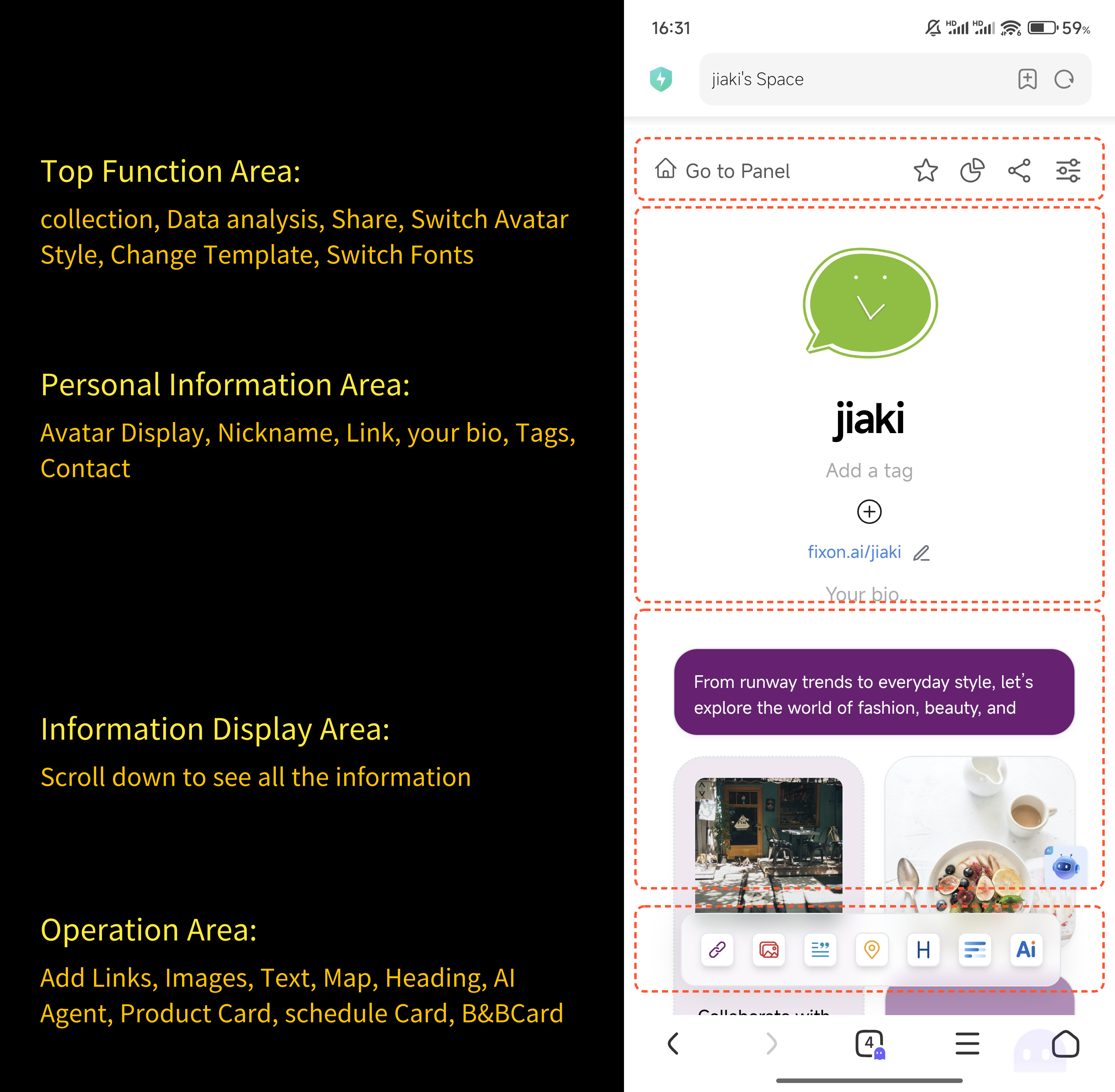
Mobile Version
PC Version
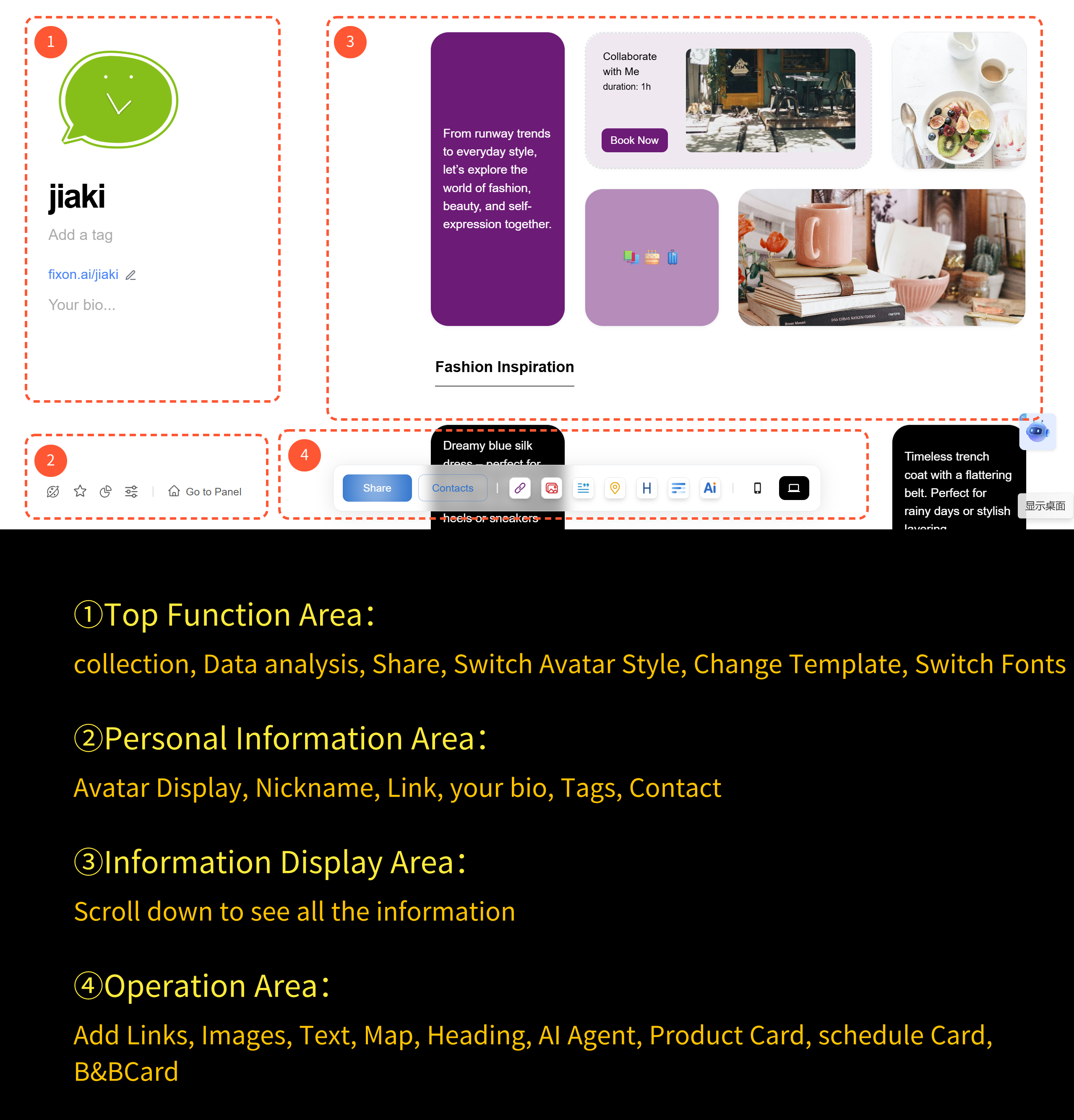
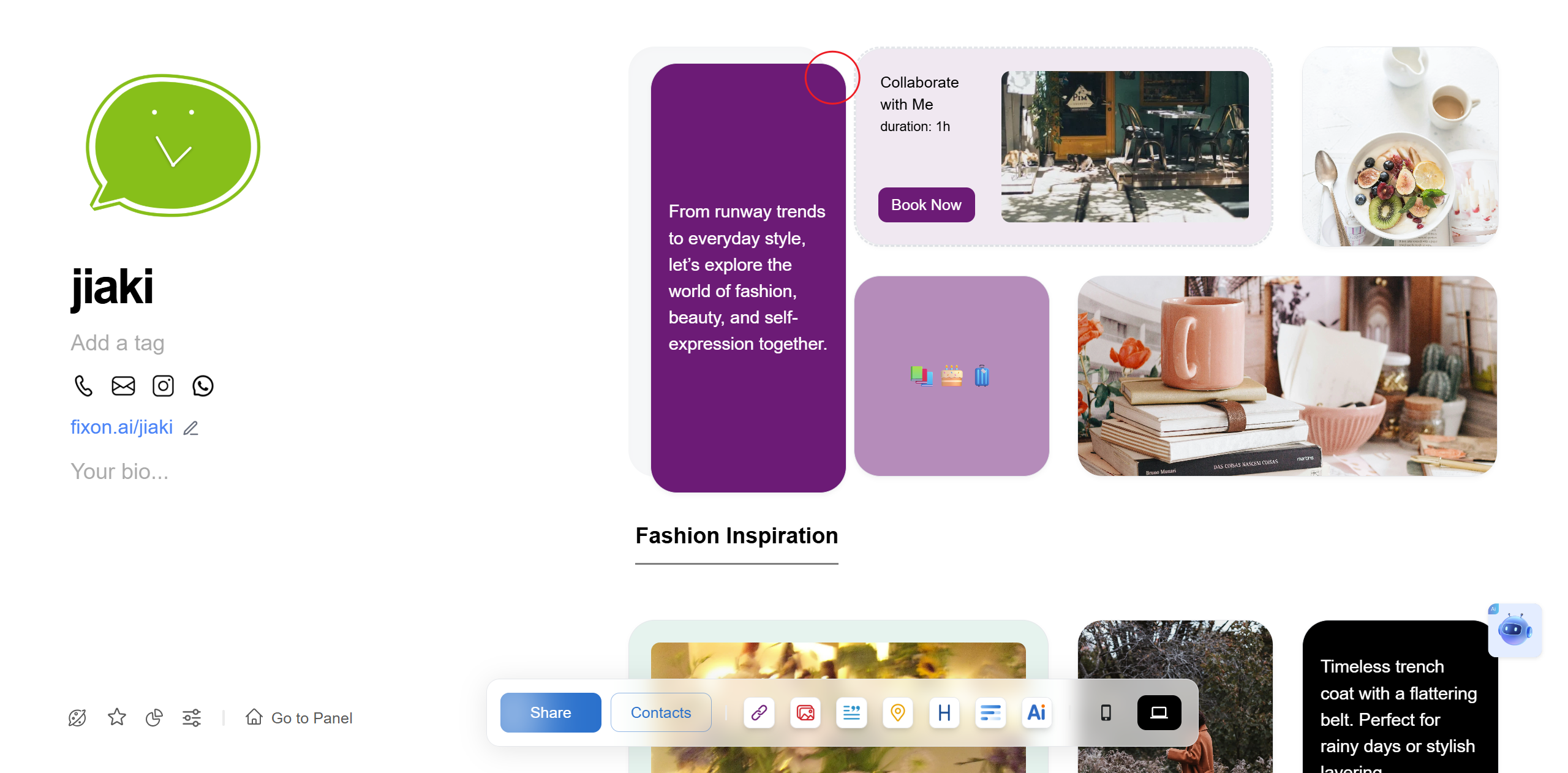
The layout on mobile and PC are different, but the functional icons are the same. Just recognize the icons and you can use all features!
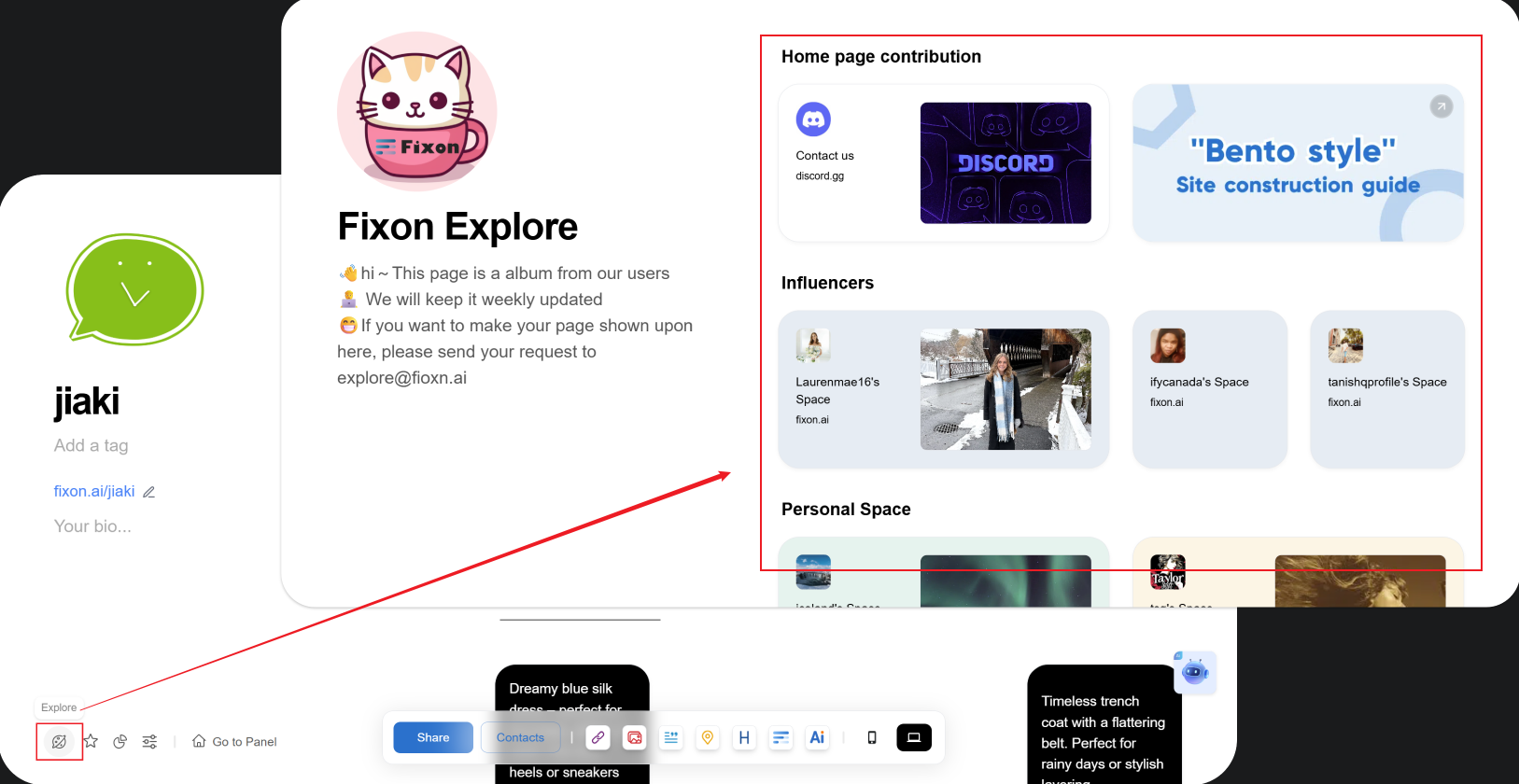
How to View More Examples?
Click the Explore icon at the bottom left to see more cases in the opened webpage (the same on mobile).
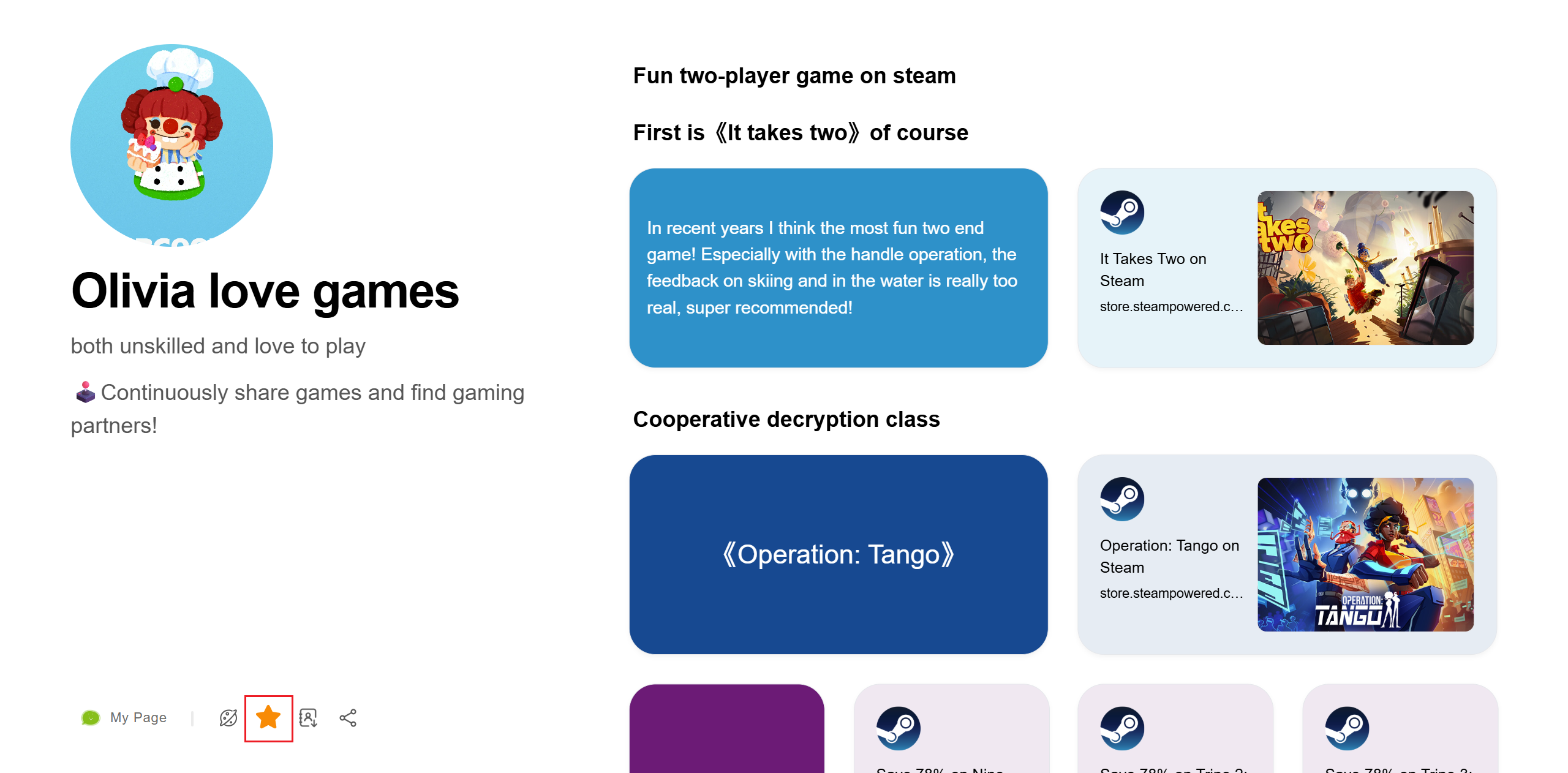
How to Favorite a Friend’s Homepage and View Your Favorites List?
View Friends List
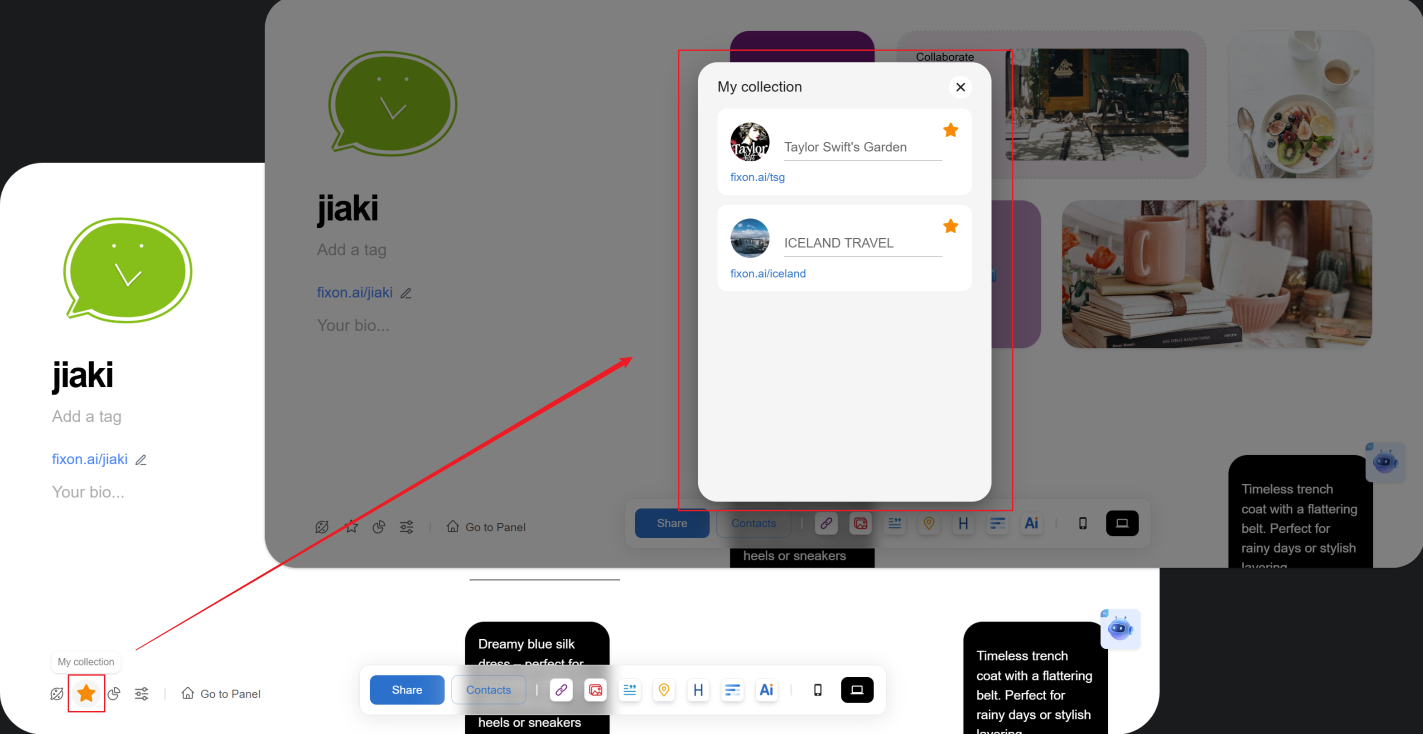
Click the collection icon at the bottom left to view.
Collection a Friend’s Homepage
Click the collection icon at the bottom left of a friend’s space to add it to your collection list. (Note: You need to register/login first if you haven’t already.)
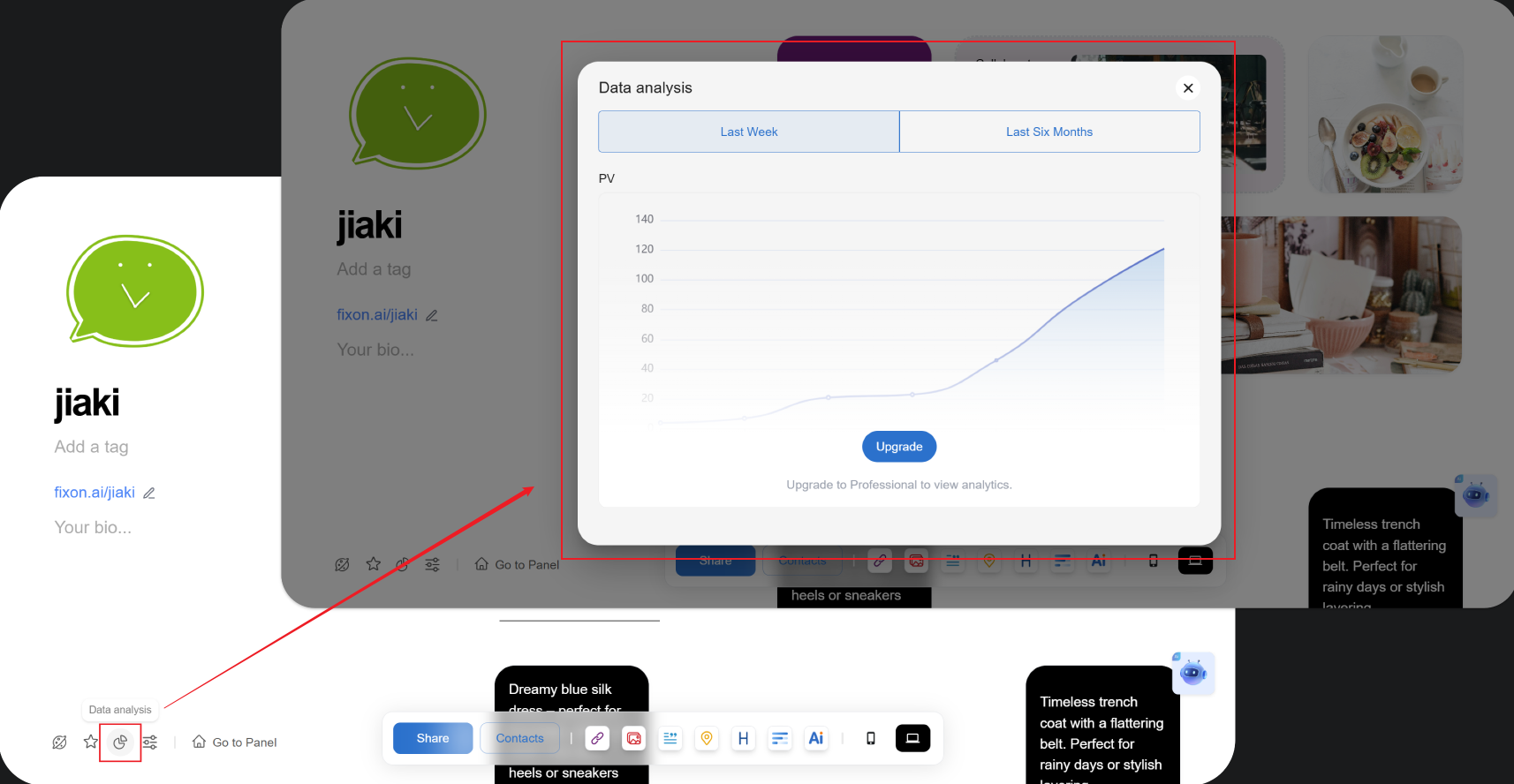
How to View space data?
Click the Data Analytics icon at the bottom left to view. (Note: This is a paid feature, available only after activating the professional Membership.)
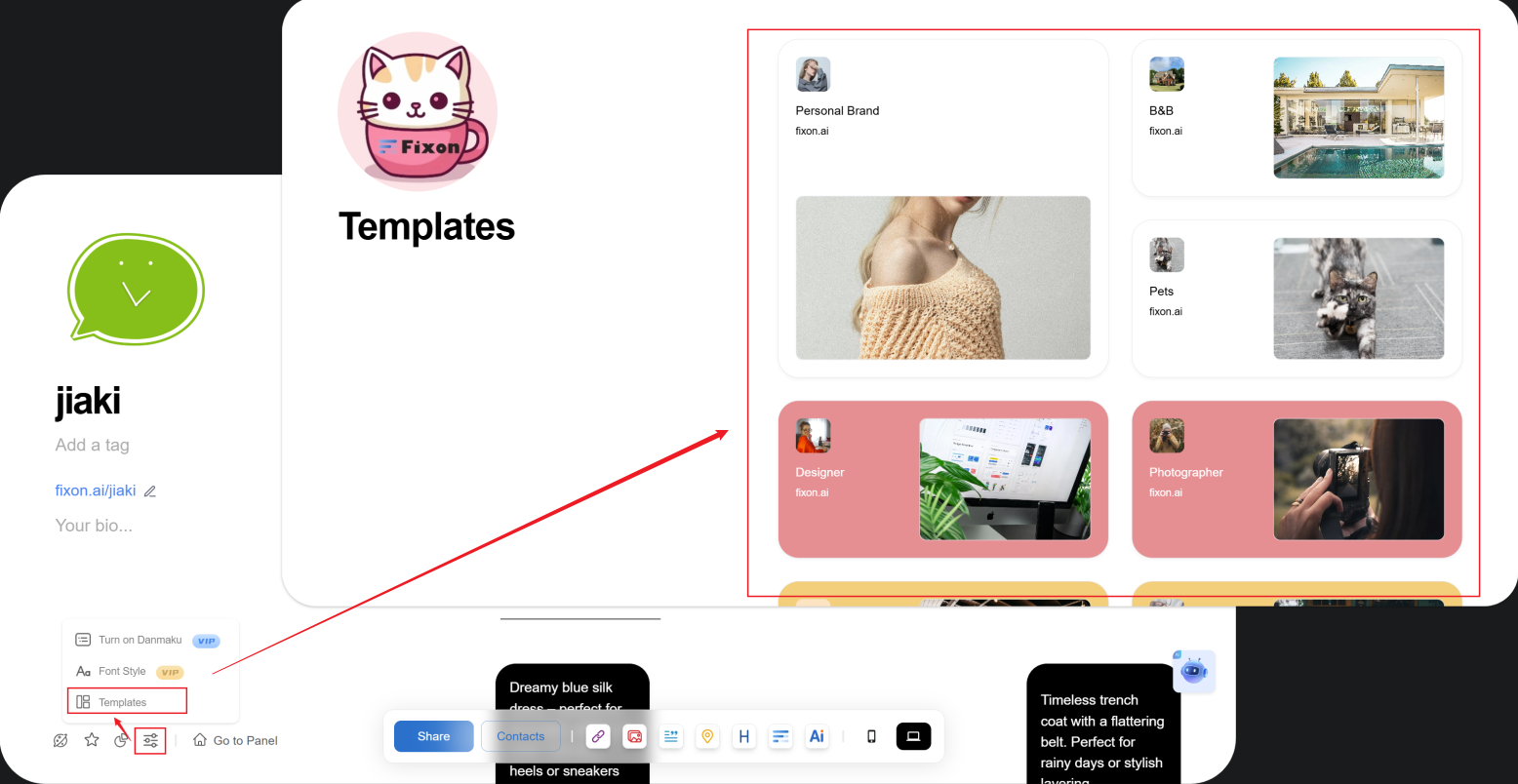
How to Enable Templates?
Click More > Templates icon at bottom left, pick a template you like, and change it with one click.
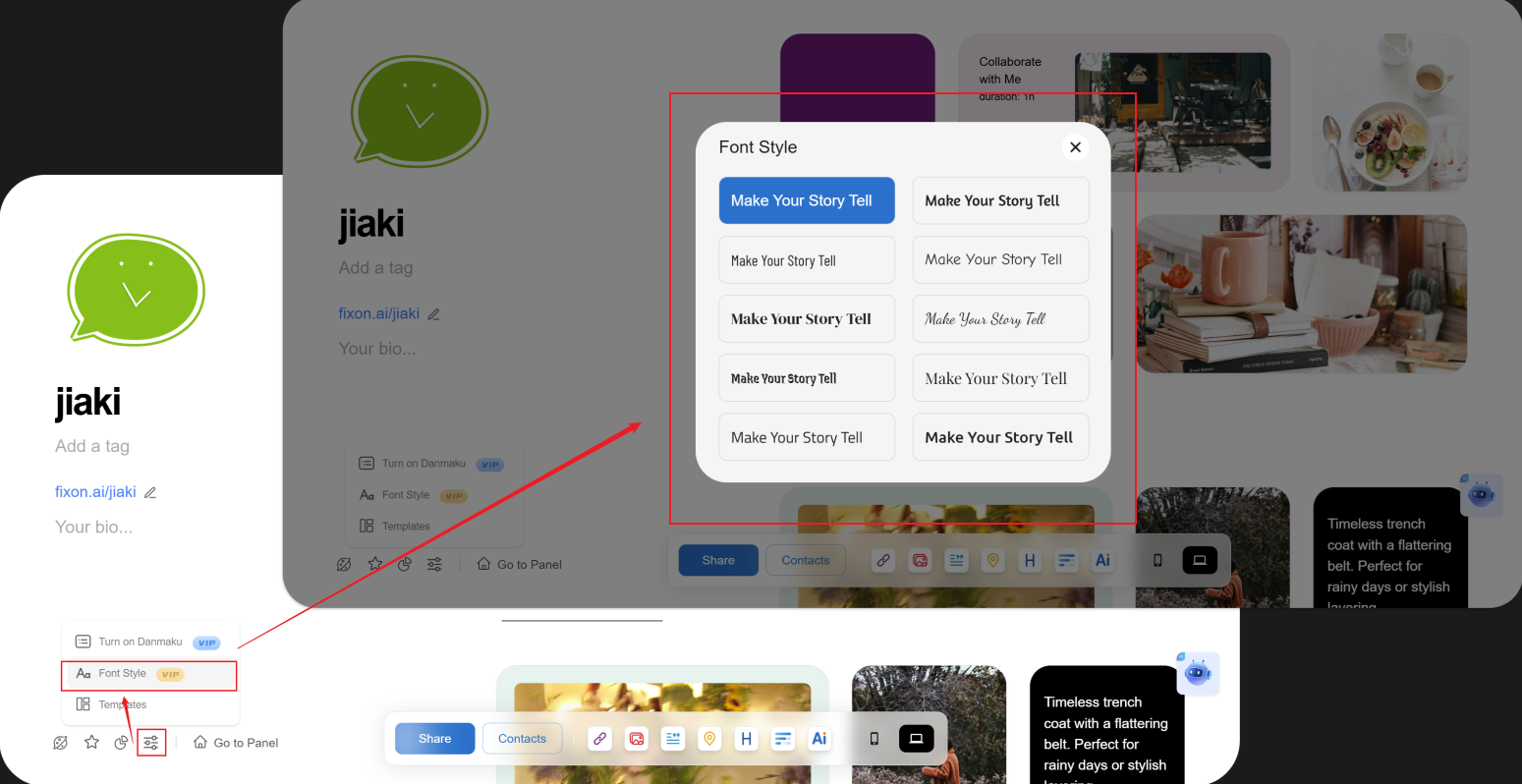
How to Change Fonts?
Click More > Font Style icon at bottom left, select your favorite style to apply. (Note: This is a paid feature, requires profedsional Membership.)
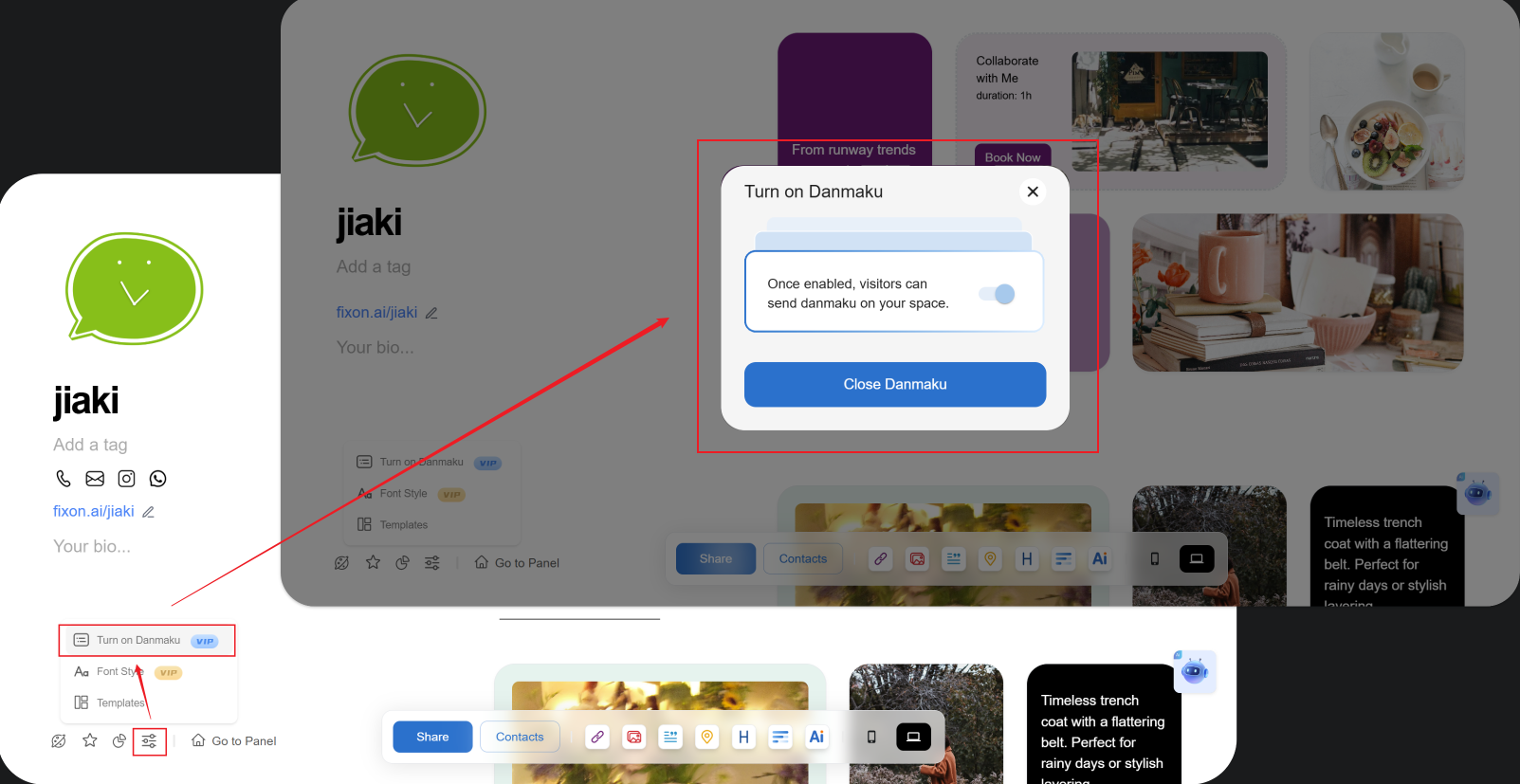
How to Use Danmaku?
Click More > Turn on danmaku icon at bottom left to enable danmaku. (Note: This is a paid feature, requires Standard Membership.)
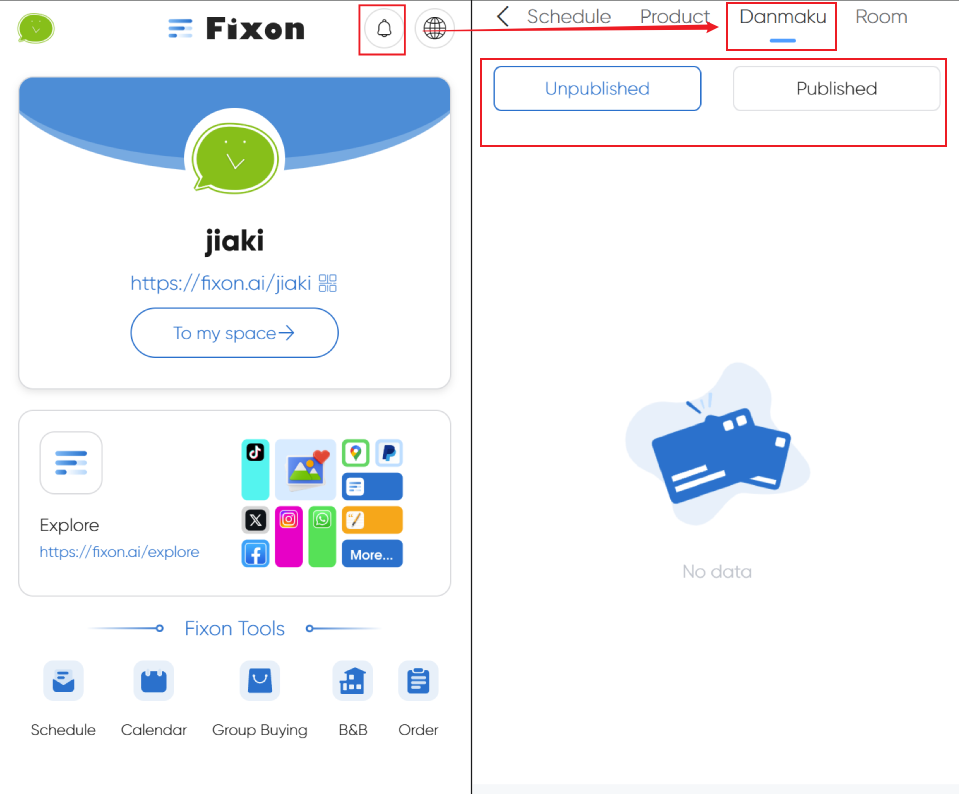
How to View Bullet Comments Sent by Others?
Go to Messages on the homepage, select the danmaku tab to view sent or pending danmaku. You can select and publish pending comments in bulk.
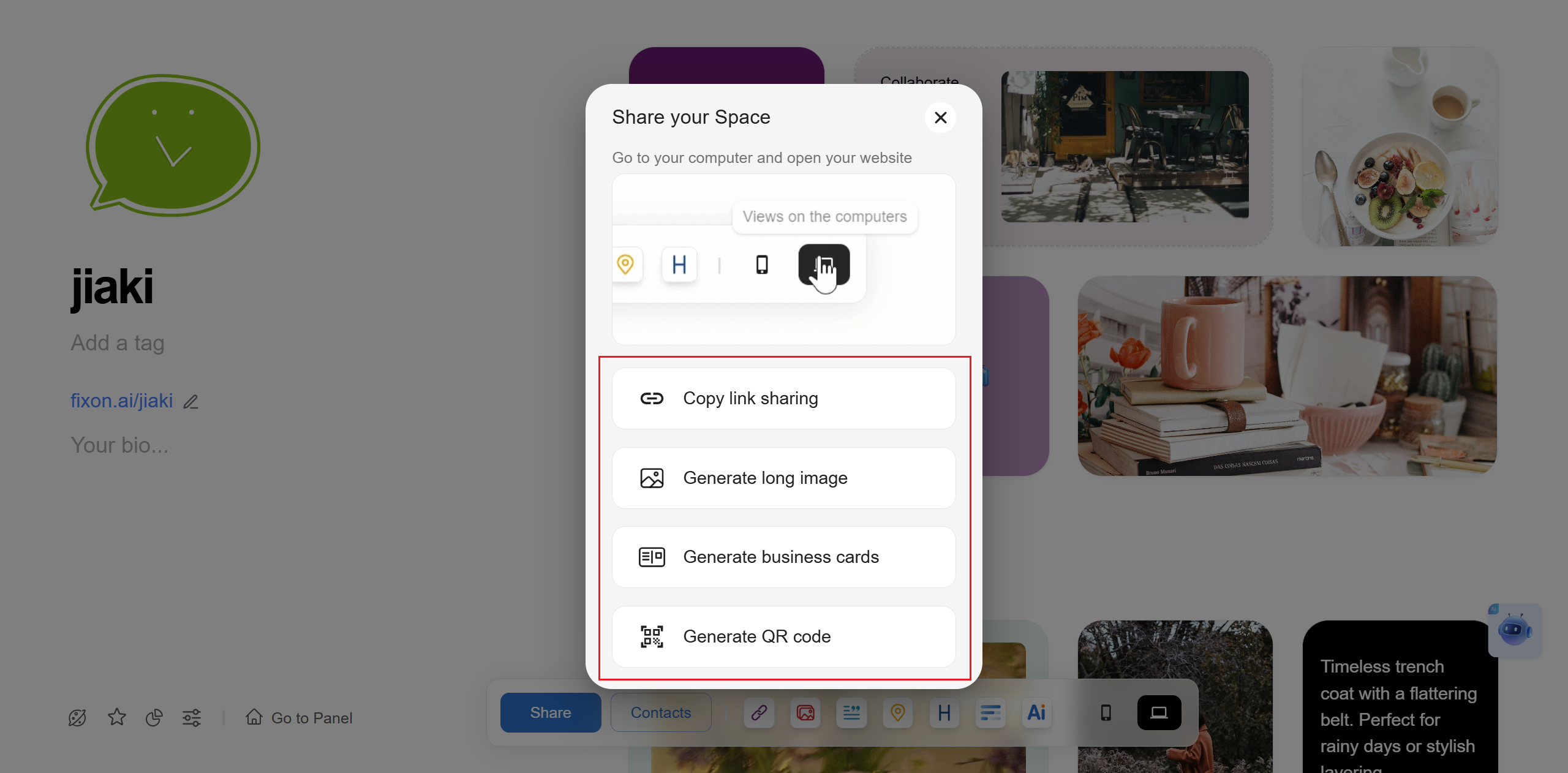
How to Share Your Homepage?
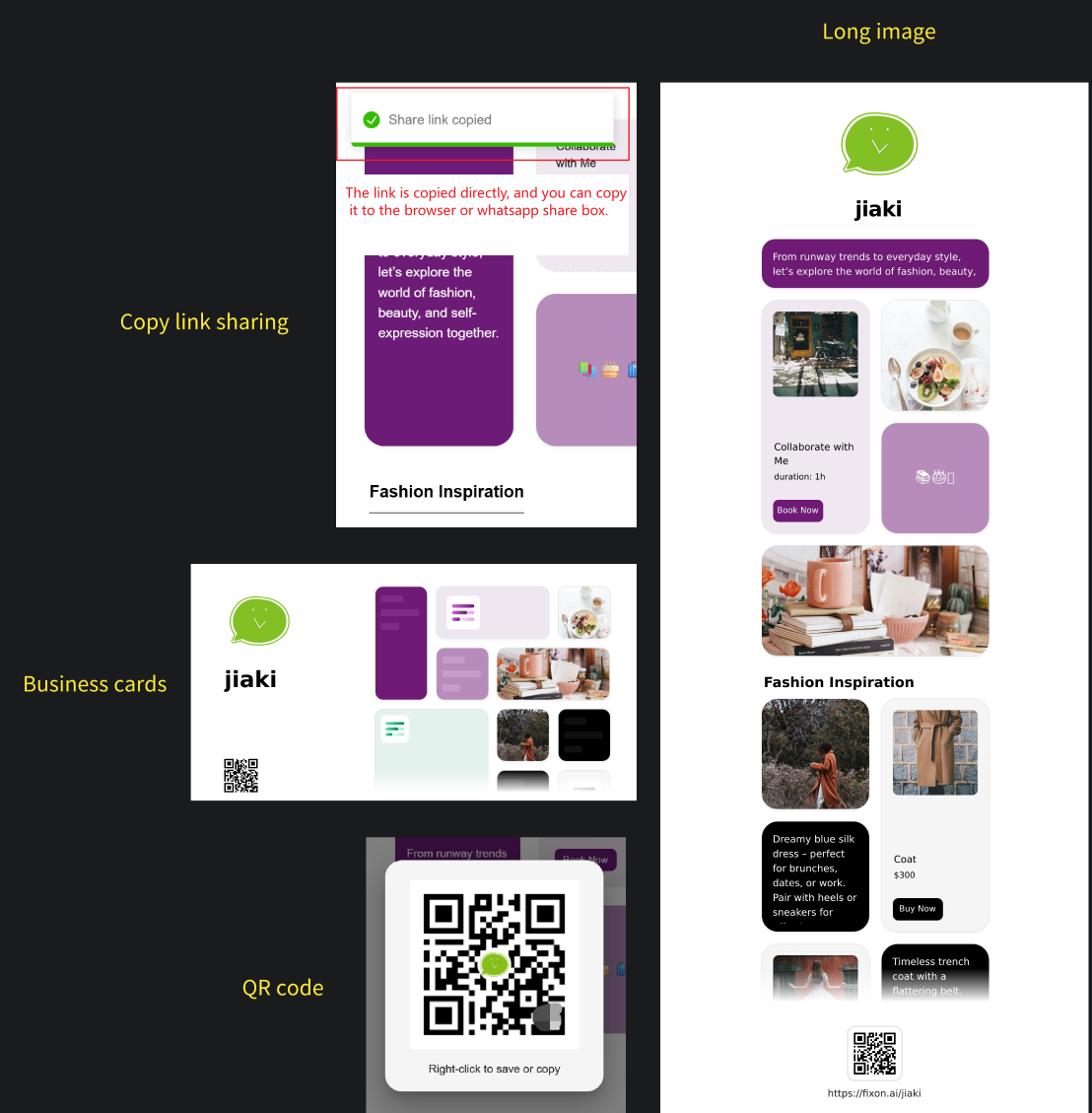
There are four different ways to share.
Sharing Style Examples
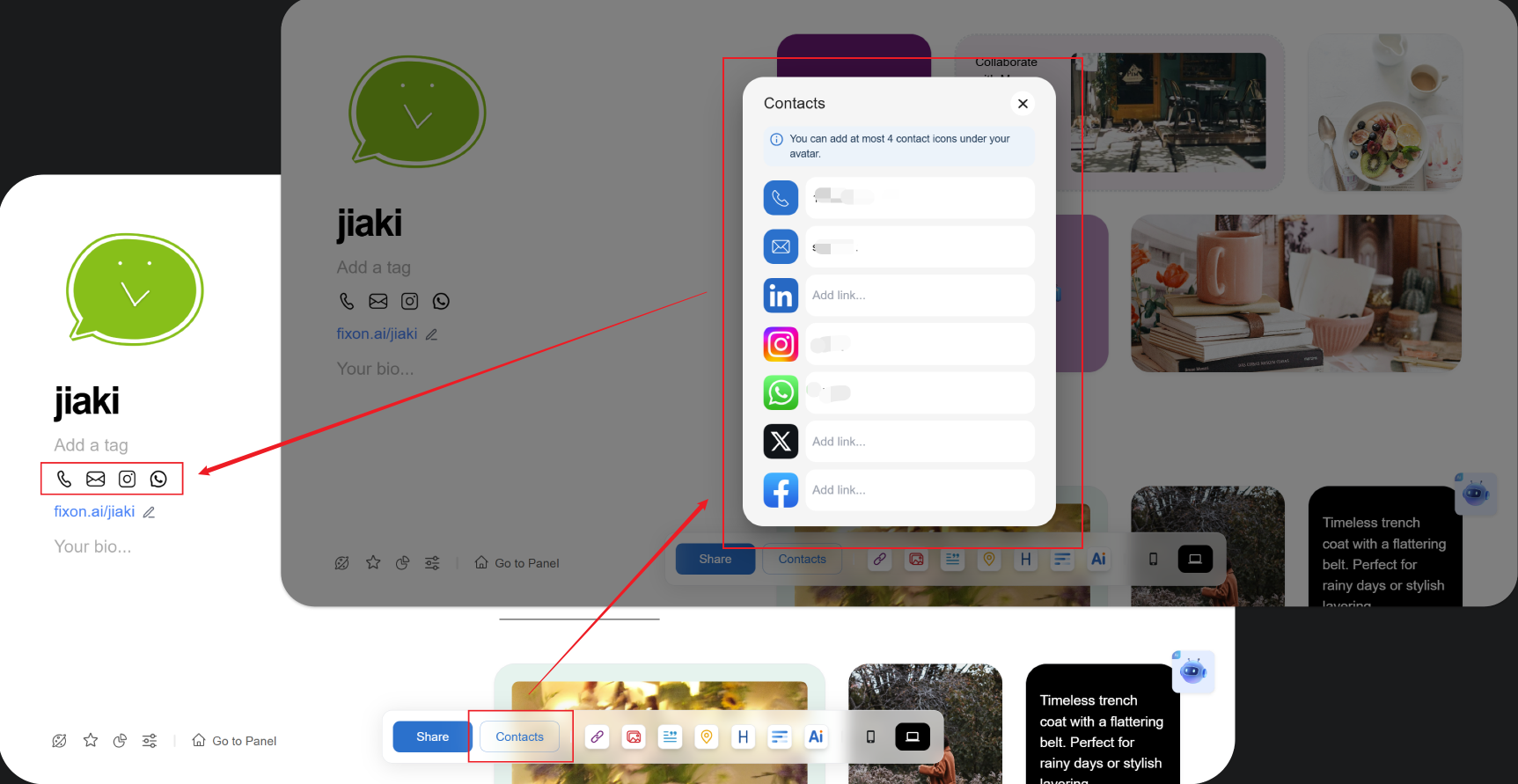
How to Add Contact Information?
Find the Contact Info button → enter your contact info in the popup → it will display under your nickname.
Usage of Each Functional Area
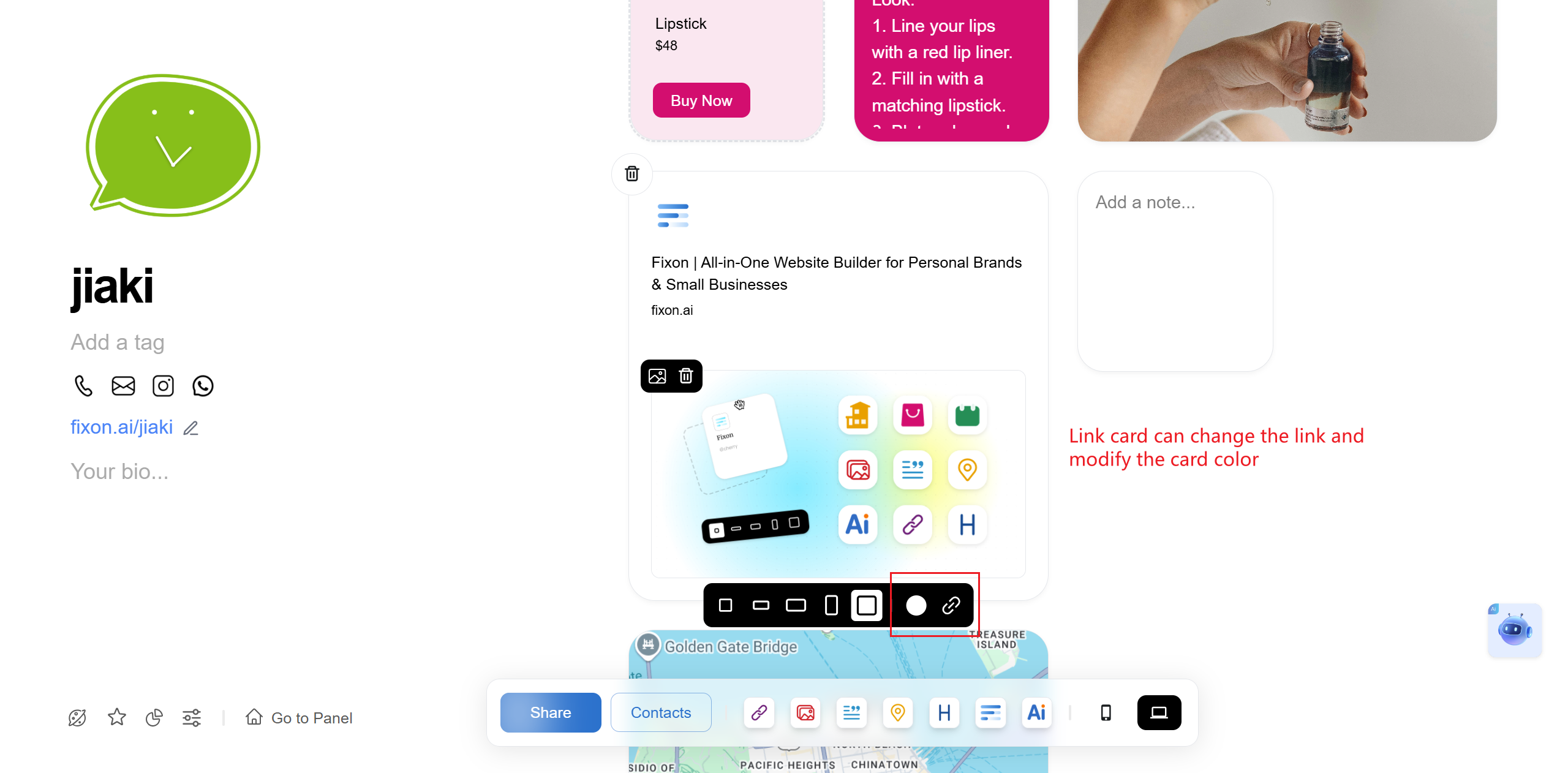
Links
Any link that can be opened by a browser can be added here.
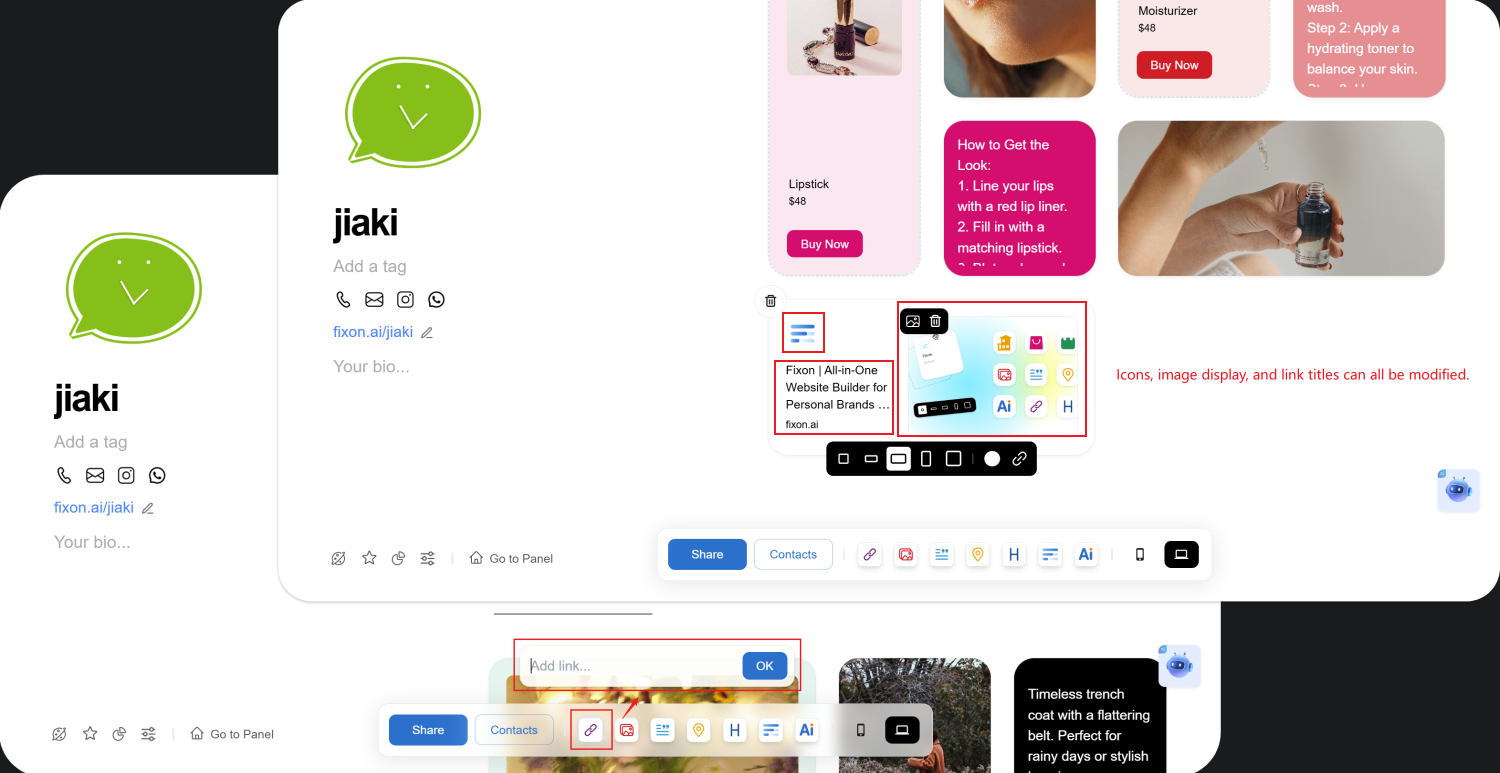
Images
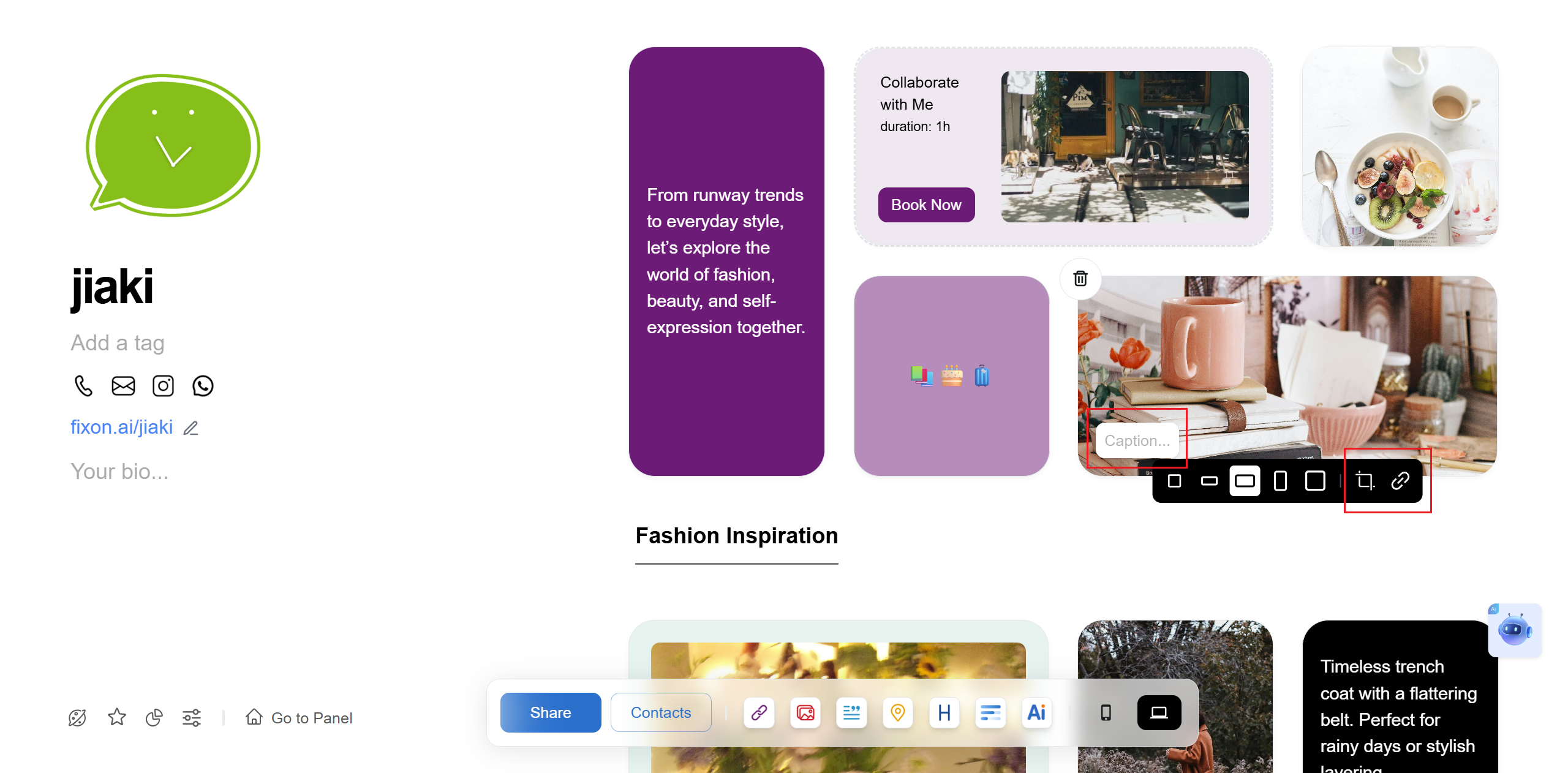
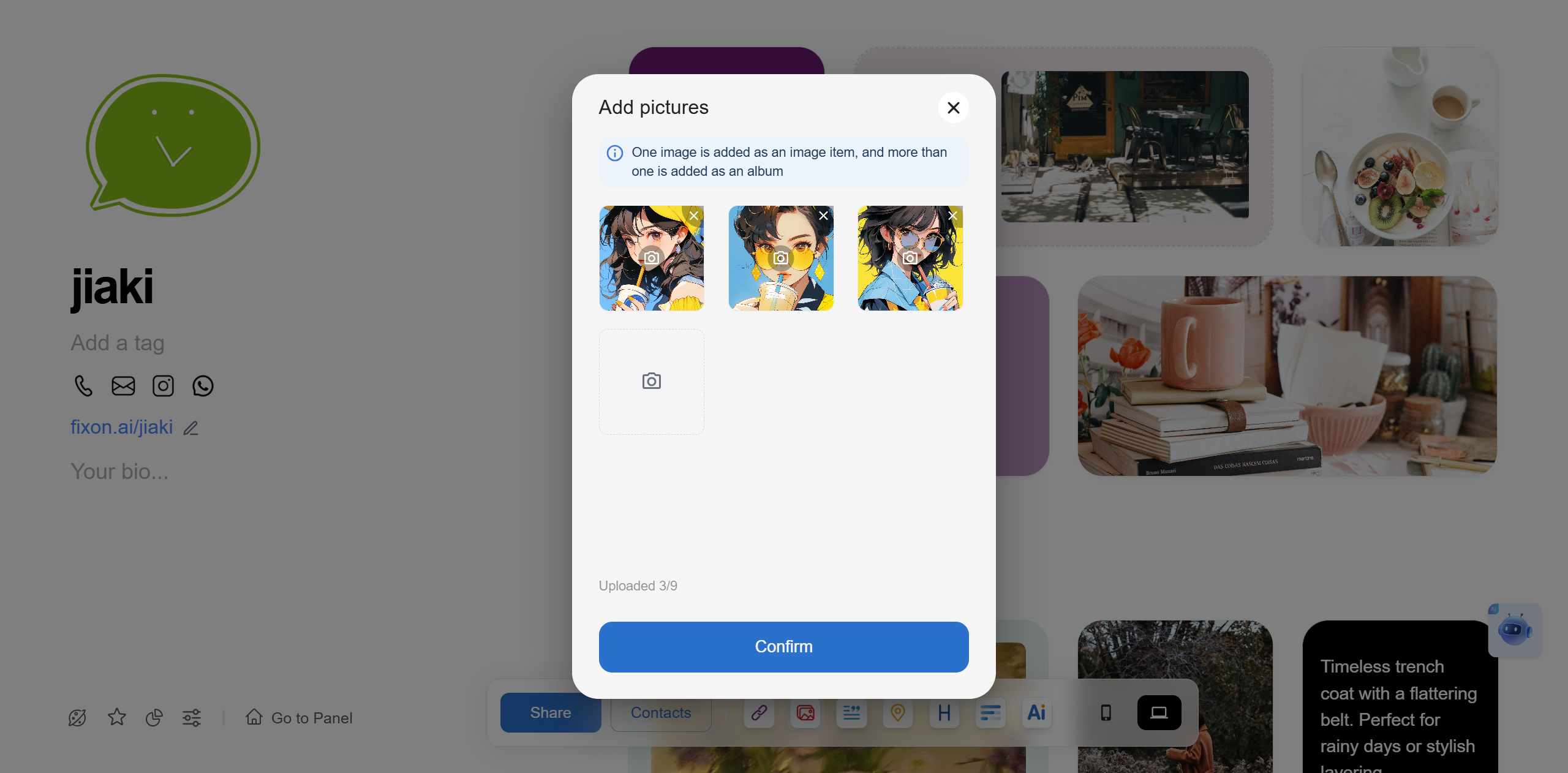
Images can be single or multiple.
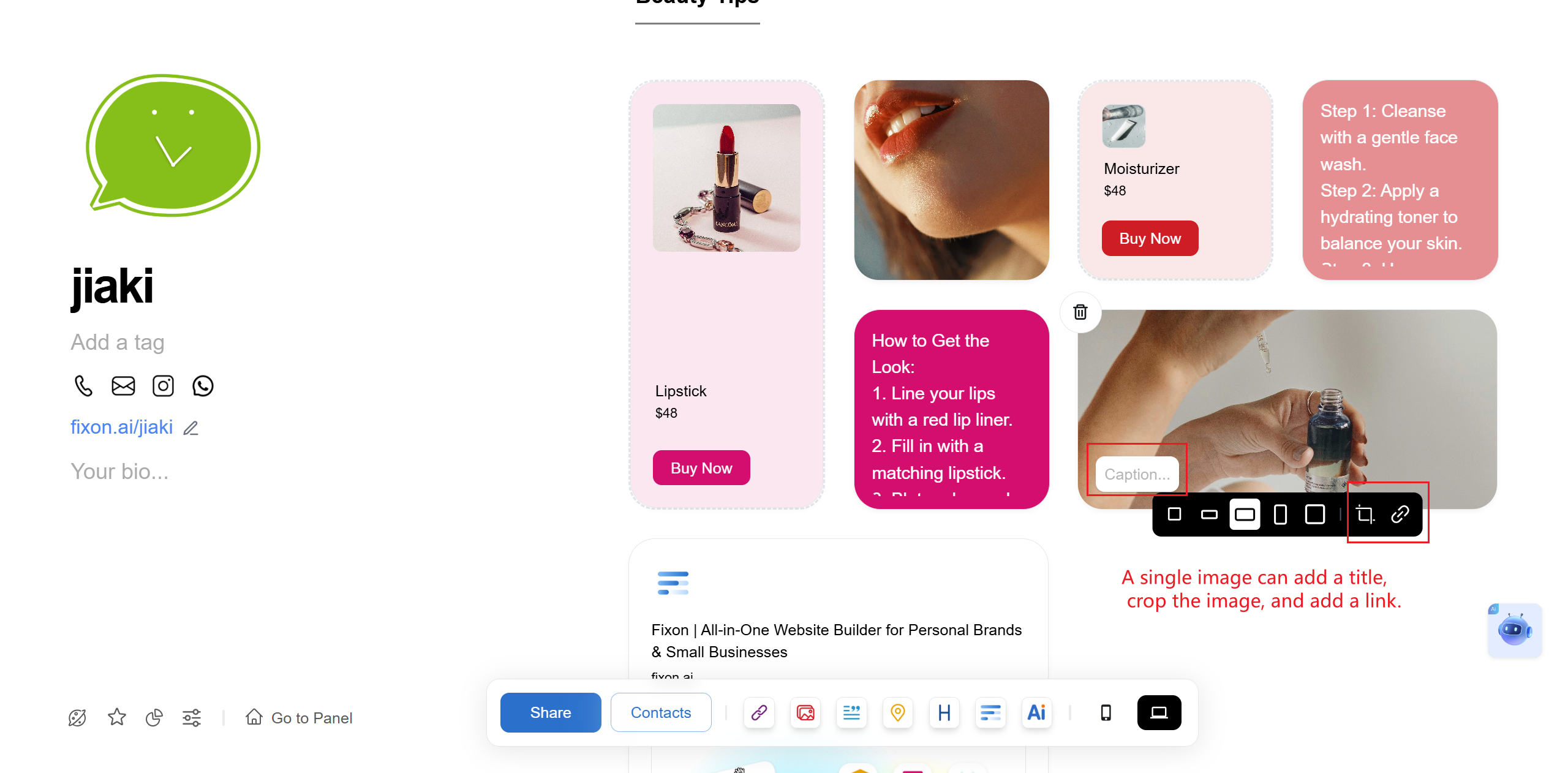
Single images support titles, links, and cropping.
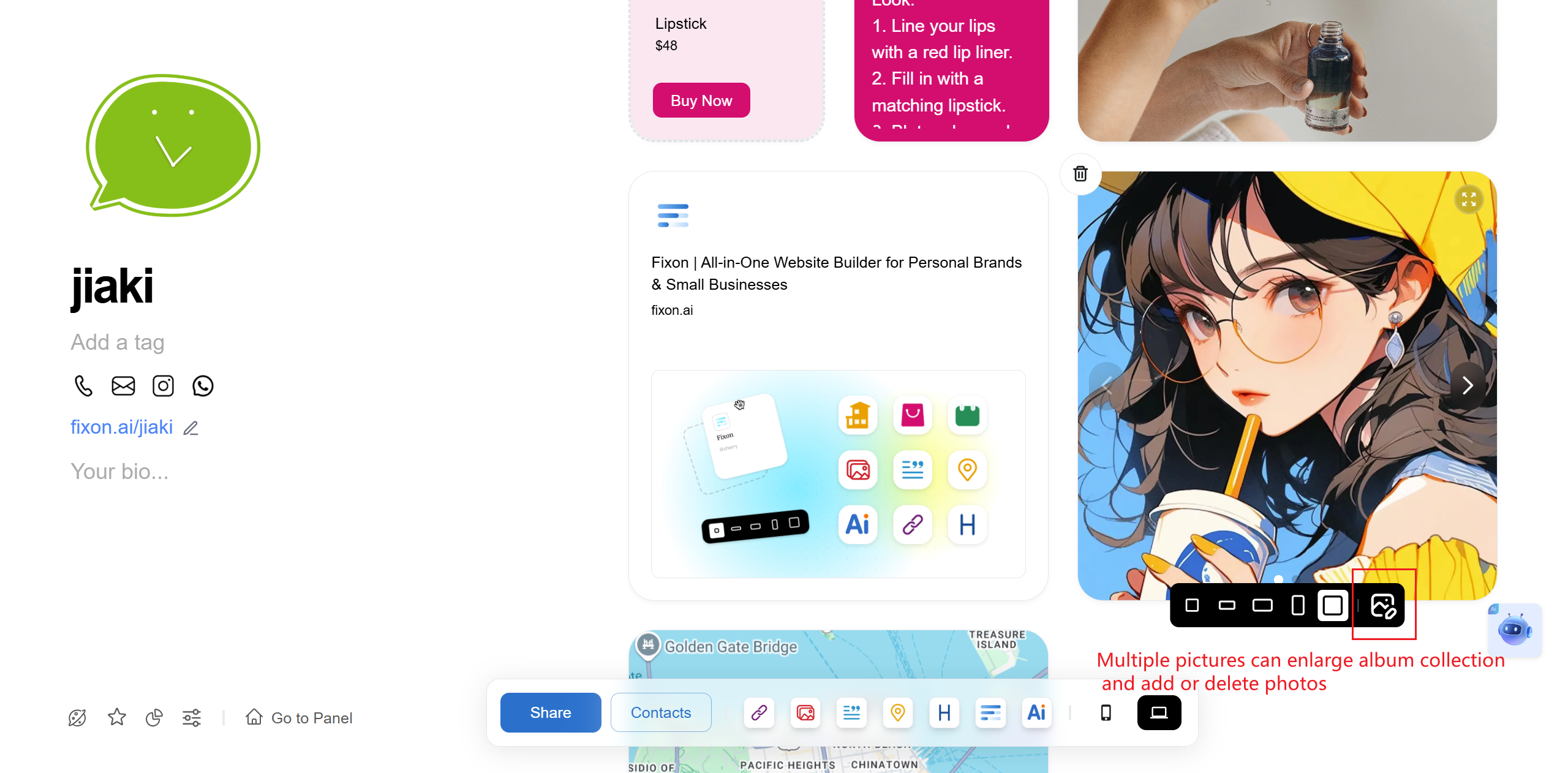
Multiple images allow adding/removing pictures but no editing or links.
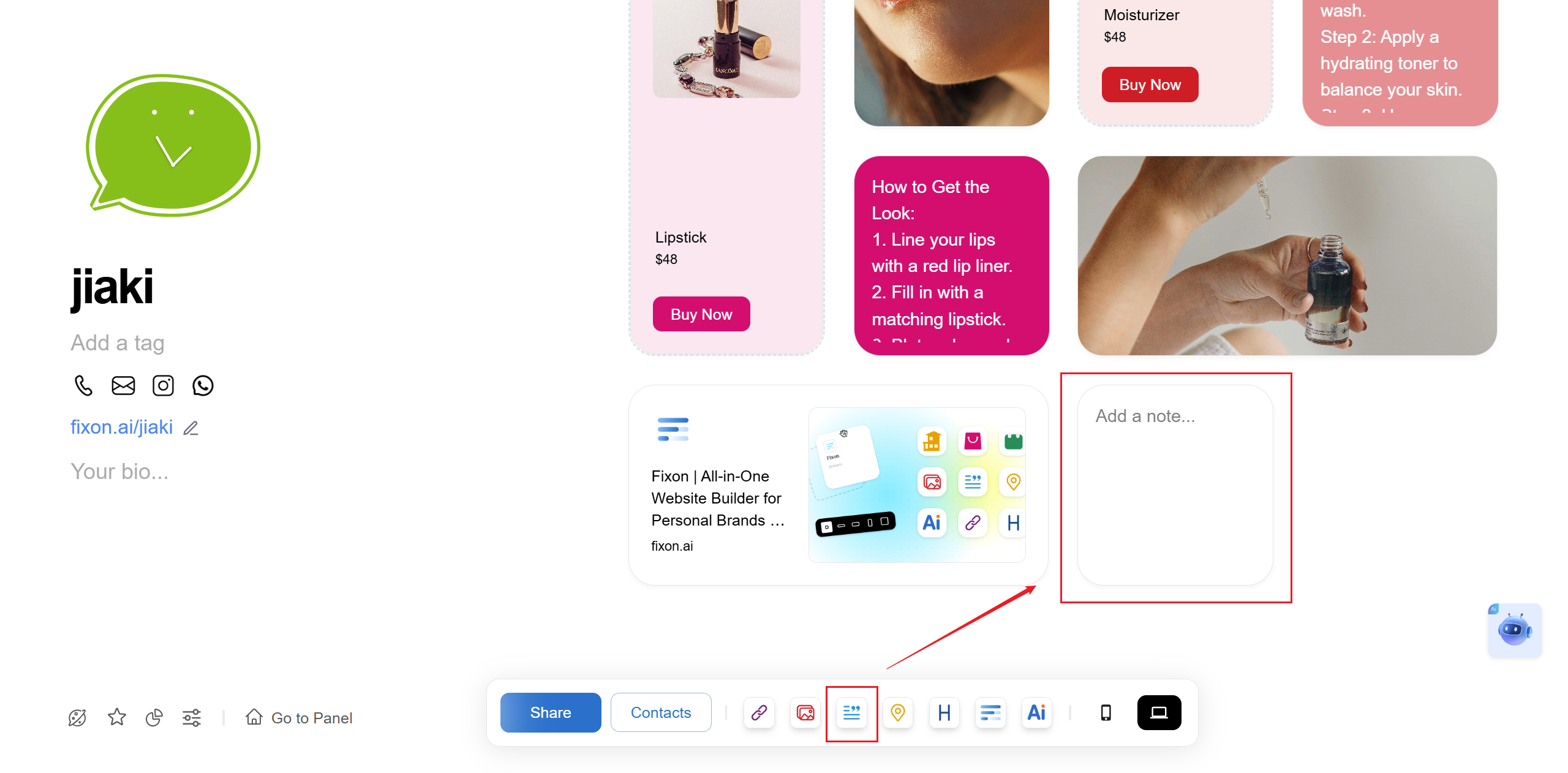
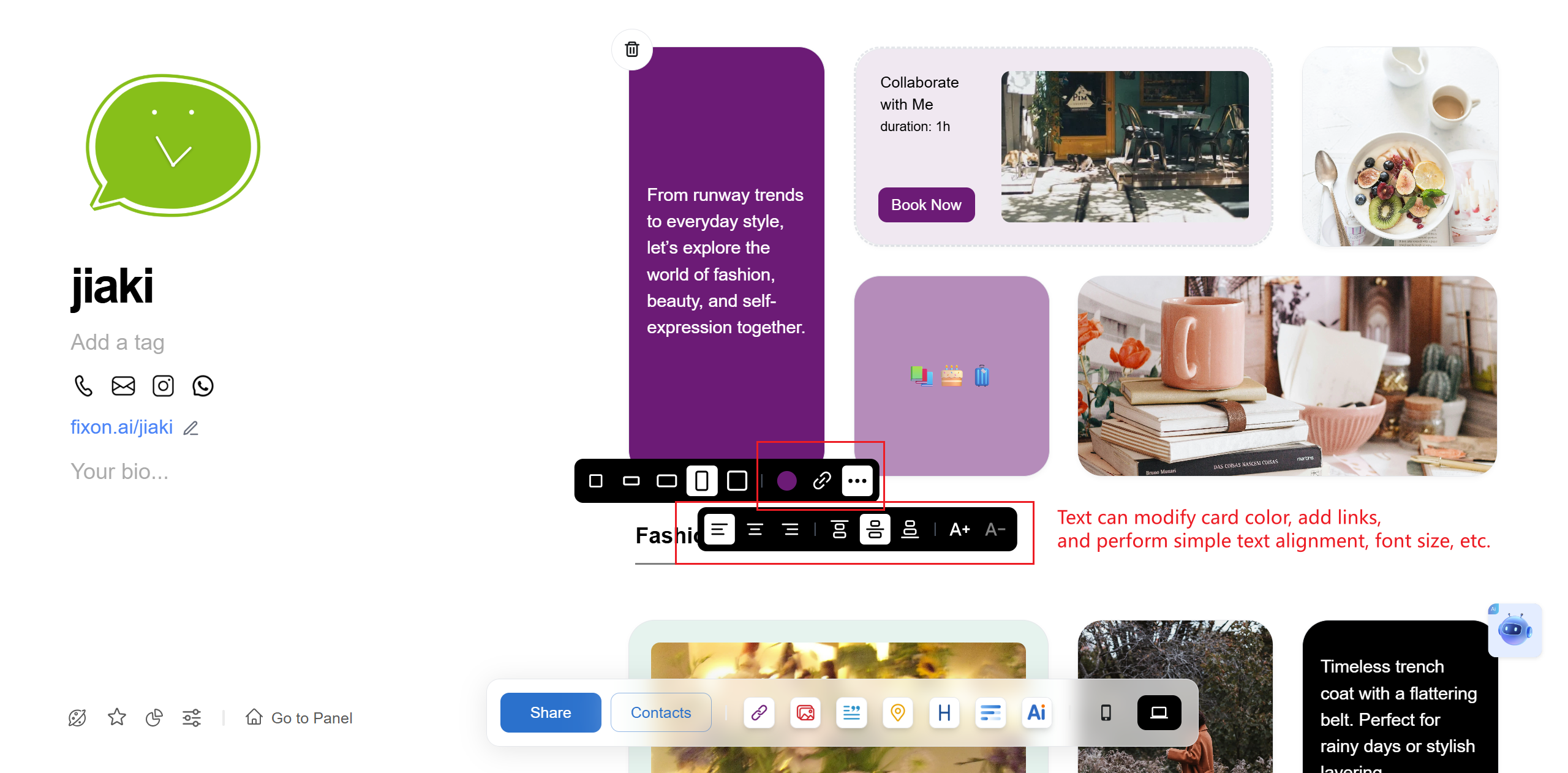
Text
For writing notes, copies, reminders—any text content.
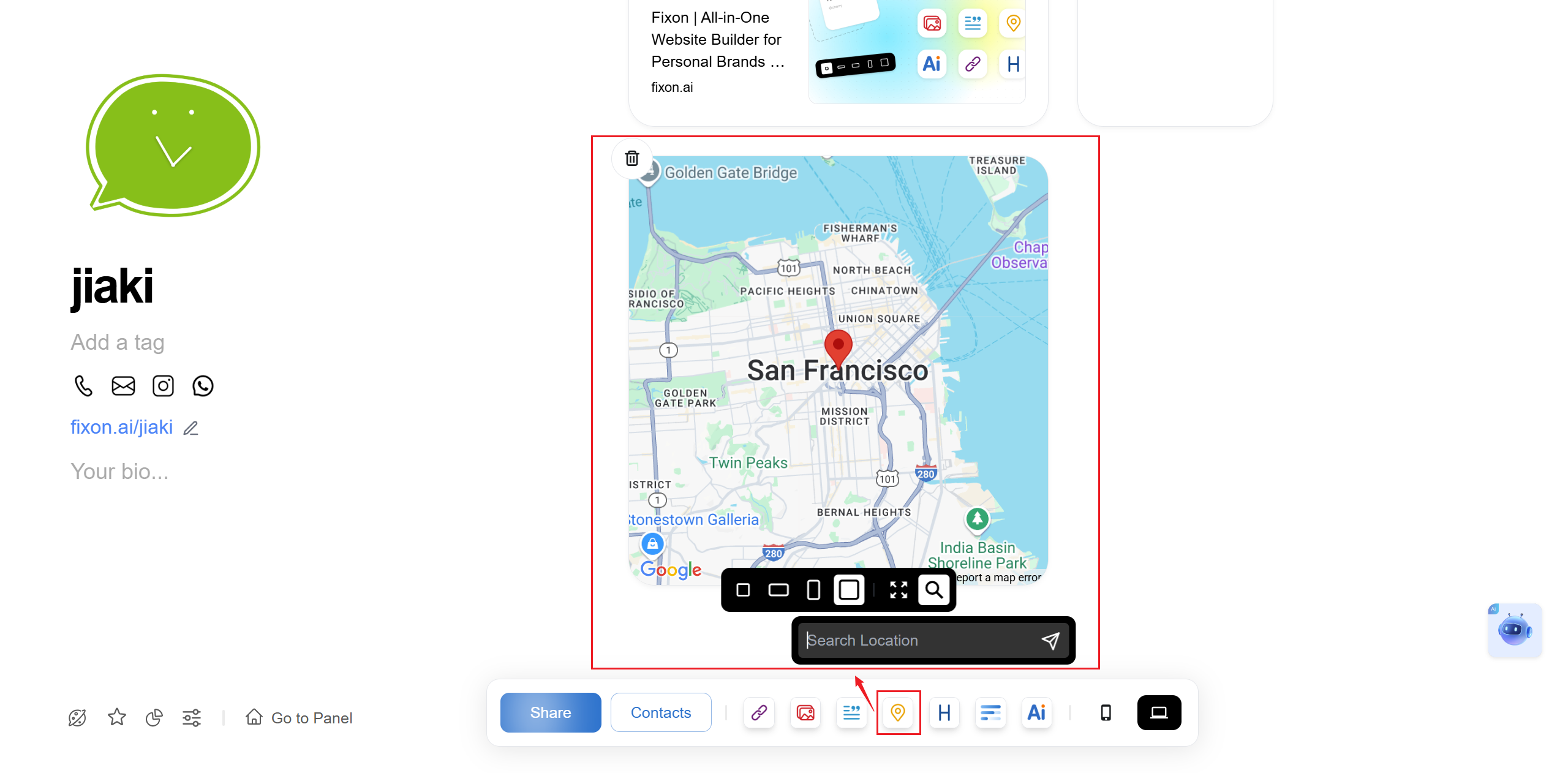
Map
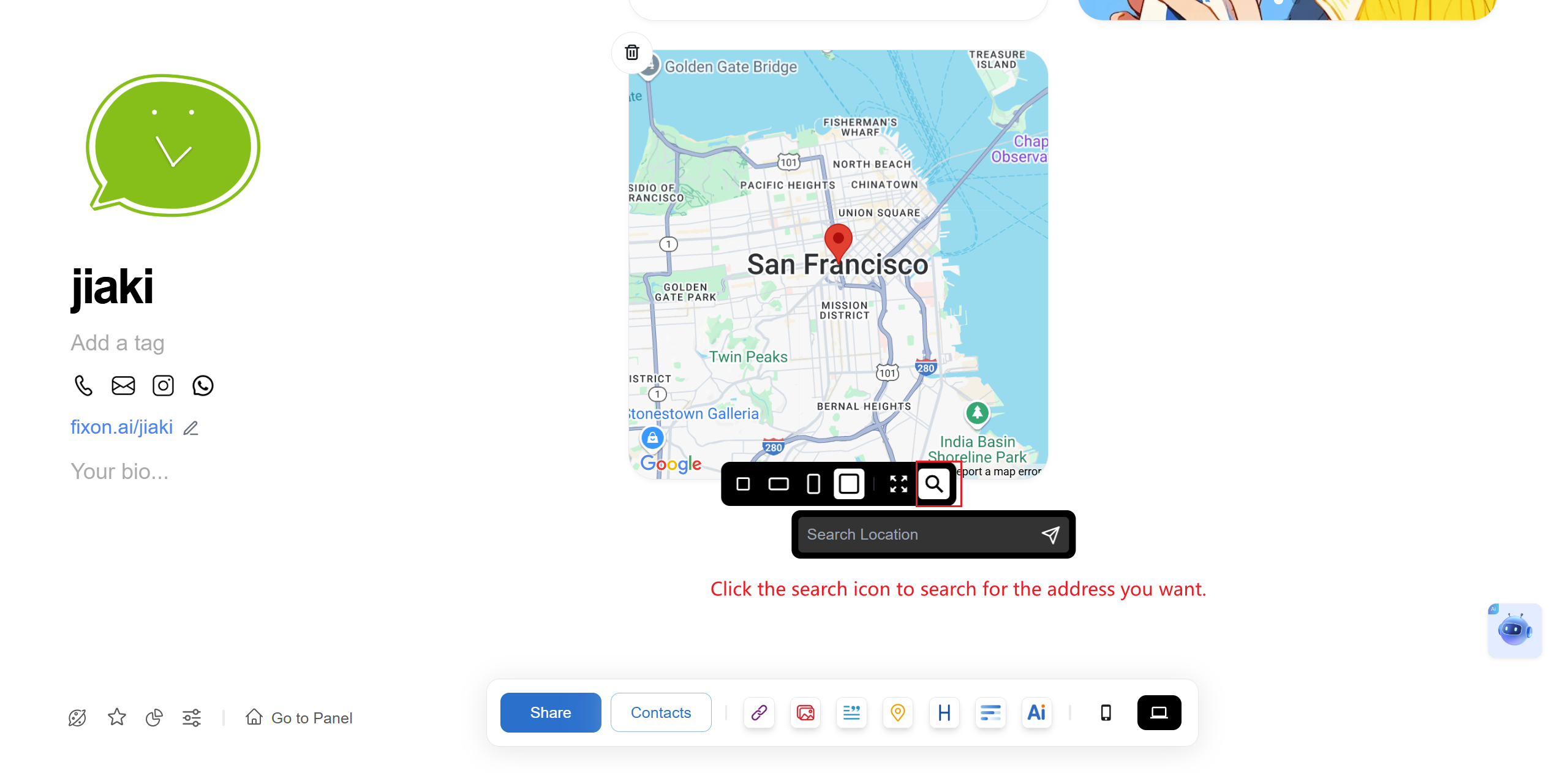
Adding inserts a default map. Click the button to search for the desired address. (If not found, you may use links from Gaode, Baidu, Tencent maps.)
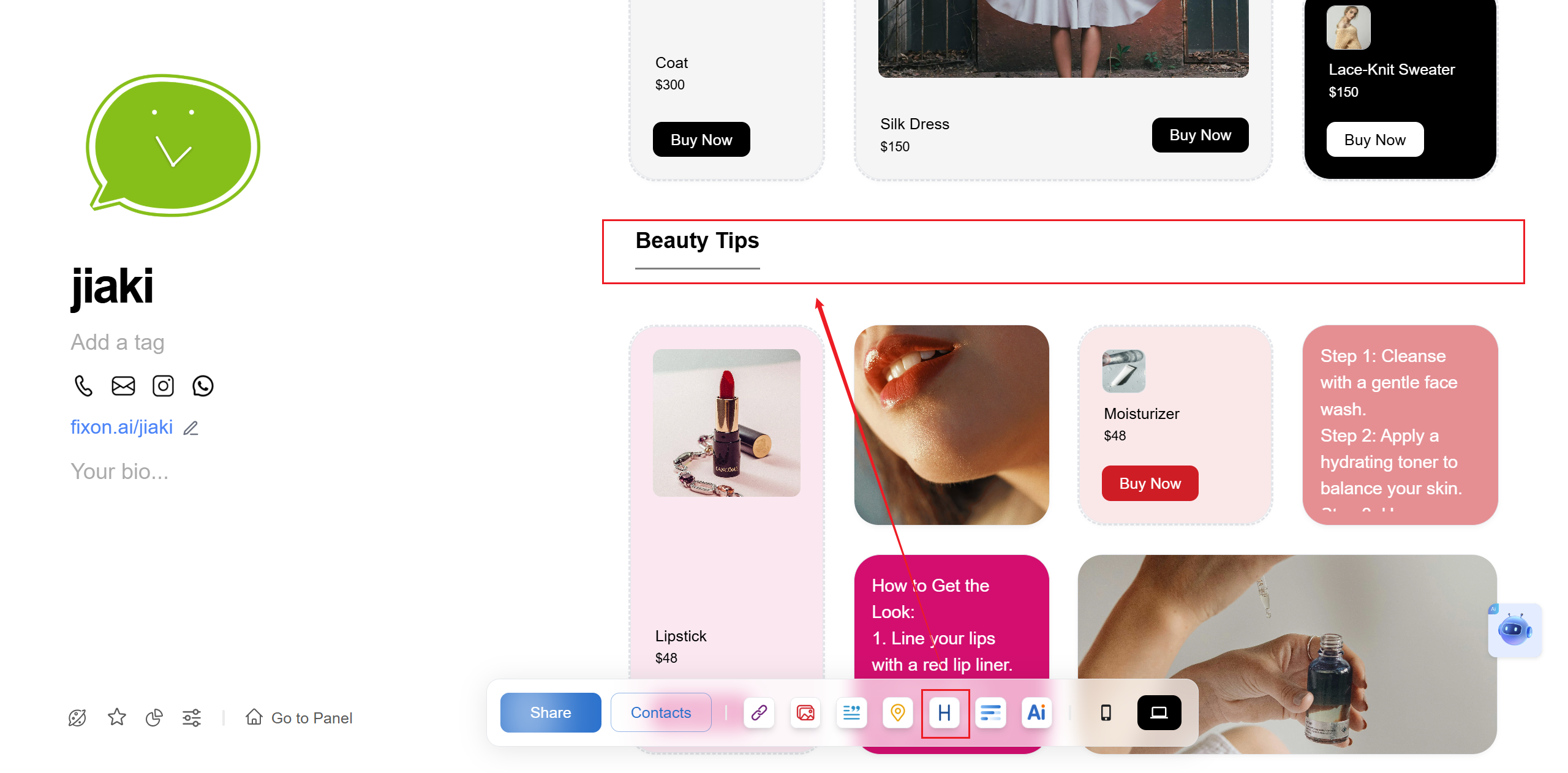
Heading
Used to separate sections, occupies a full line.
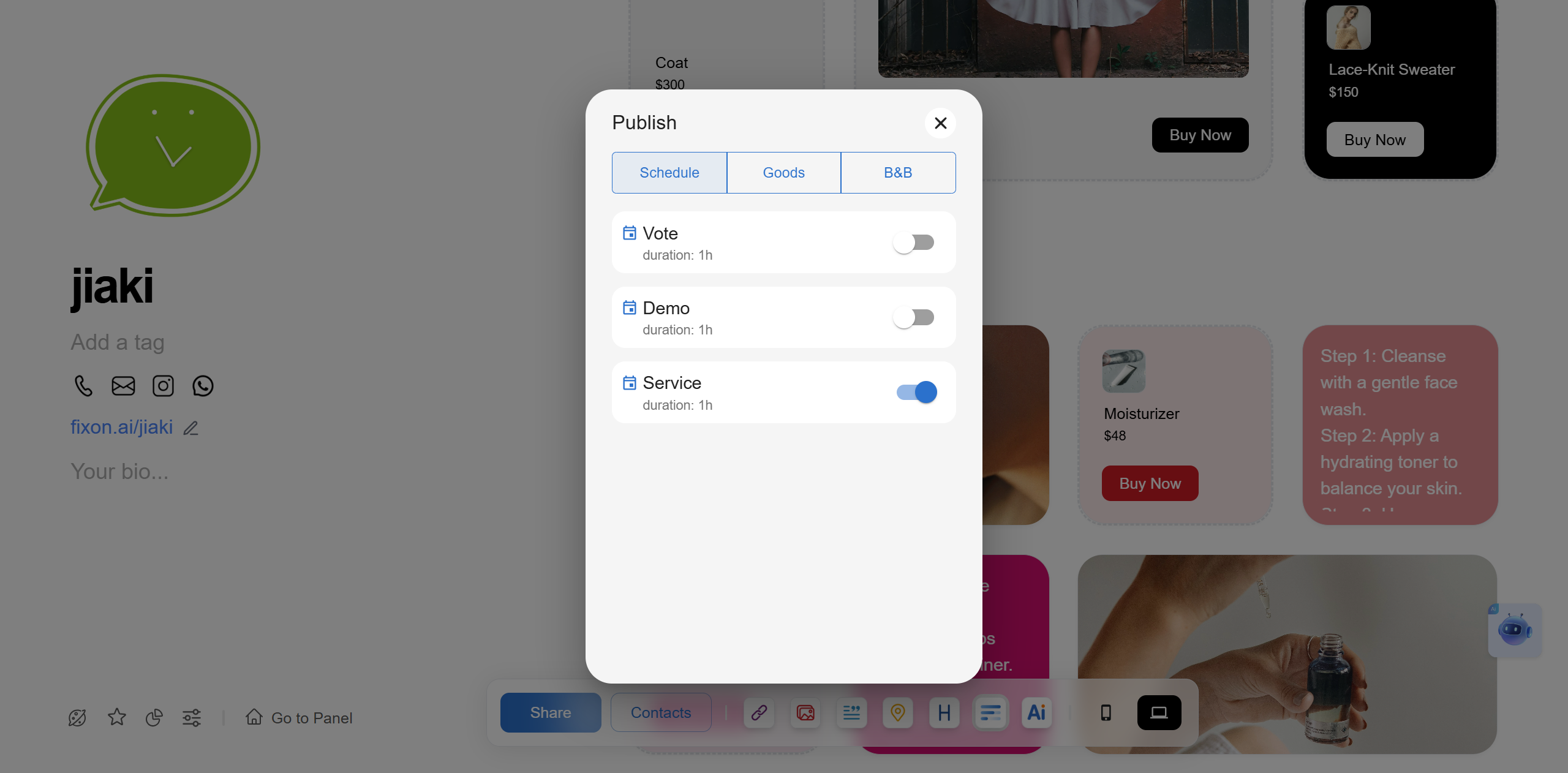
Fixon Tools
You can publish schedule, goods, B&B set in Fixonc directly onto the homepage via toggle switches. Edits in the tool will update automatically.
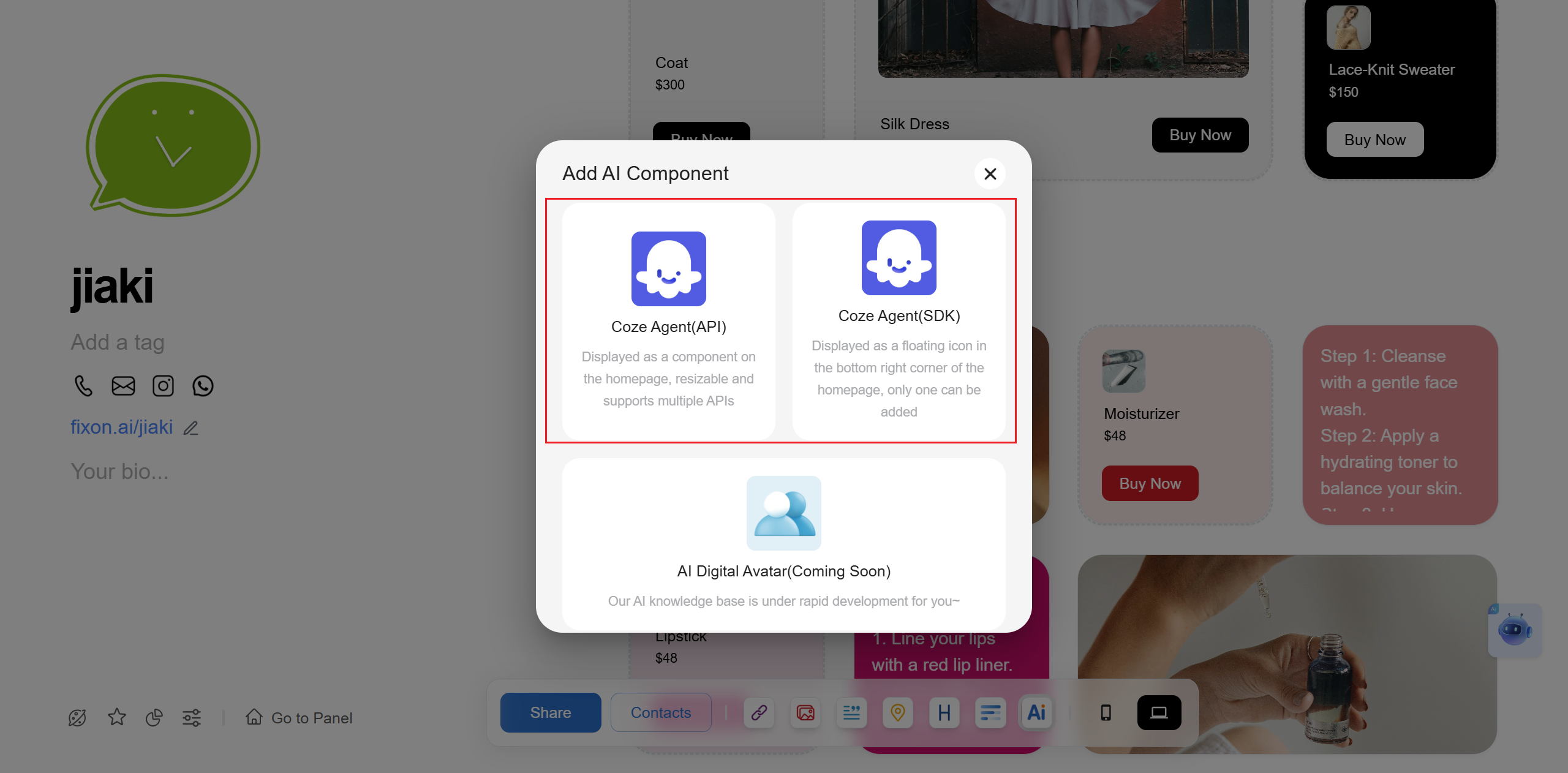
AI Agent
An intelligent agent connected with coze. For setup, see “How to activate your AI agent in Fixon.” Both SDK and API are added similarly (SDK shows at page bottom-right; API is a page component, movable and stylable like photo albums or links).
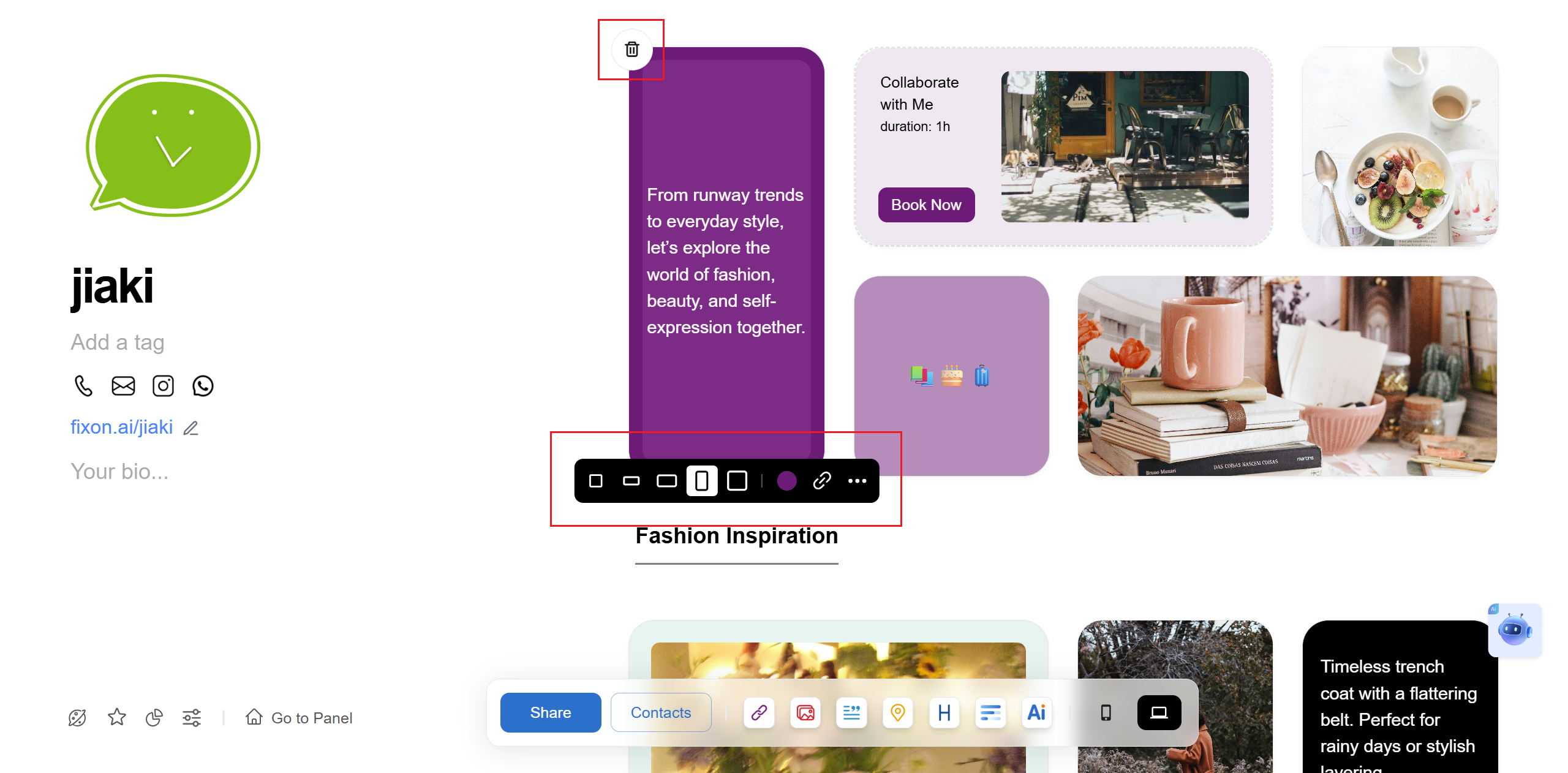
Basic Operation Logic in Display Area
Each card can be deleted, moved, and have its style changed
text
links
Single images
Multiple images
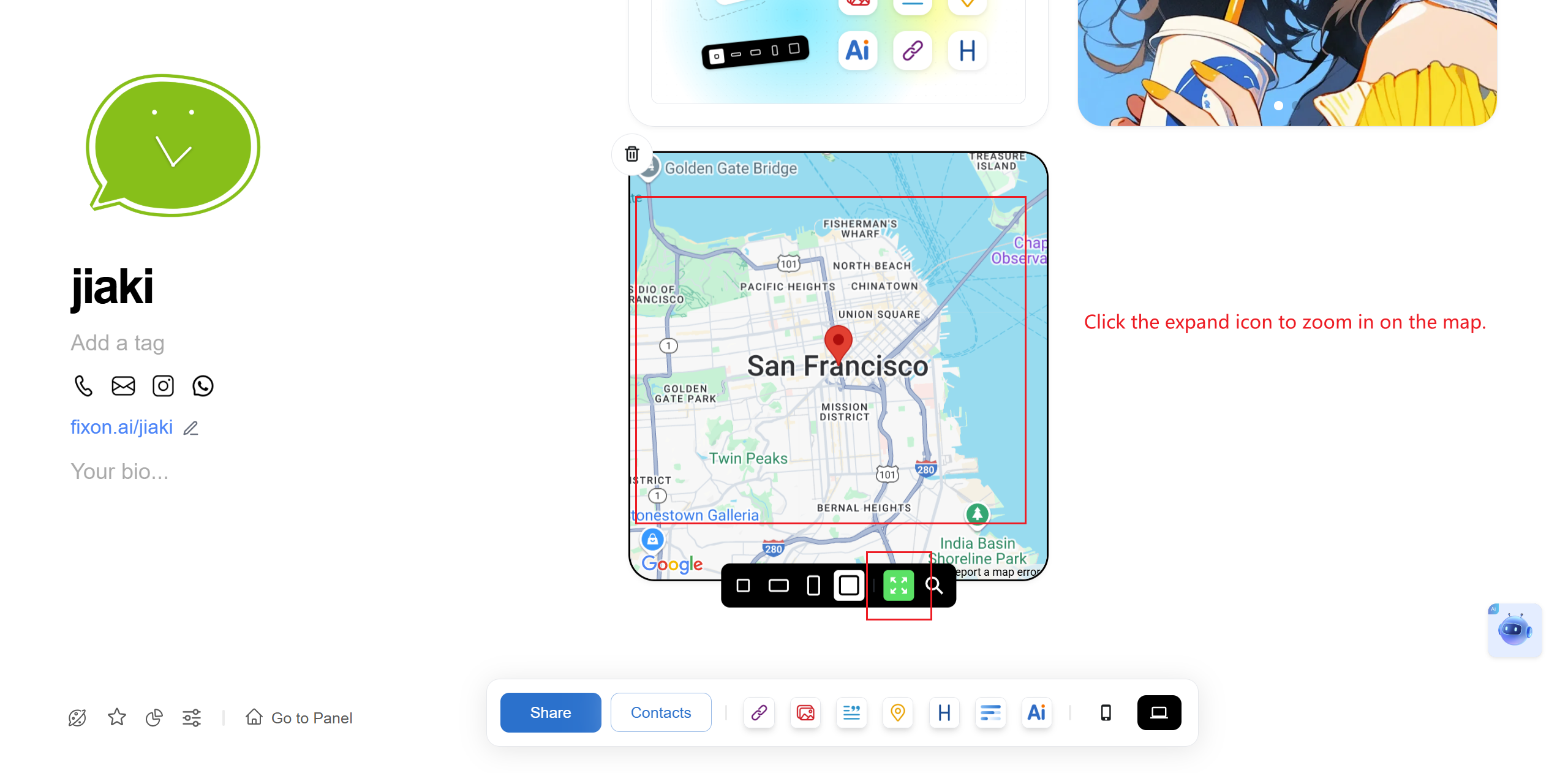
map
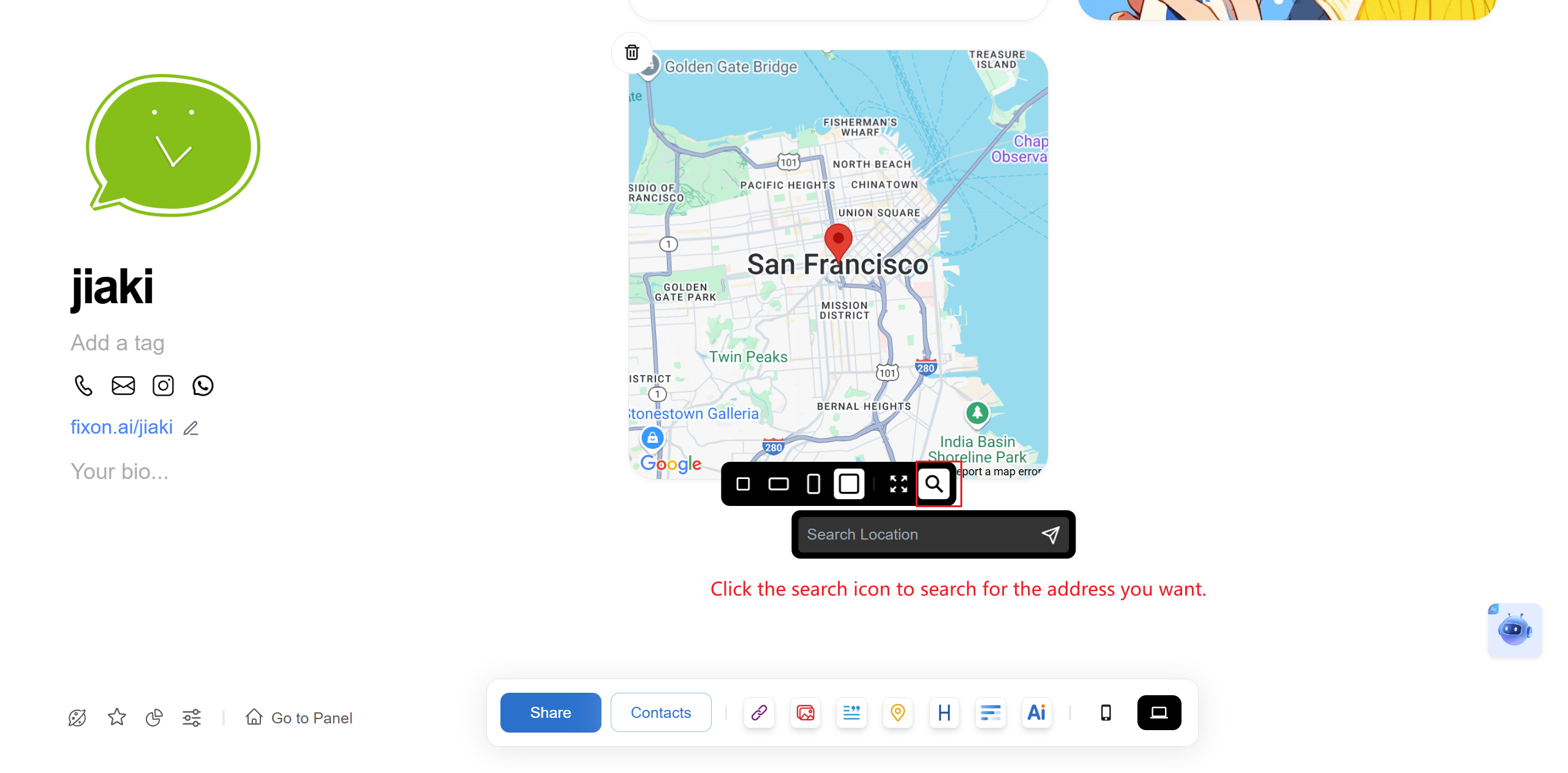
How to Edit Mobile and PC Pages?
On PC, drag card edges with the mouse to edit.
On mobile, long-press the card to edit.
Directly switch through this button to complete the editing on the computer side for both mobile and computer versions.
On mobile, switch to landscape mode to edit the PC interface.
If you have any questions, feel free to contact customer service.