Templates are designed to help you quickly set up your Space. After successfully applying a template, you can continue to customize your Space based on your needs. 😊😊😊
web
step1
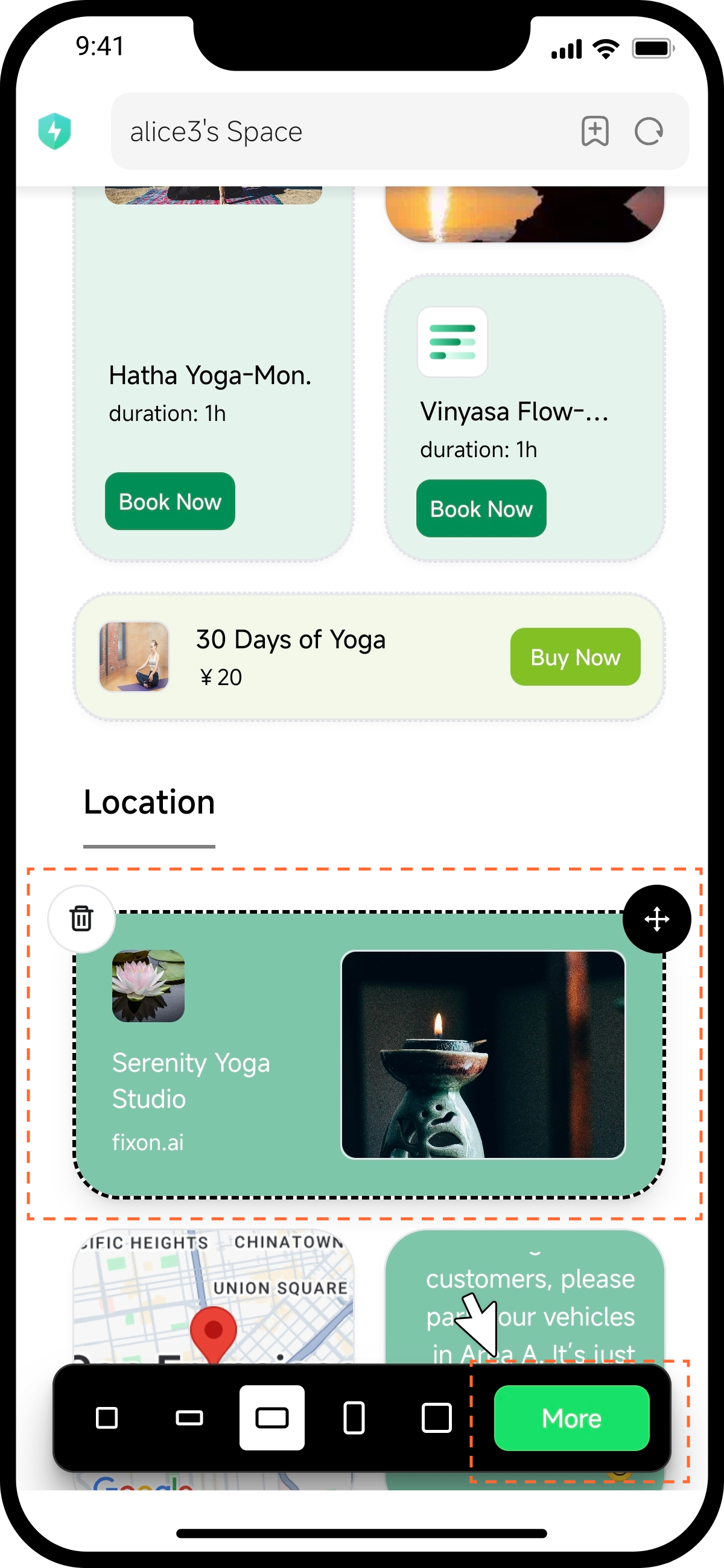
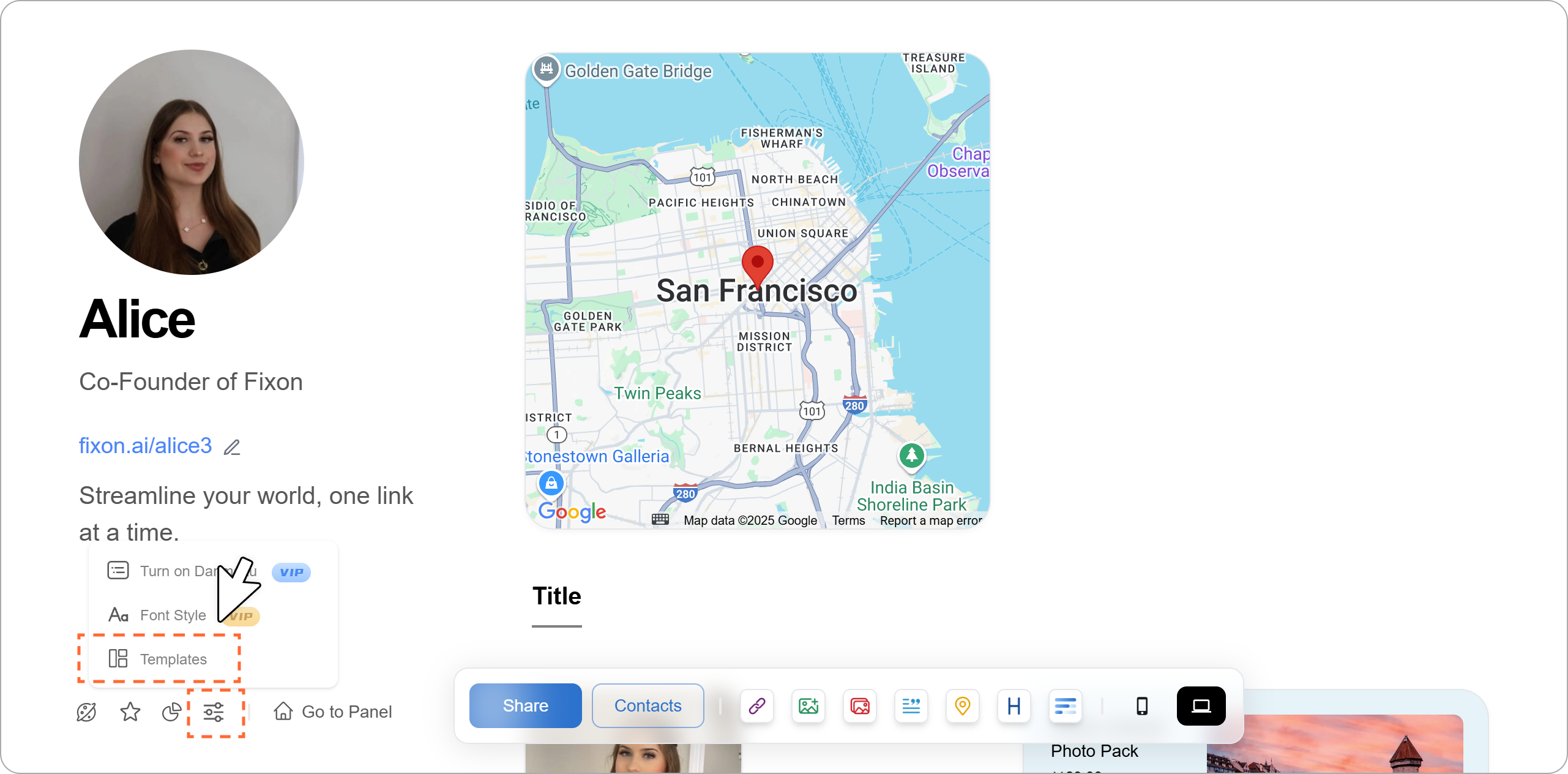
Tap the "More" icon in the bottom-left corner of your Space to access "Templates."
step2
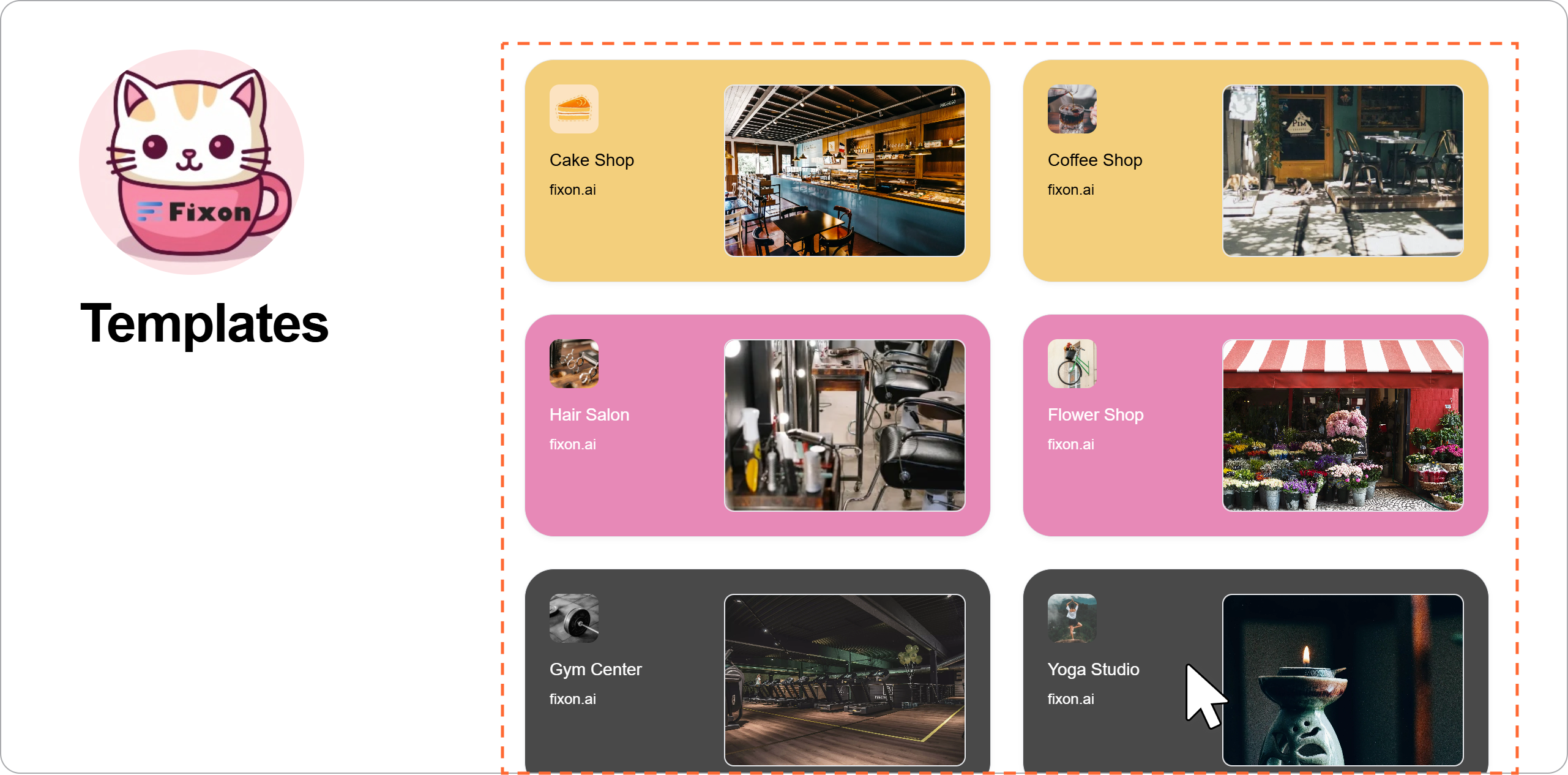
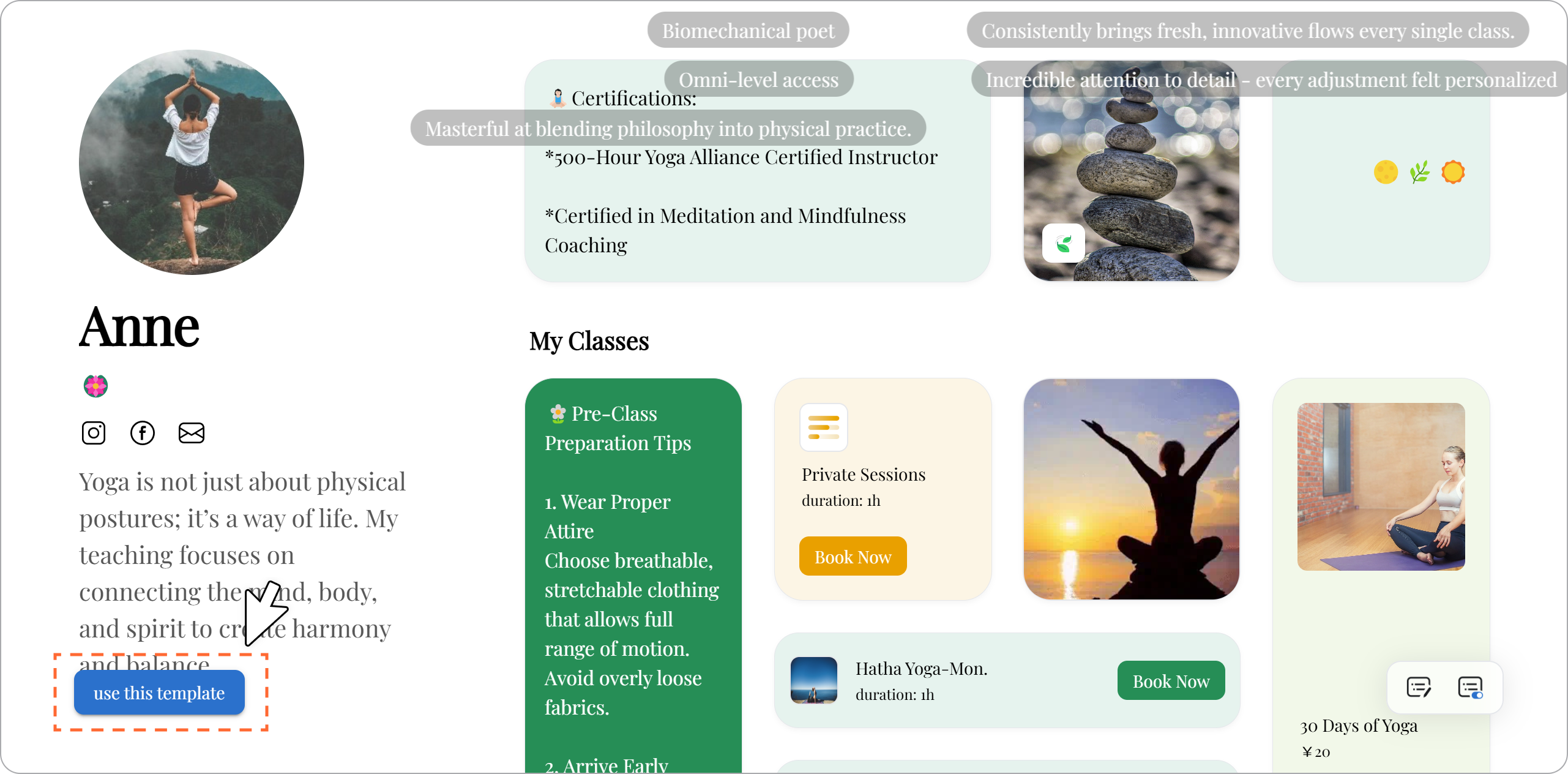
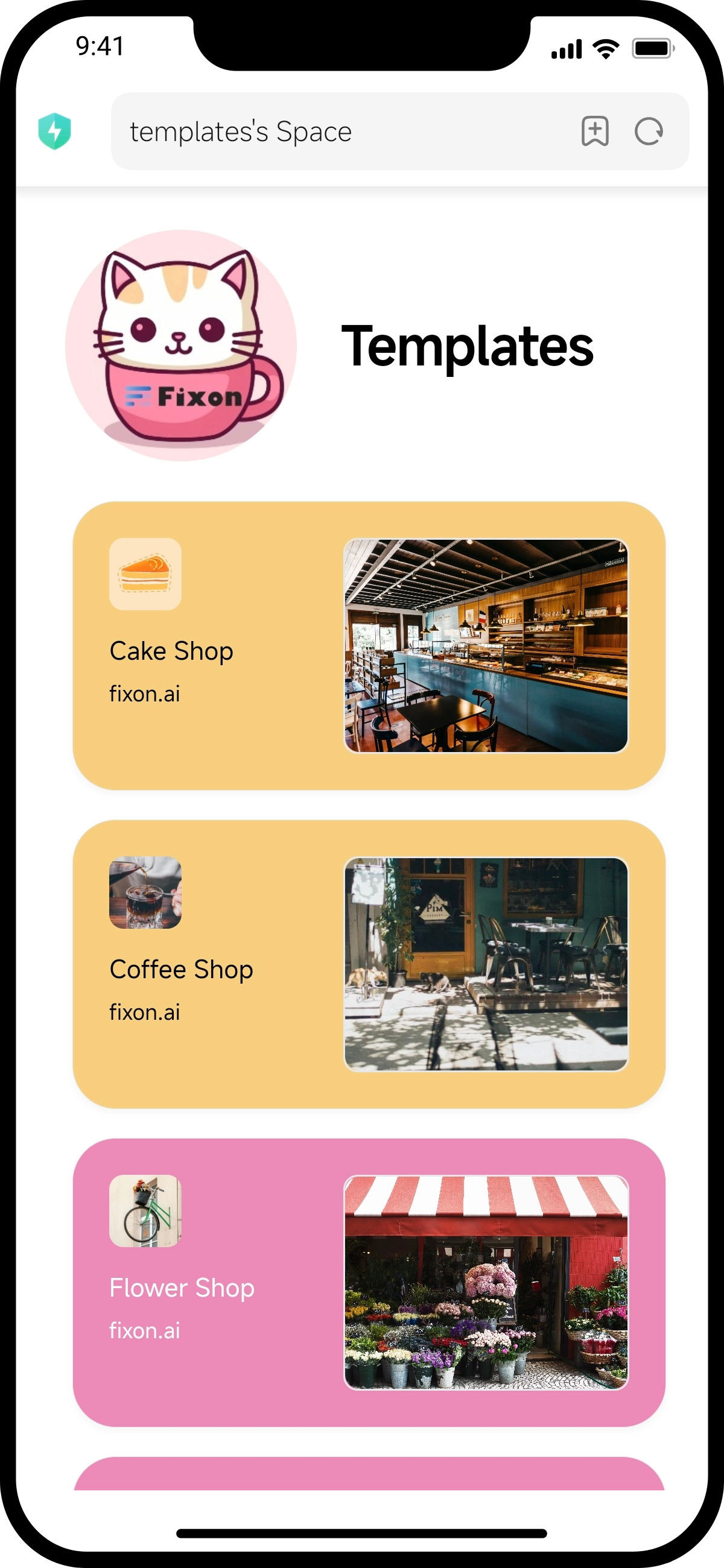
On the template selection page, choose a template you like. For example, let's use the "Yoga Studio" template.
step3
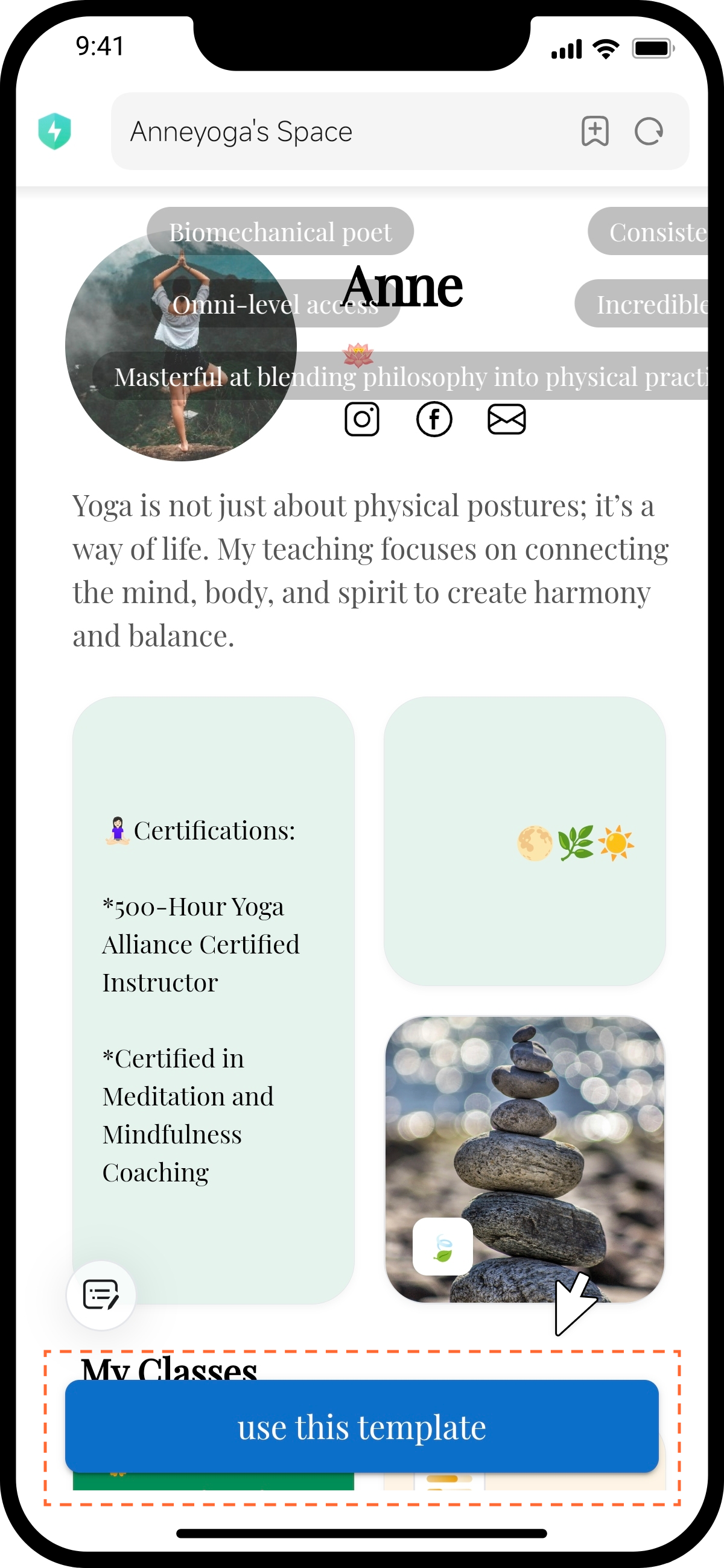
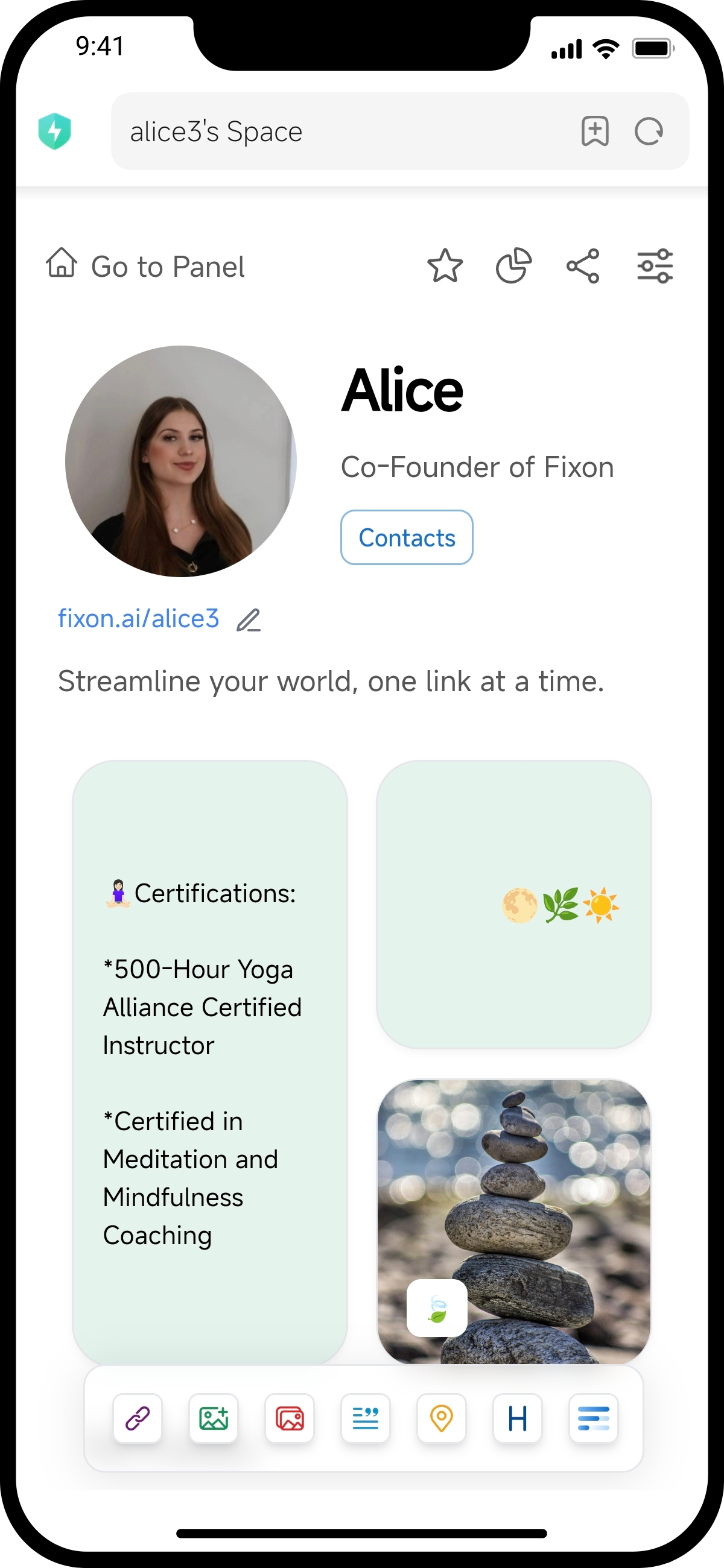
After successfully applying the template, you will be redirected to your Space.
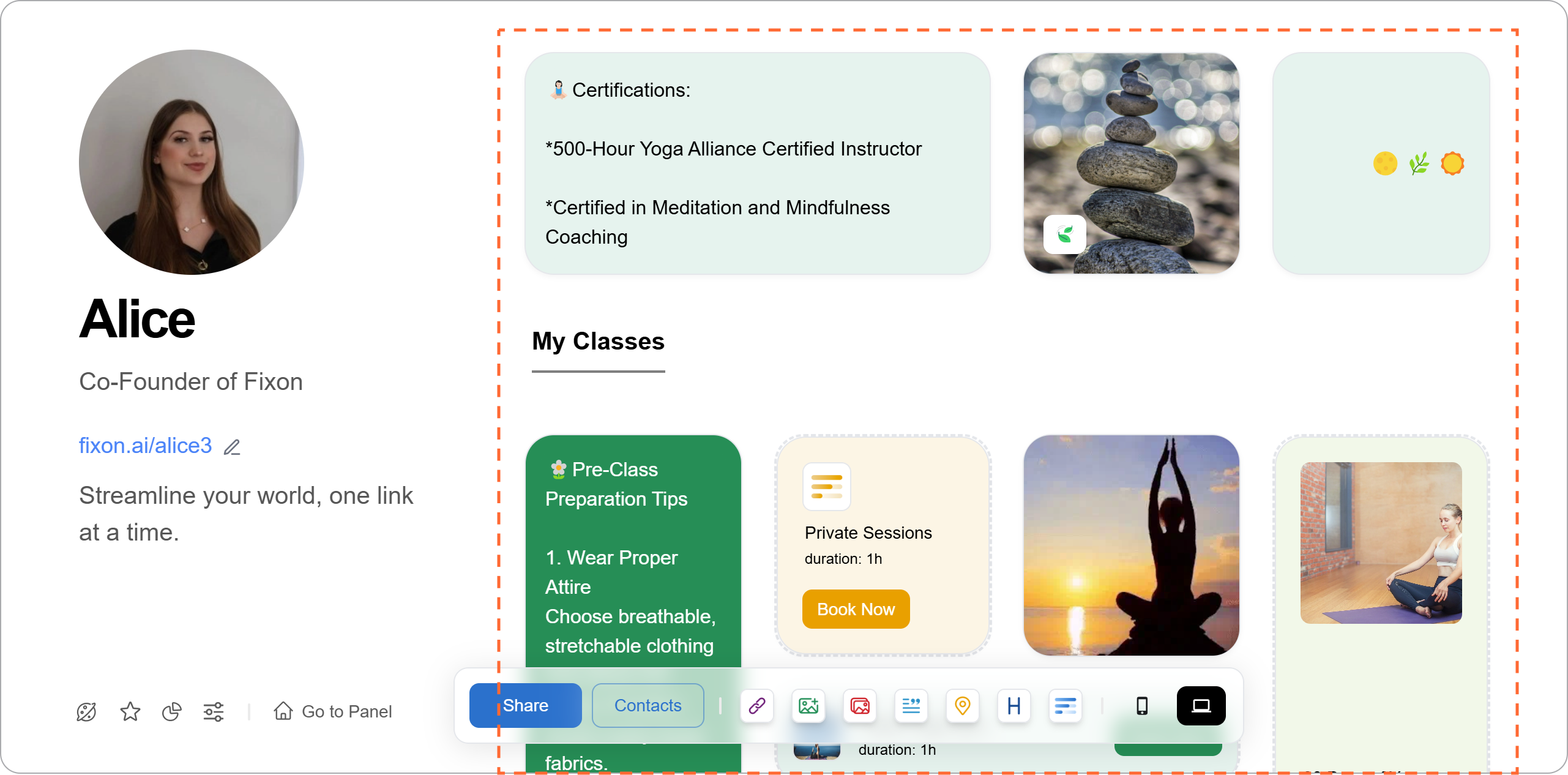
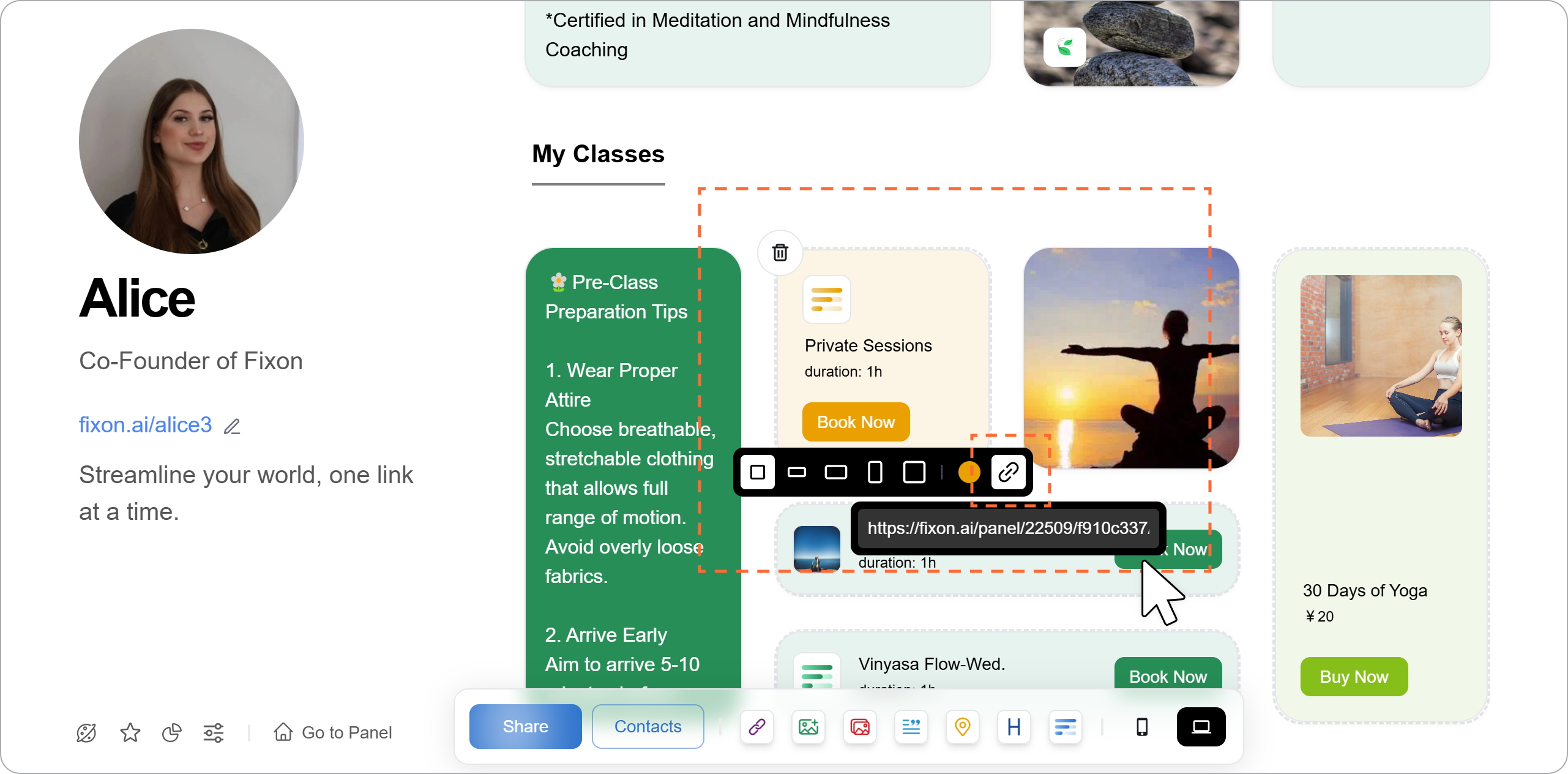
step4 Replace the "Schedule" Link in the Template
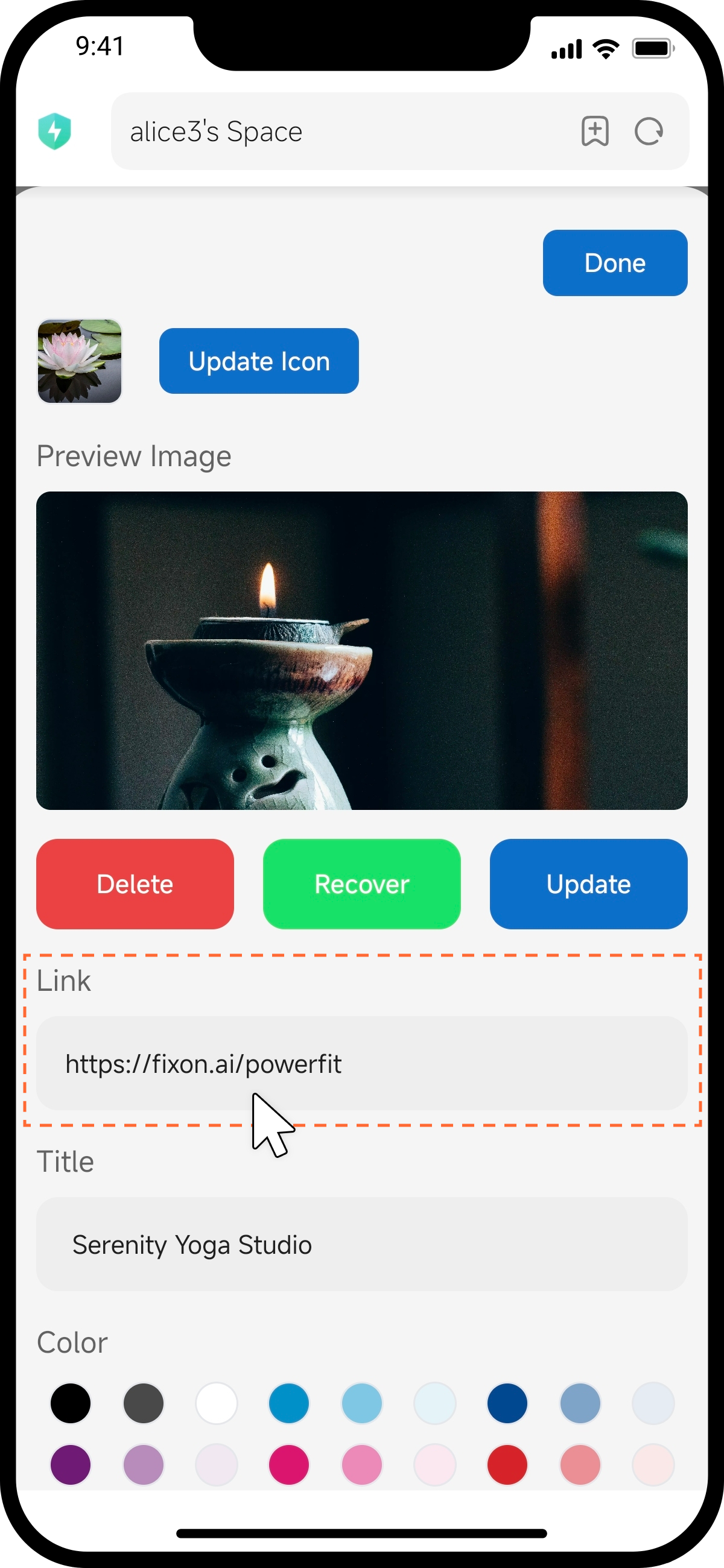
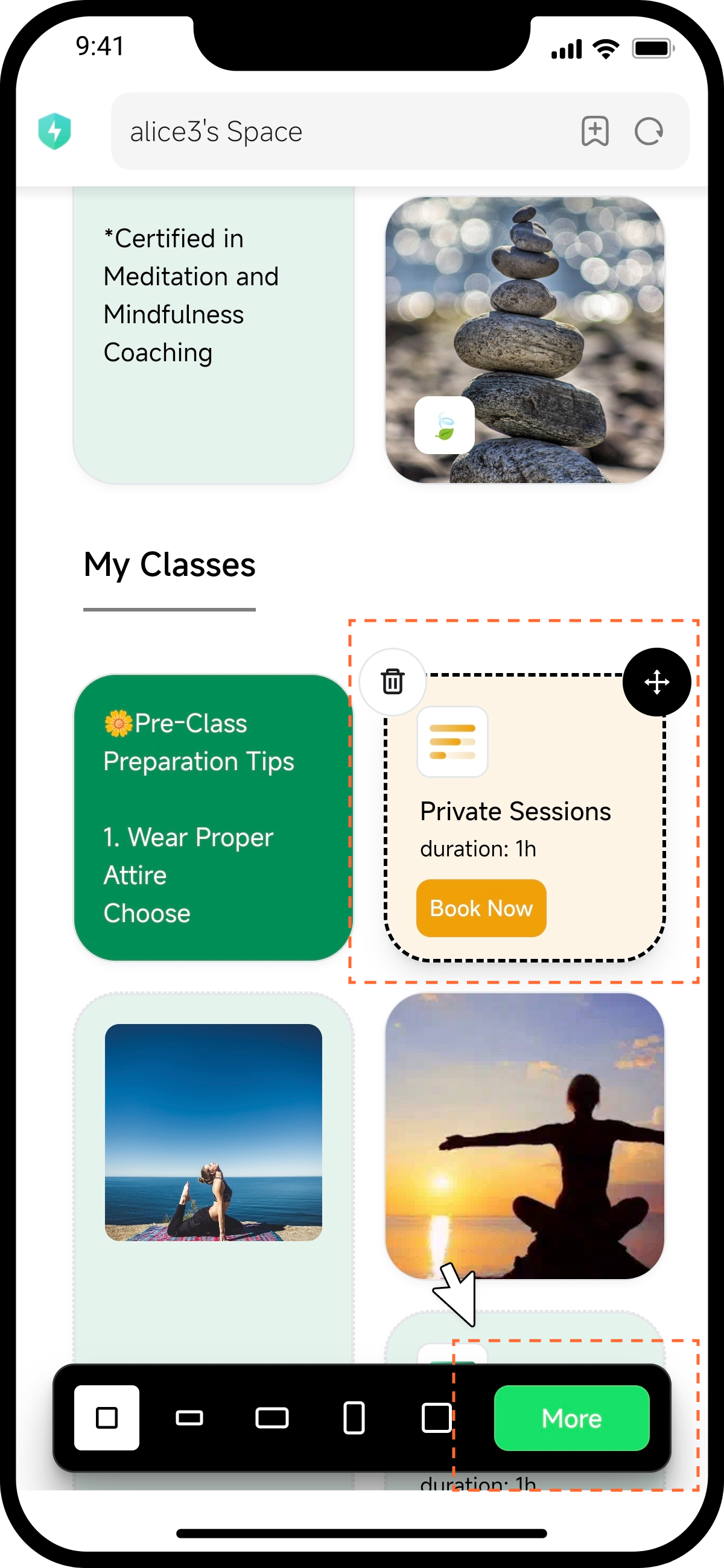
The schedule links in the template are for demonstration purposes only. You can replace them with your own schedule links by entering them in the link input field below the appointment component.
How to create an appointment? Click here to view the tutorial.
step5 Replace the "Good" Link in the Template
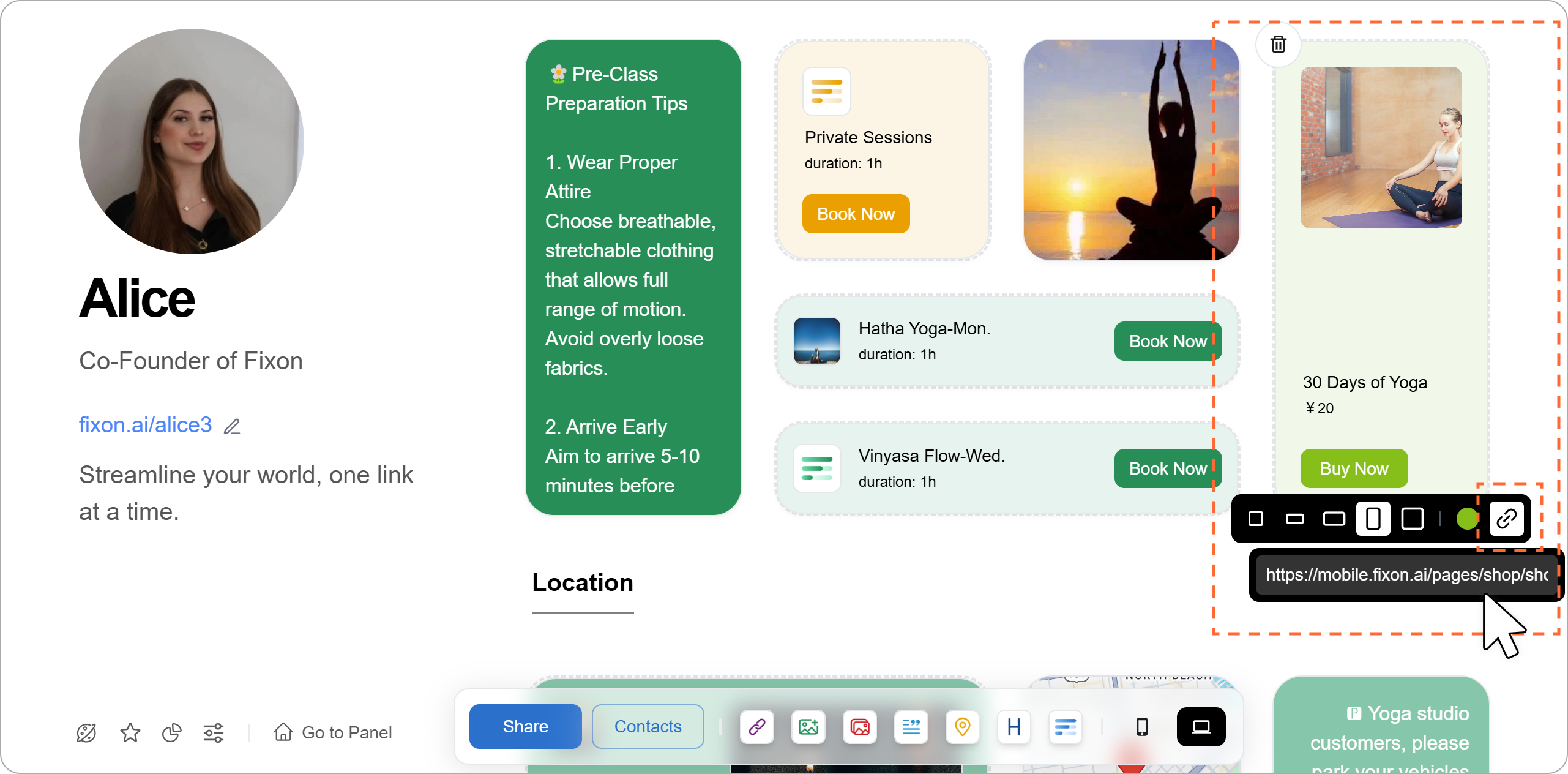
The good links in the template are for demonstration purposes only. You can replace them with your own good links by entering them in the link input field below the product component.
How to create a product? Click here to view the tutorial.
step6 Replace Links in the Template
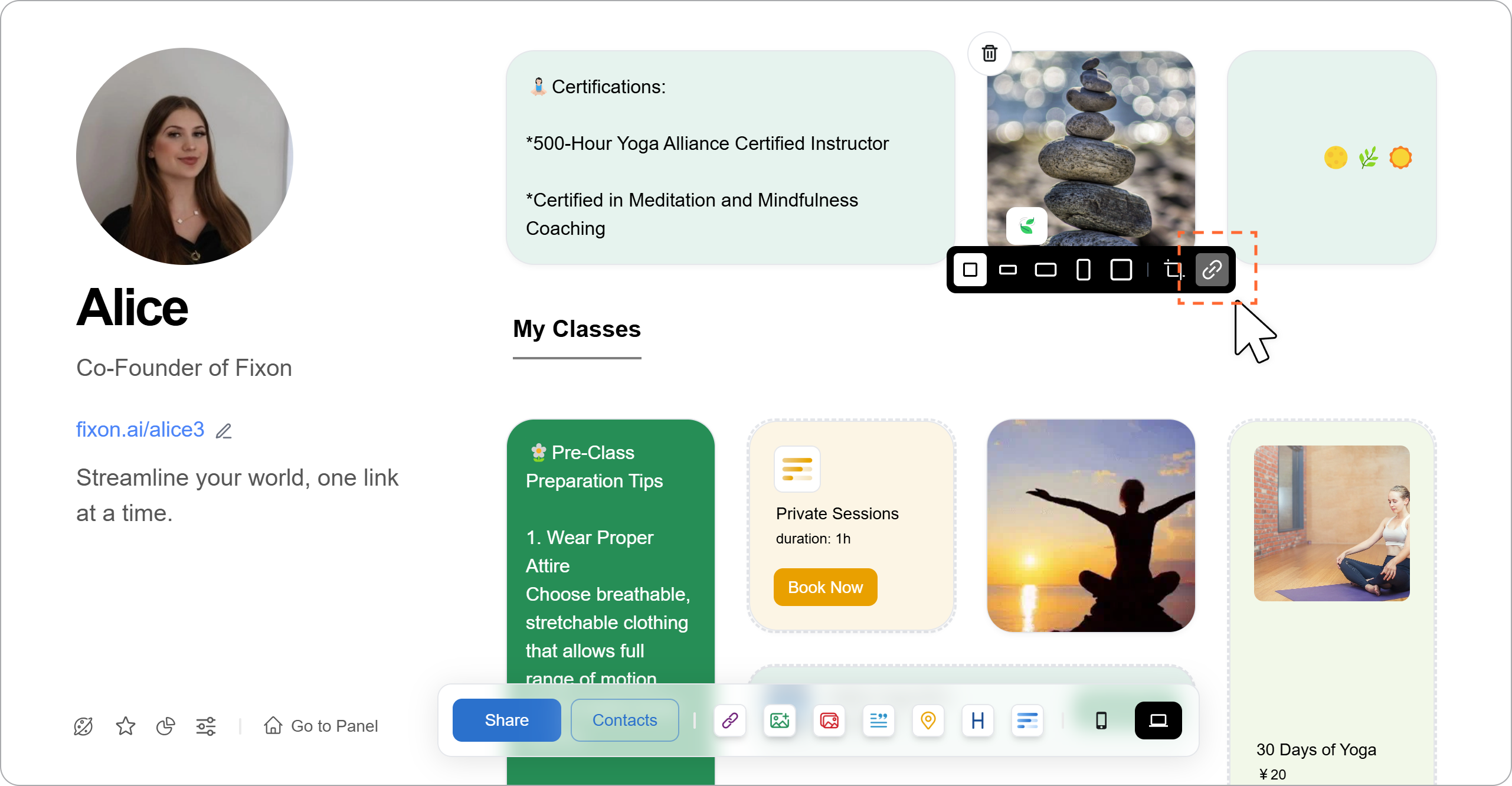
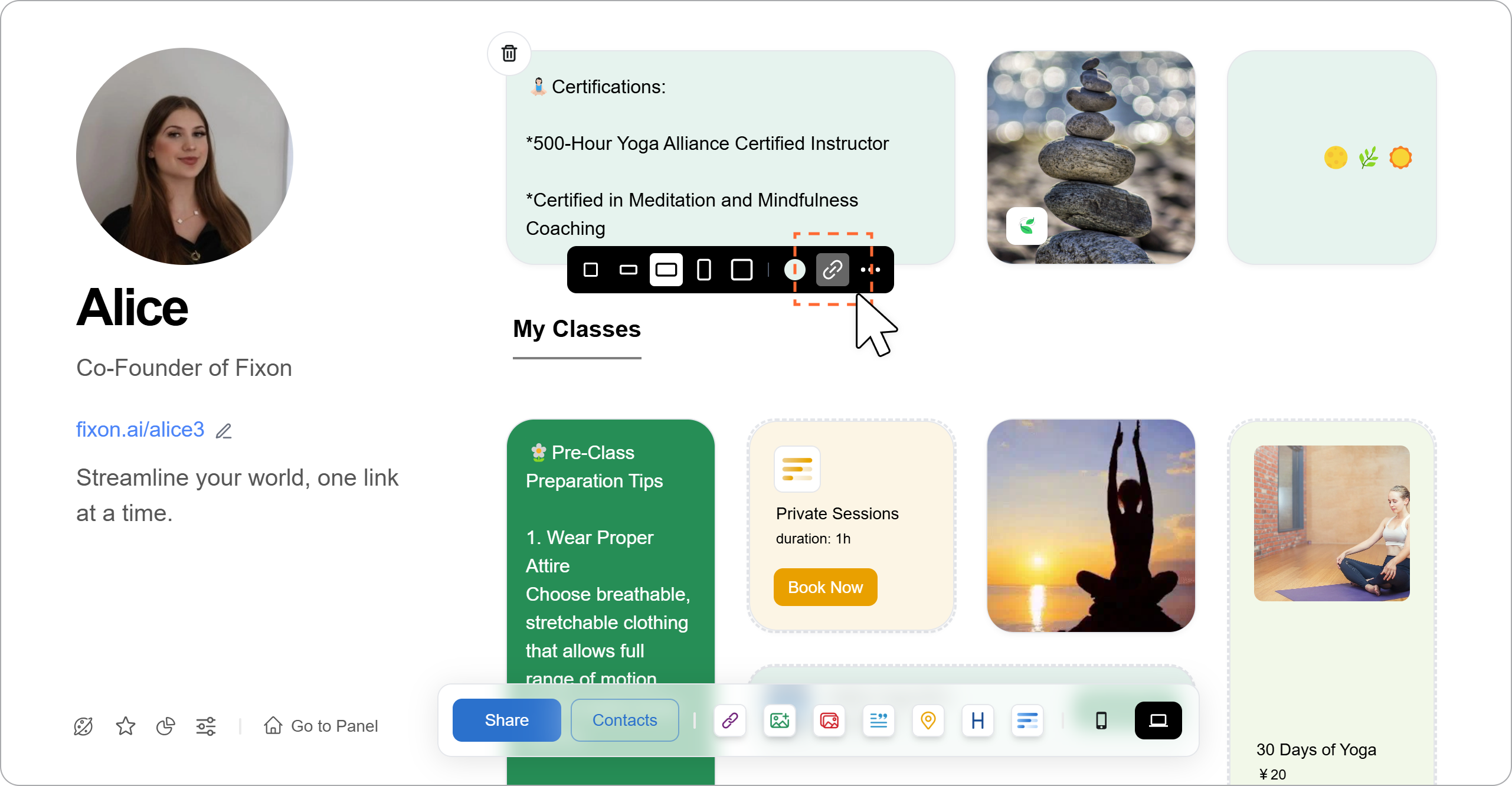
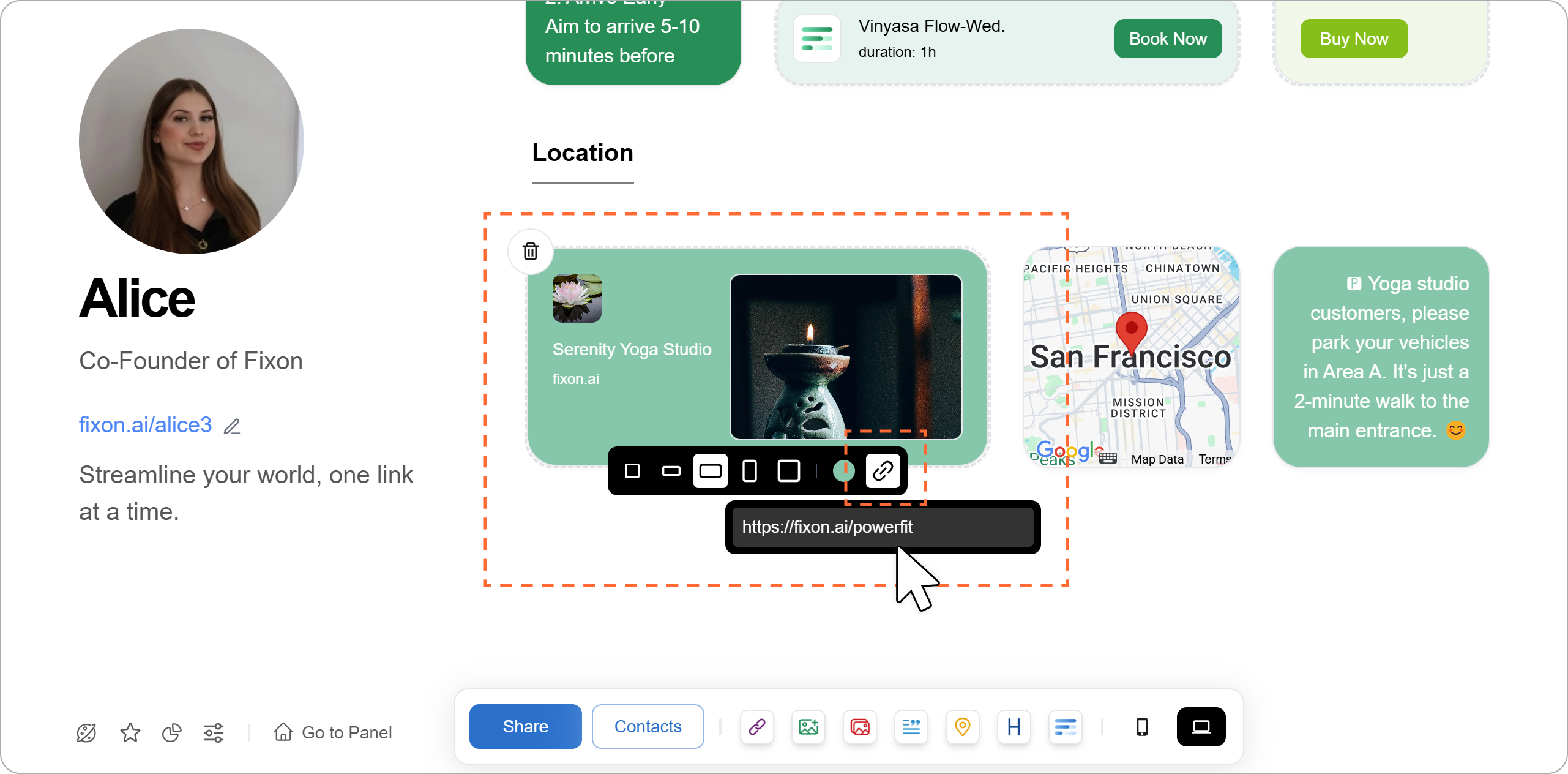
The images, notes, and links inserted in the template are for demonstration purposes only. You can replace them with your own links by entering them in the link input field below the corresponding component.
Some images and notes do not contain links. You can add or remove links as needed.
Image Link Replacement Entry
Text Link Replacement Entry
Link Replacement Entry
phone
step1
Tap the "More" icon in the bottom-left corner of your Space to access "Templates."
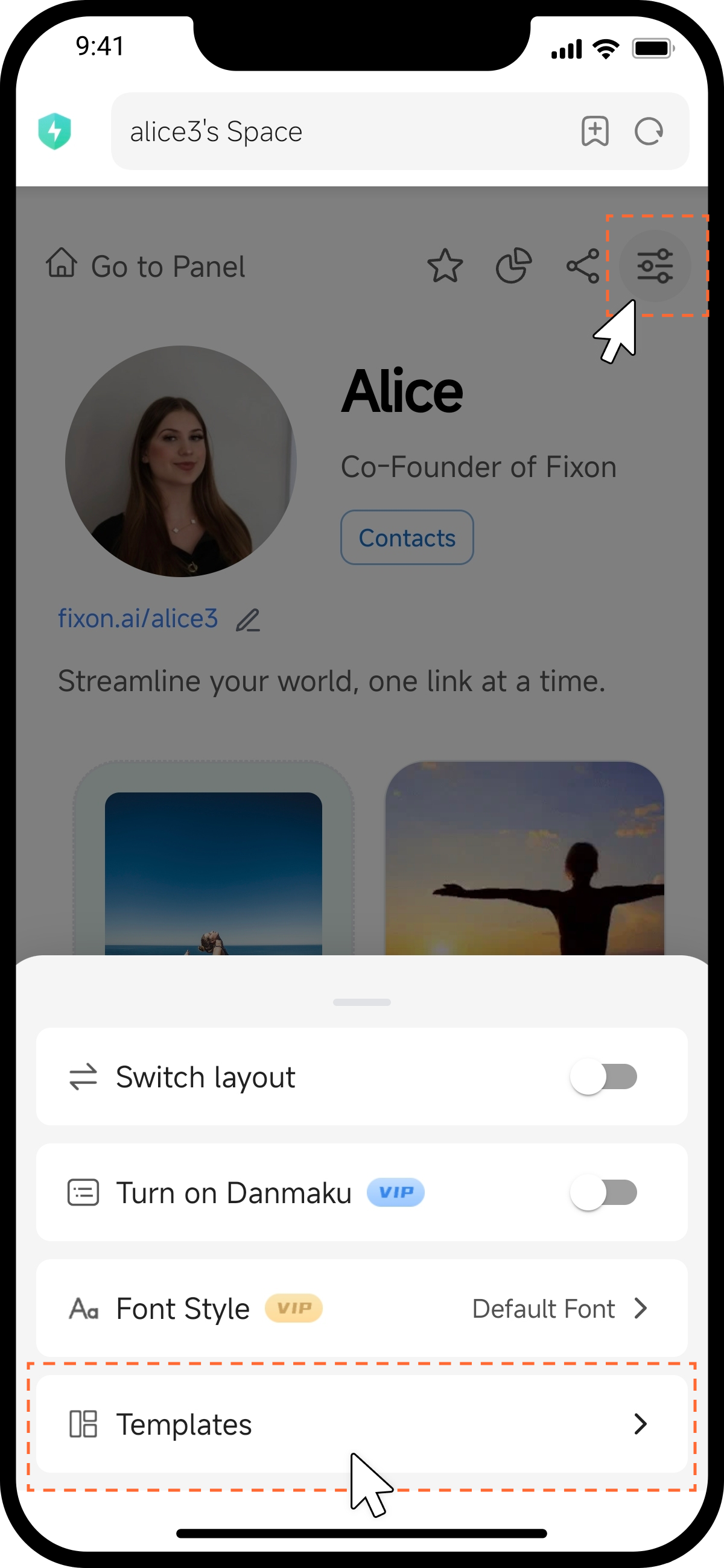
step2
On the template selection page, choose a template you like. For example, let's use the "Yoga Studio" template.
step3
After successfully applying the template, you will be redirected to your Space.
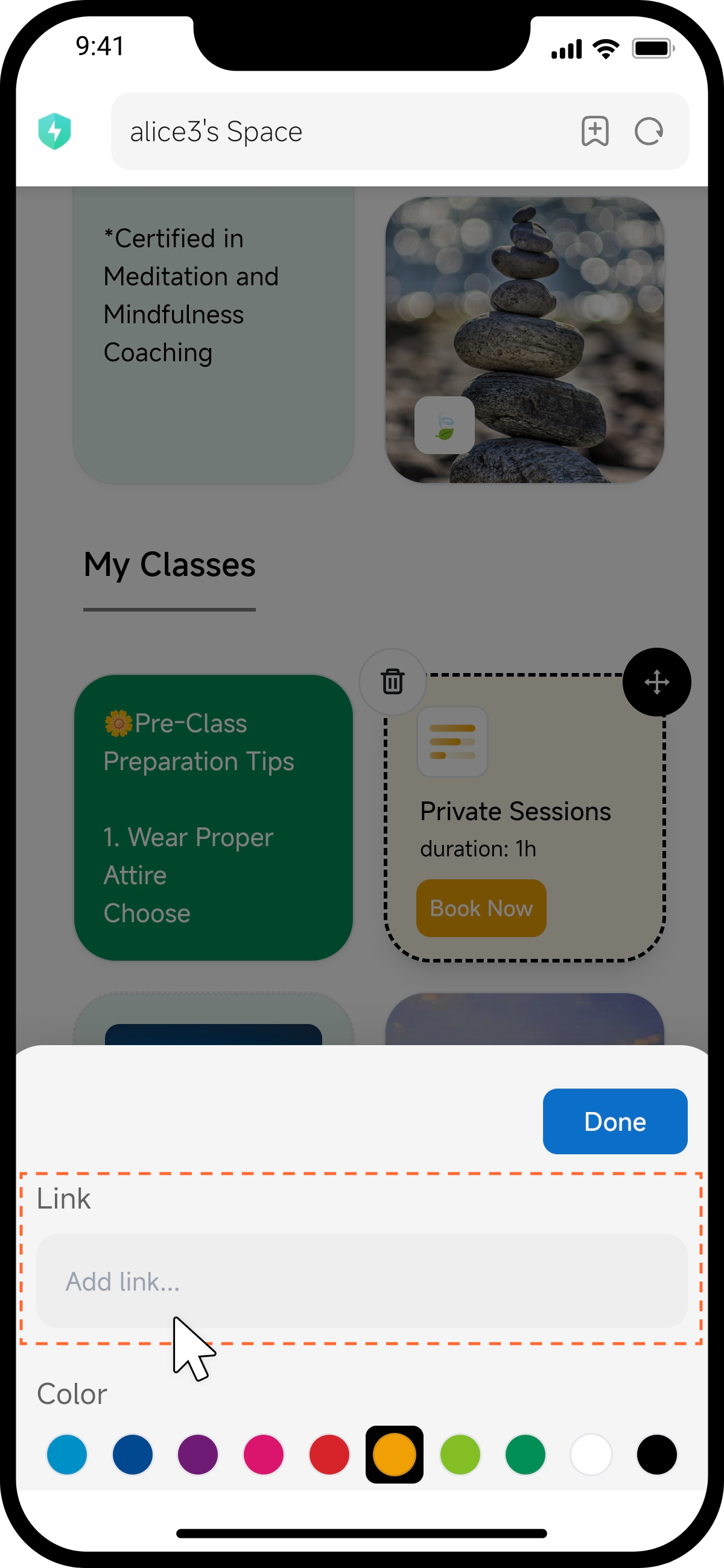
step4 Replace the "Schedule" Link in the Template
The schedule links in the template are for demonstration purposes only. You can replace them with your own schedule links by entering them in the link input field below the appointment component.
How to create an appointment? Click here to view the tutorial.
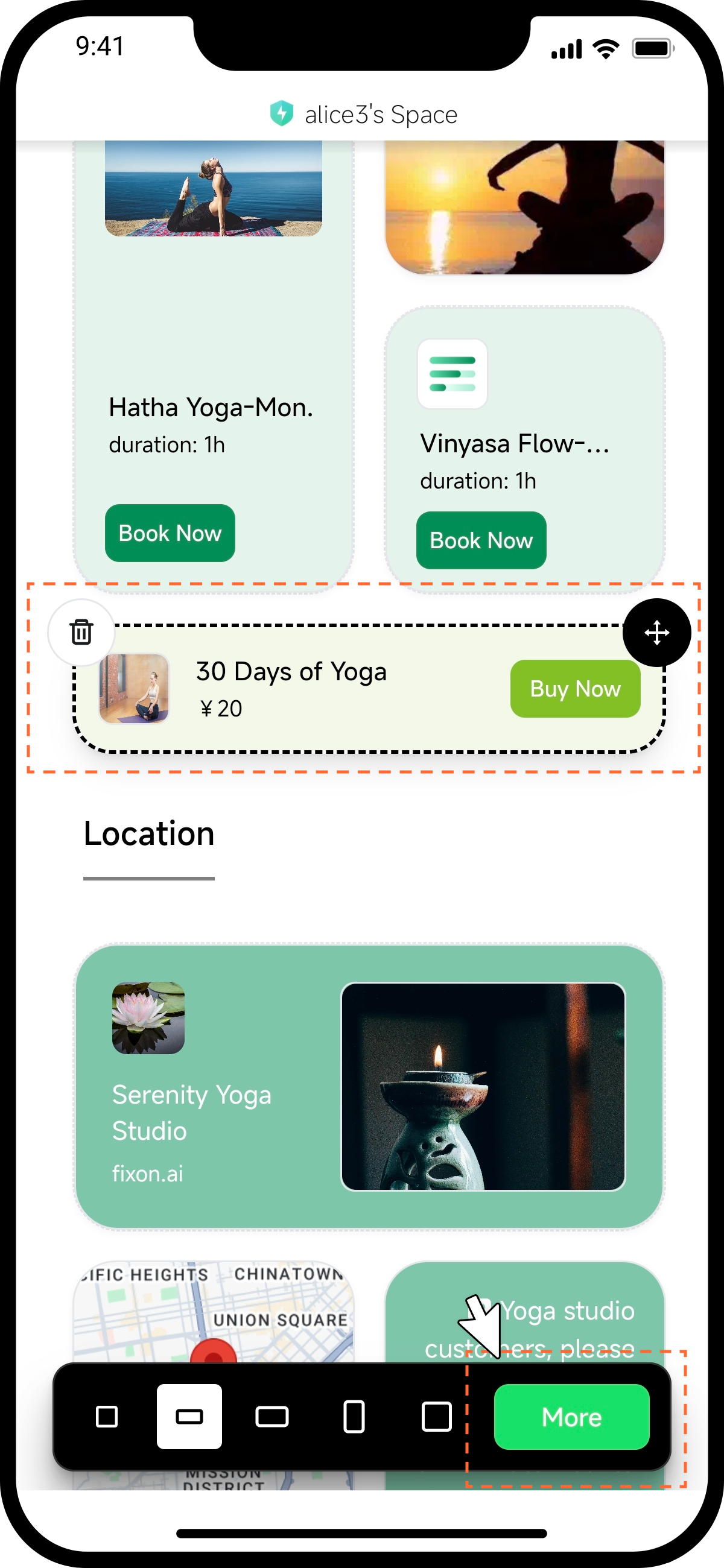
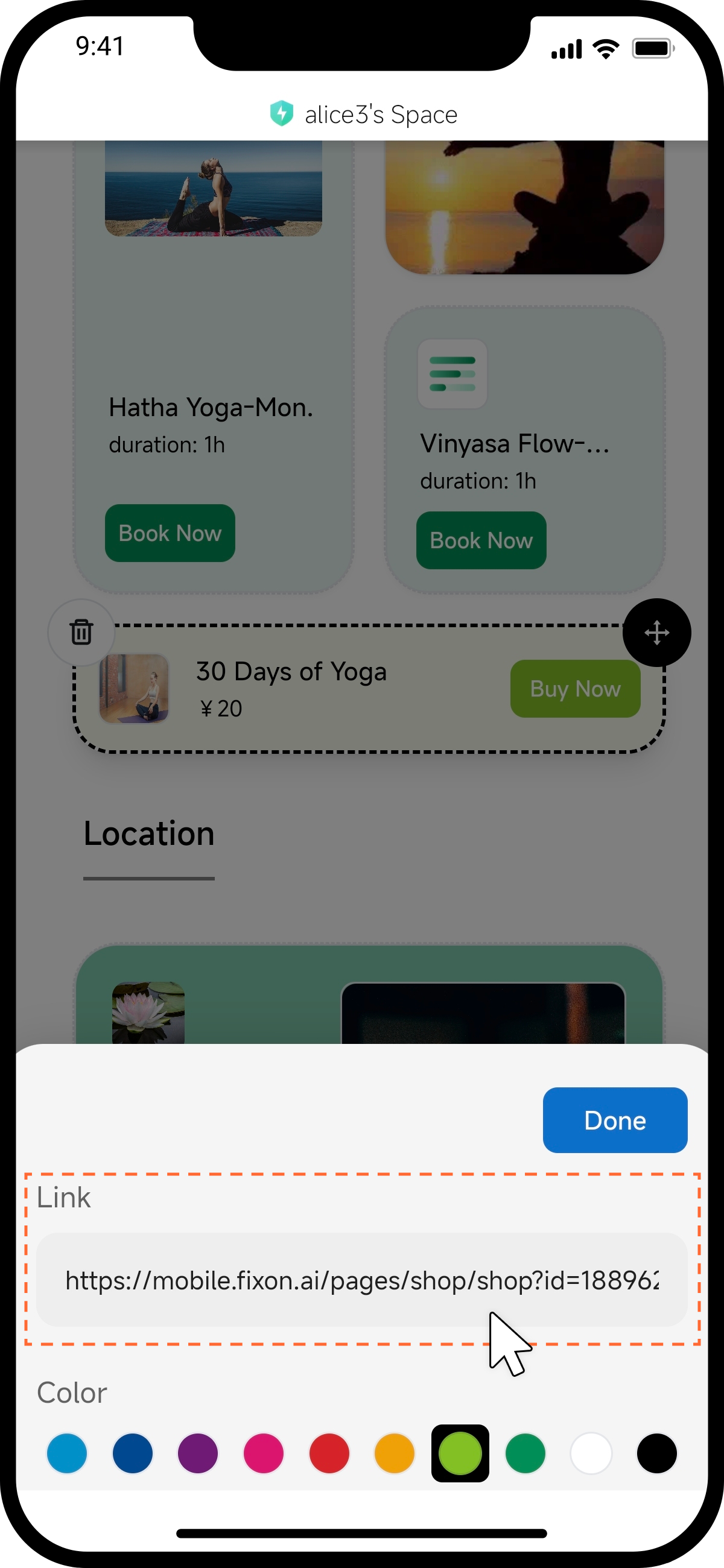
step5 Replace the "Good" Link in the Template
The good links in the template are for demonstration purposes only. You can replace them with your own good links by entering them in the link input field below the product component.
How to create a product? Click here to view the tutorial.
step6 Replace Links in the Template
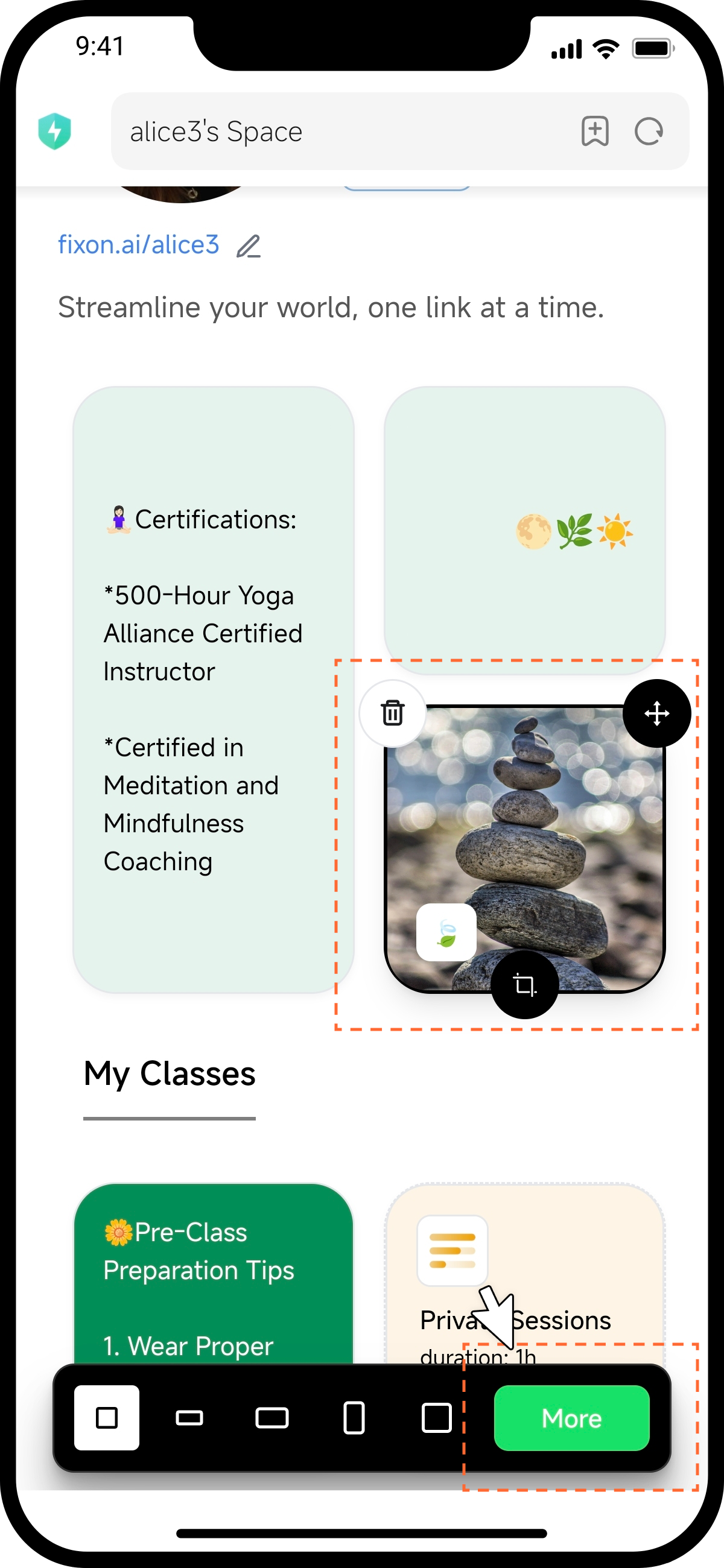
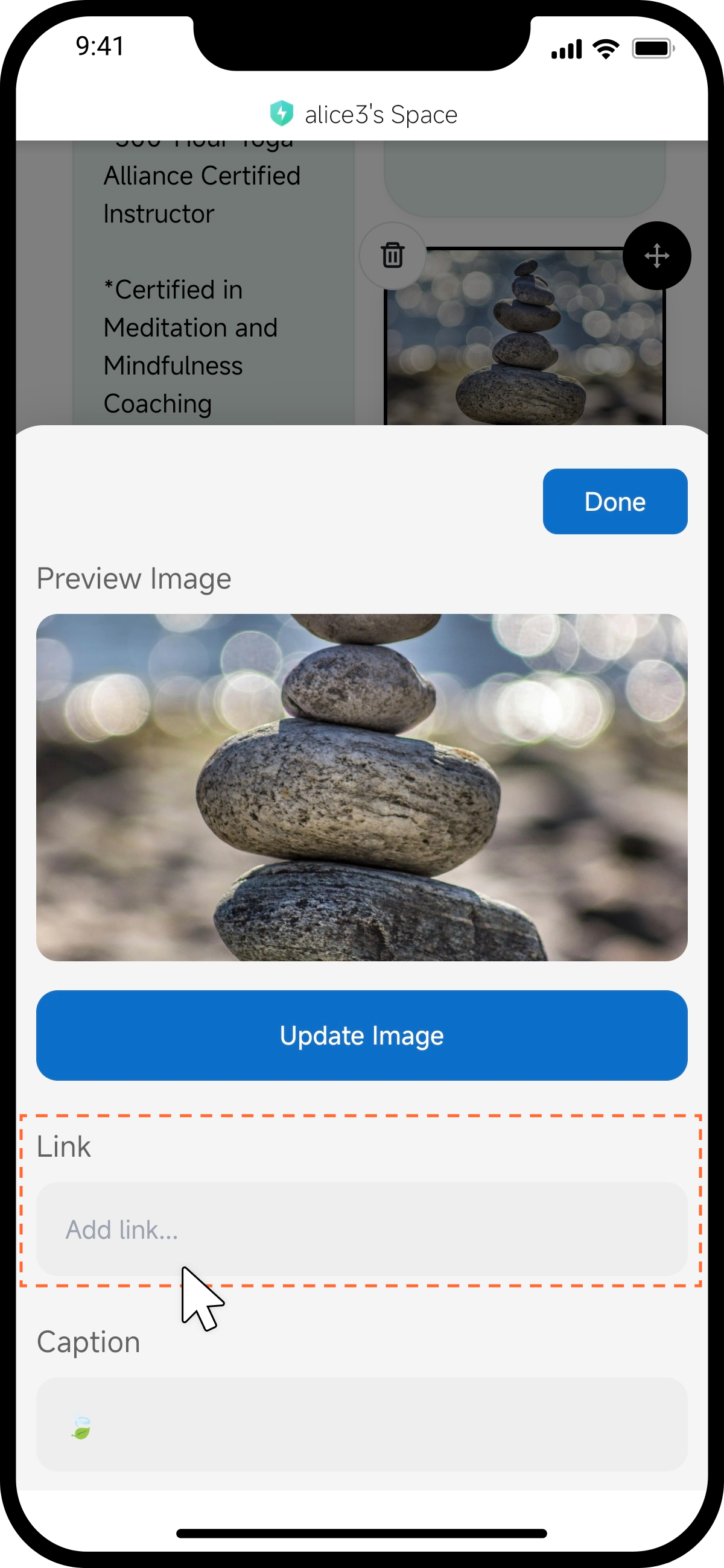
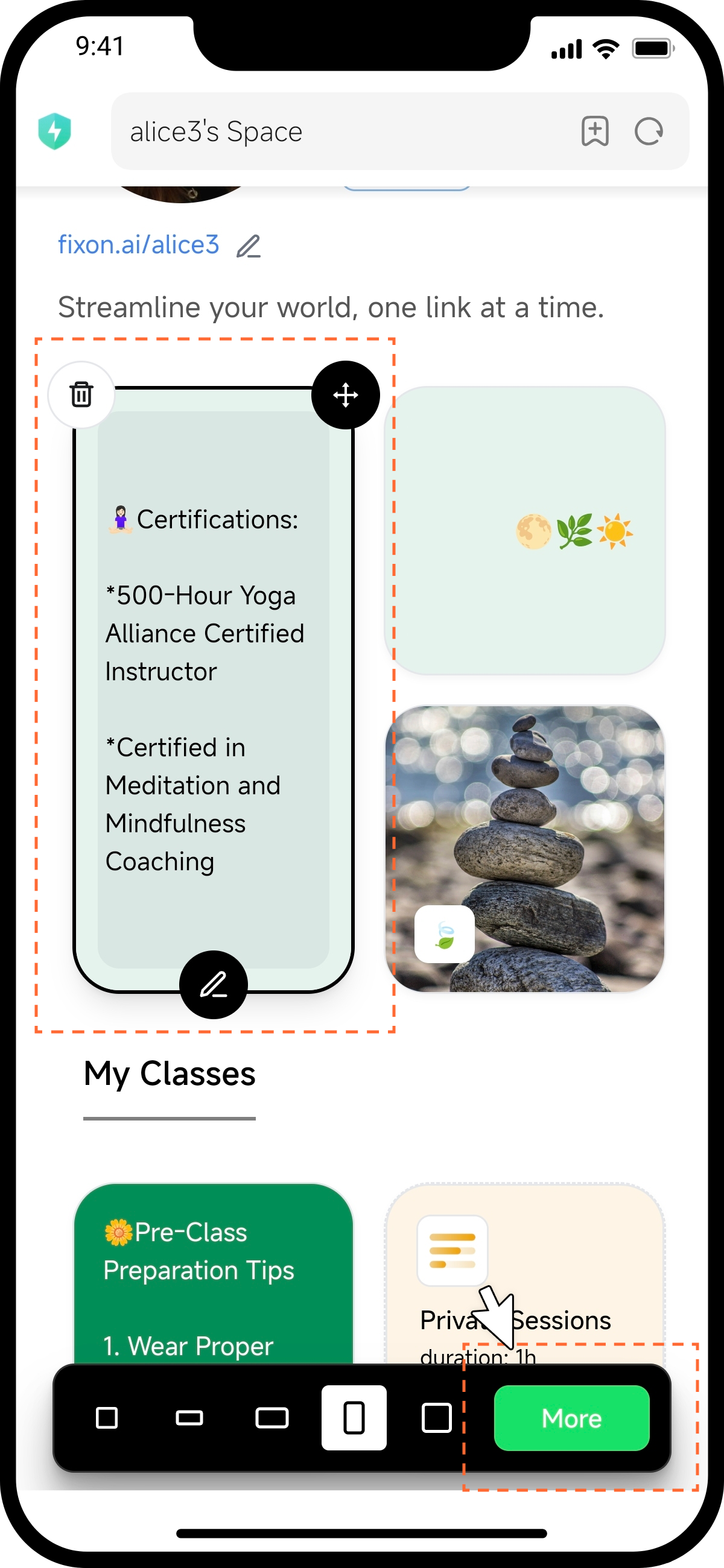
The images, notes, and links inserted in the template are for demonstration purposes only. You can replace them with your own links by entering them in the link input field below the corresponding component.
Some images and notes do not contain links. You can add or remove links as needed.
Image Link Replacement Entry
Note Link Replacement Entry
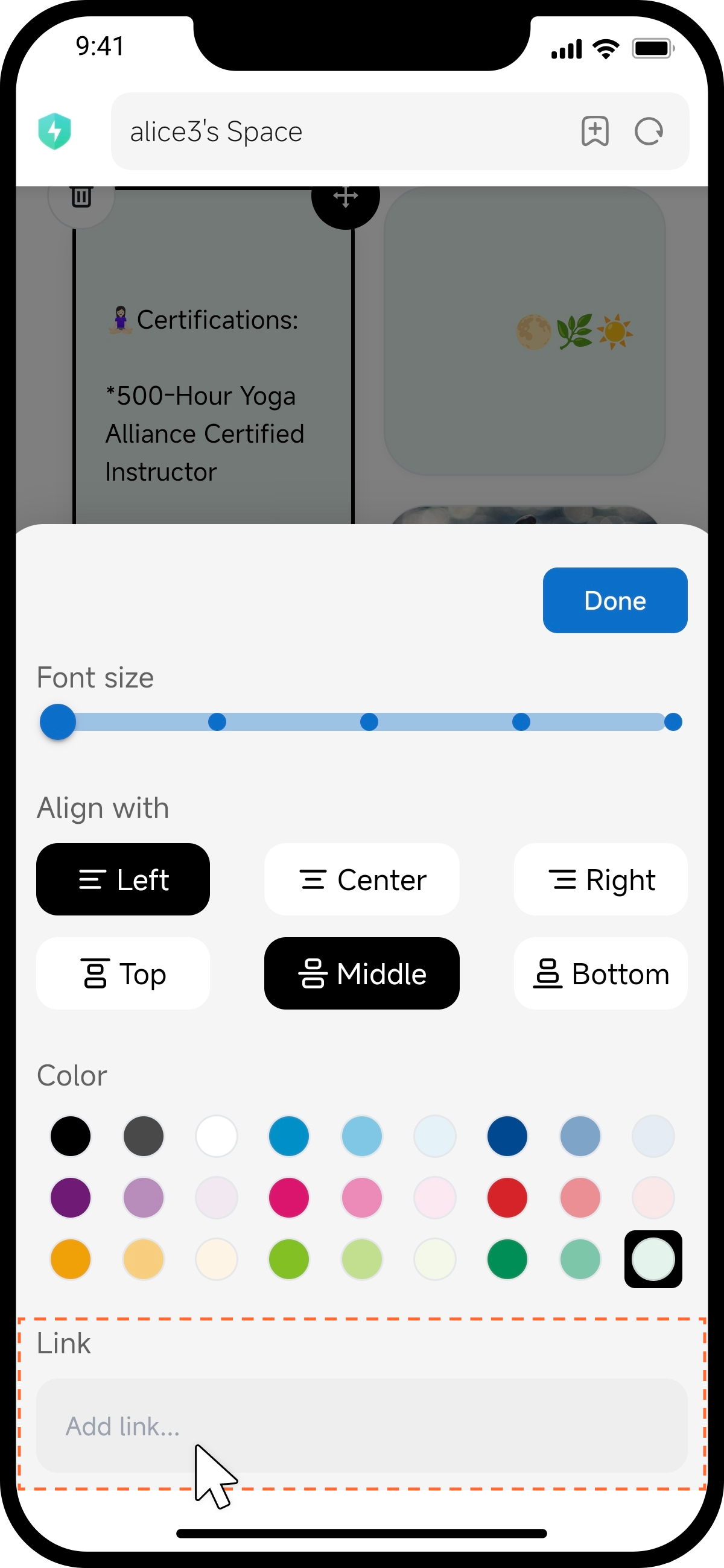
Link Replacement Entry