PC
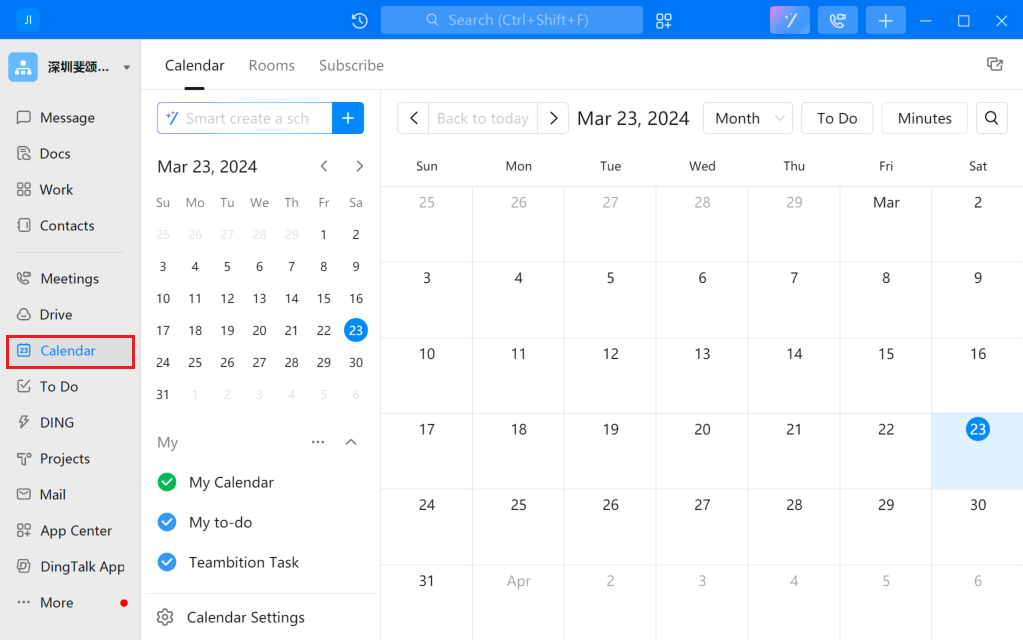
1. Open your DingTalk interface and click the calendar icon.
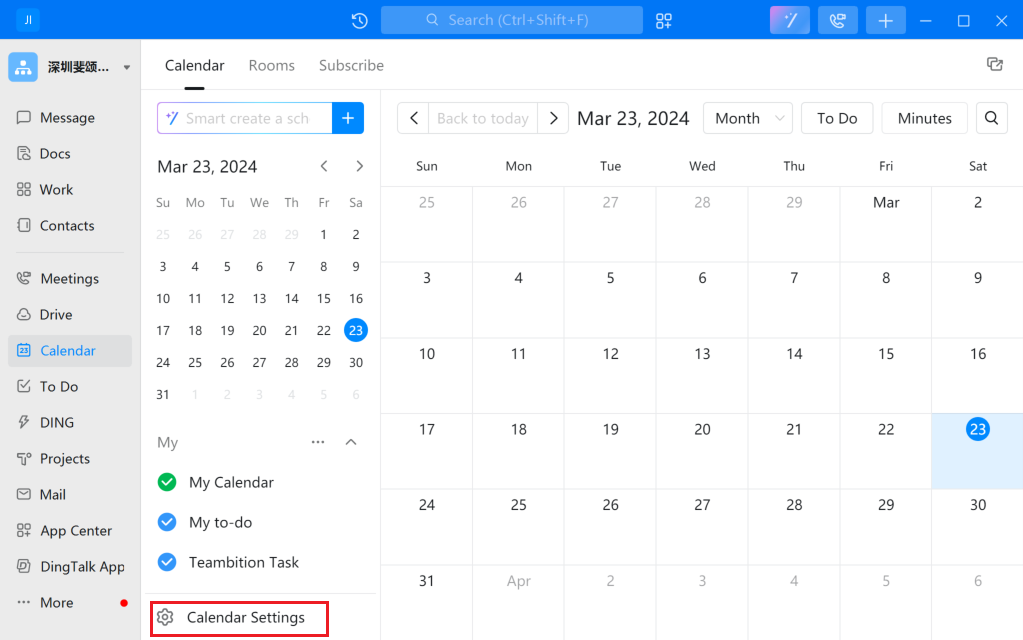
2. Switch to the calendar view and click the "Calendar Settings" button in the lower-left corner.
3. In the "Calendar Settings" popup, click "Sync" and select "Sync to Other Calendars".
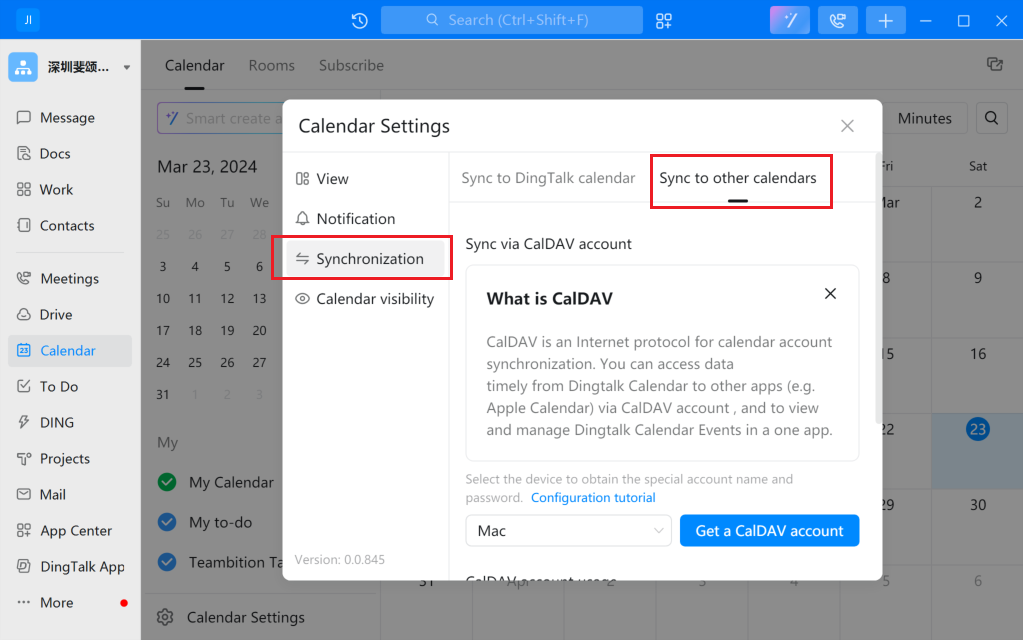
4. Click the "Get CalDAV Account" button in the popup window.
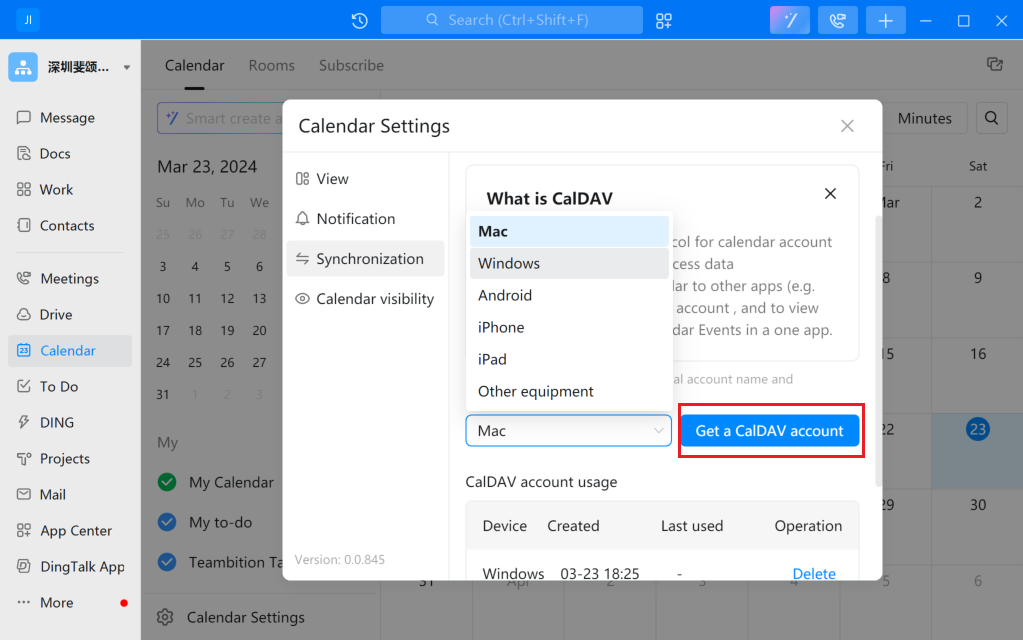
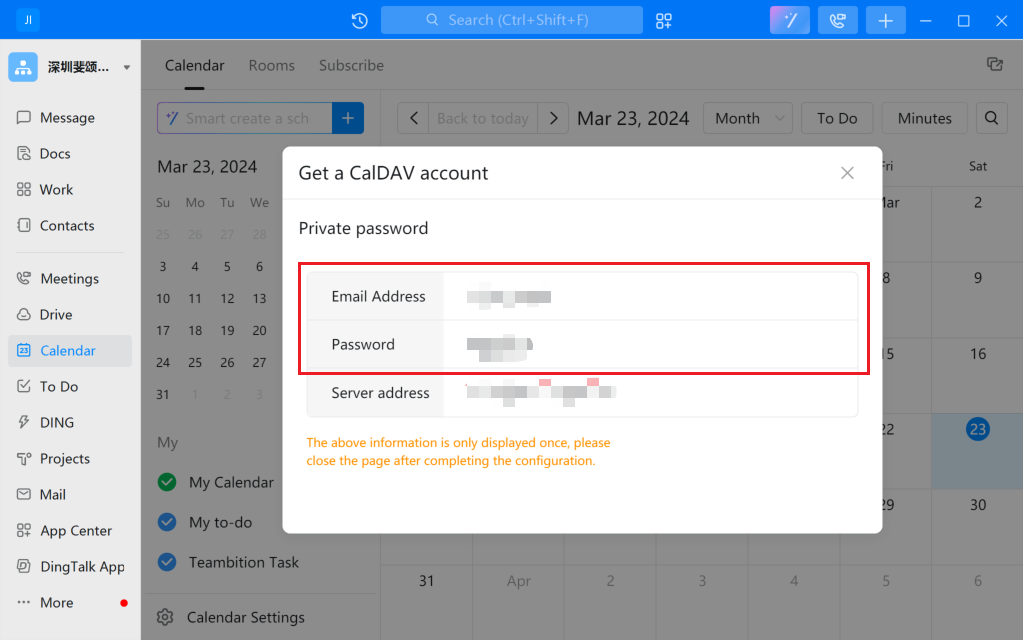
5. Record the generated username/password for configuration.
Mobile
1. Open your DingTalk interface and click the calendar icon.
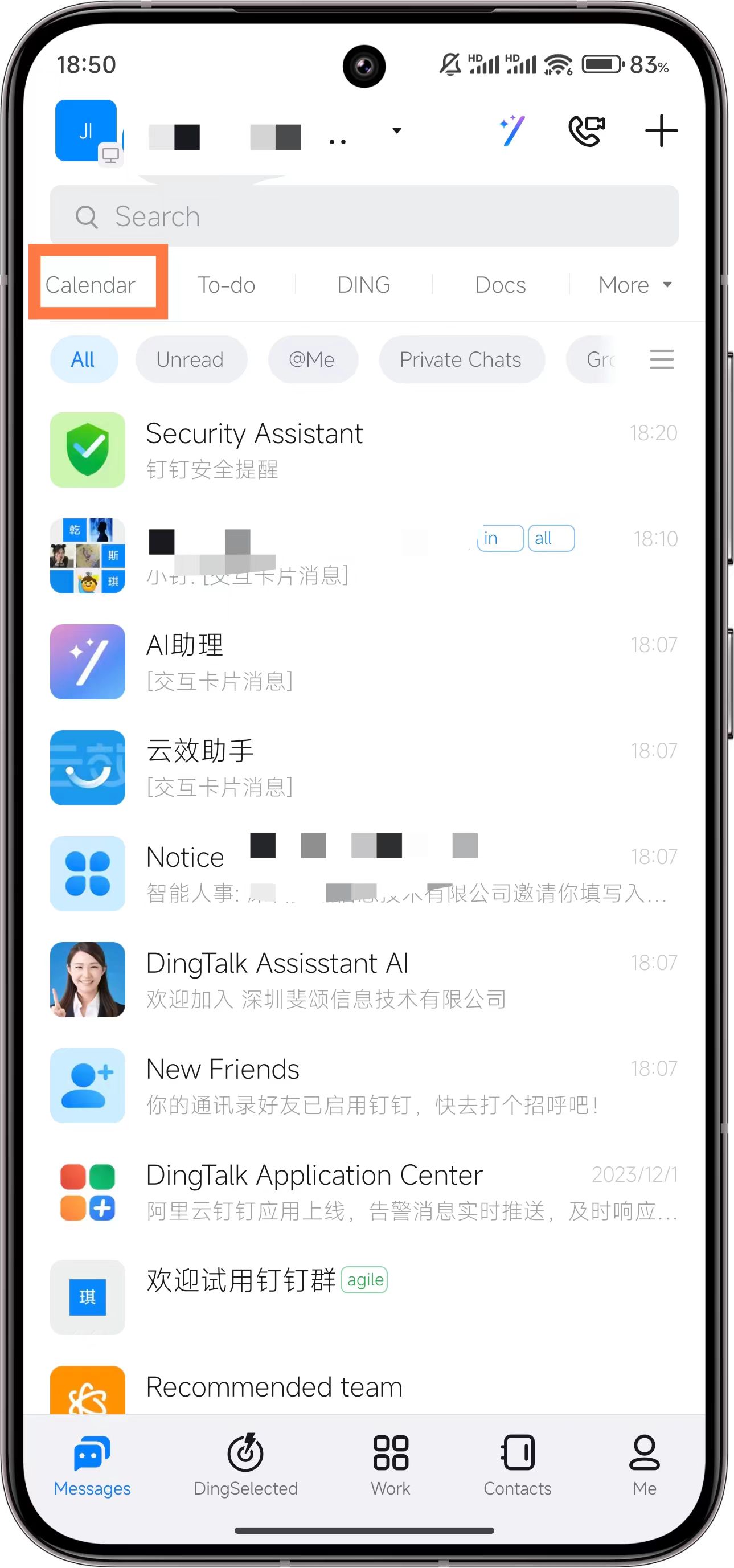
2. Switch to the calendar view and click the "Filter" icon in the lower-left corner.
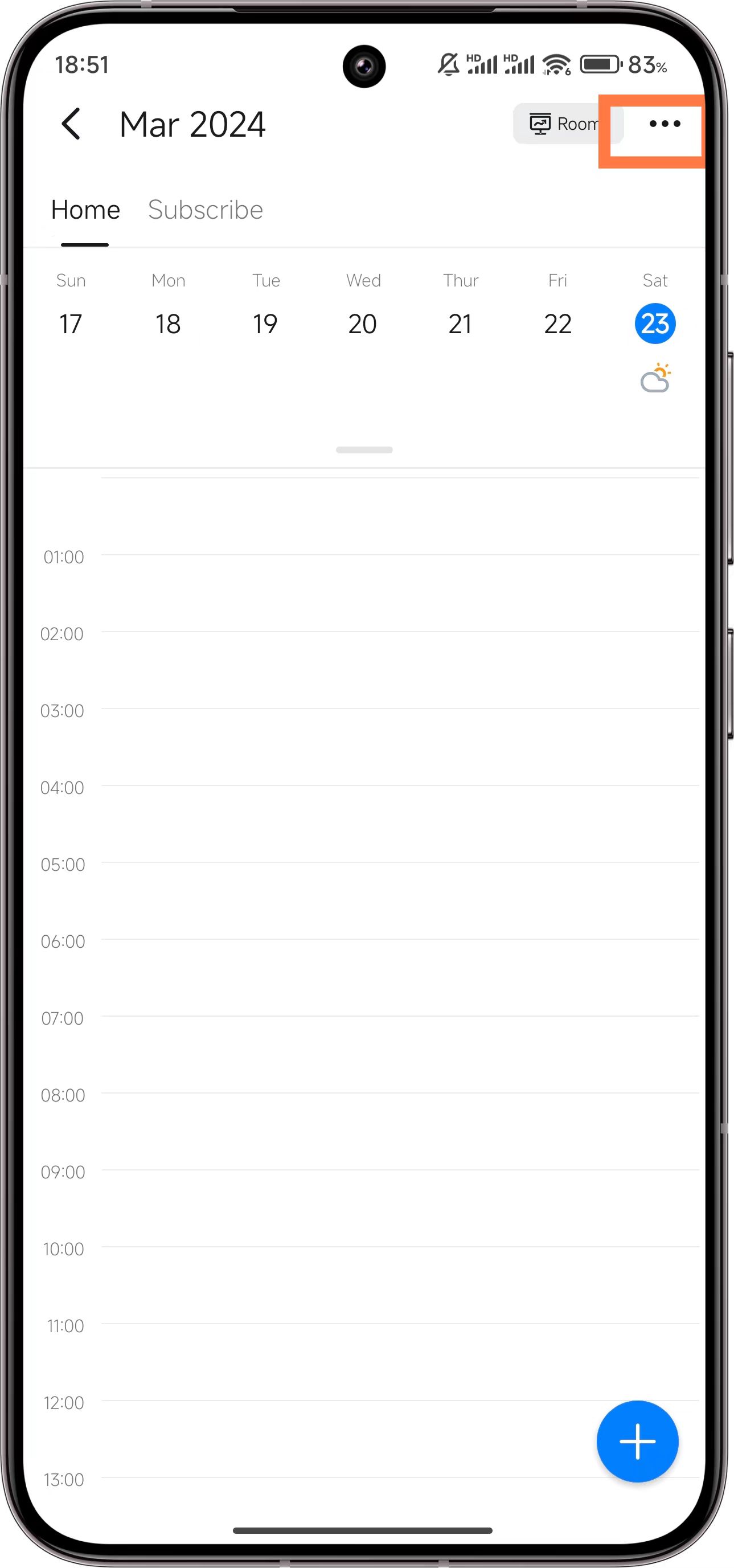
3. In the popup window, click "Calendar Settings".
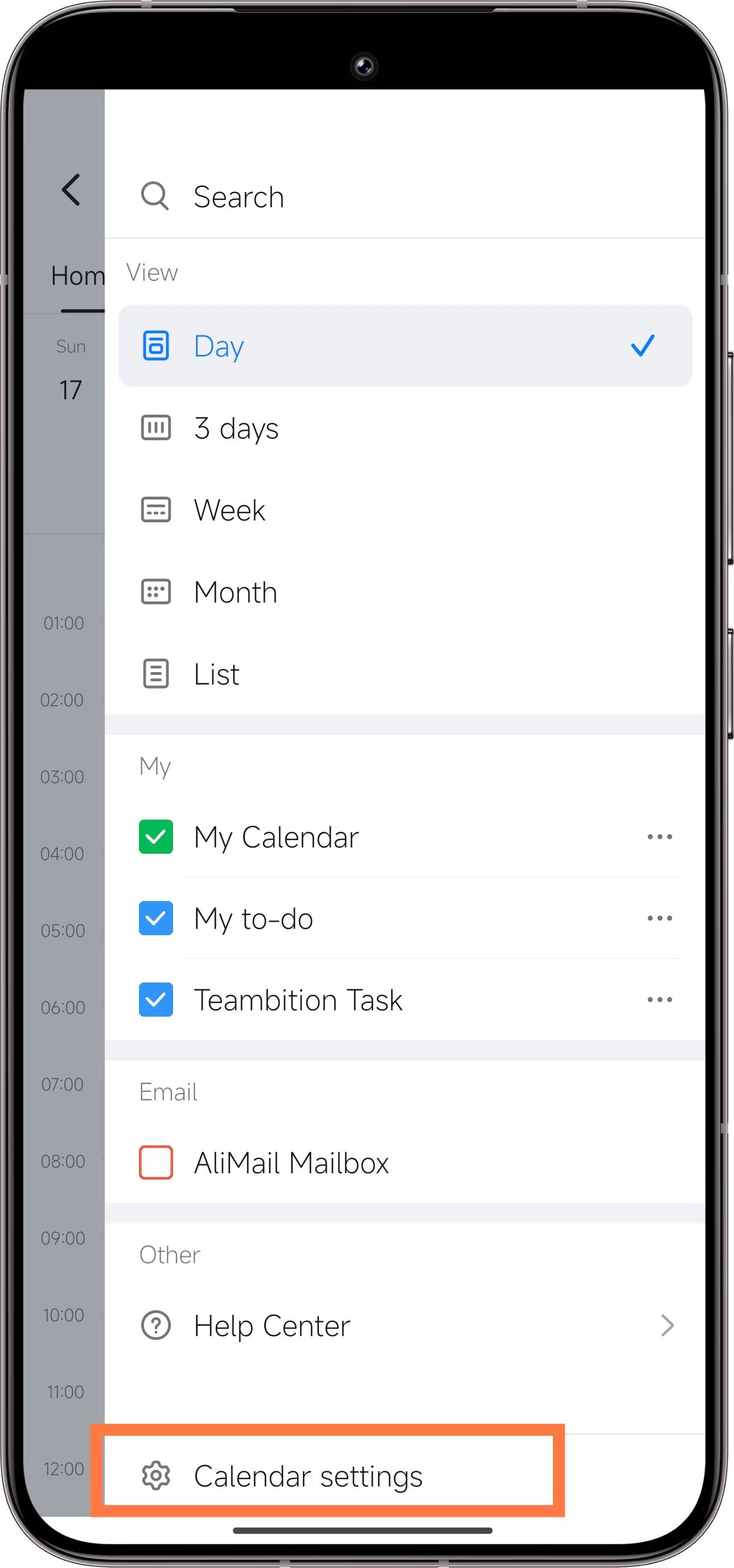
4. In the "Calendar Settings" page, click "CalDAV Sync".
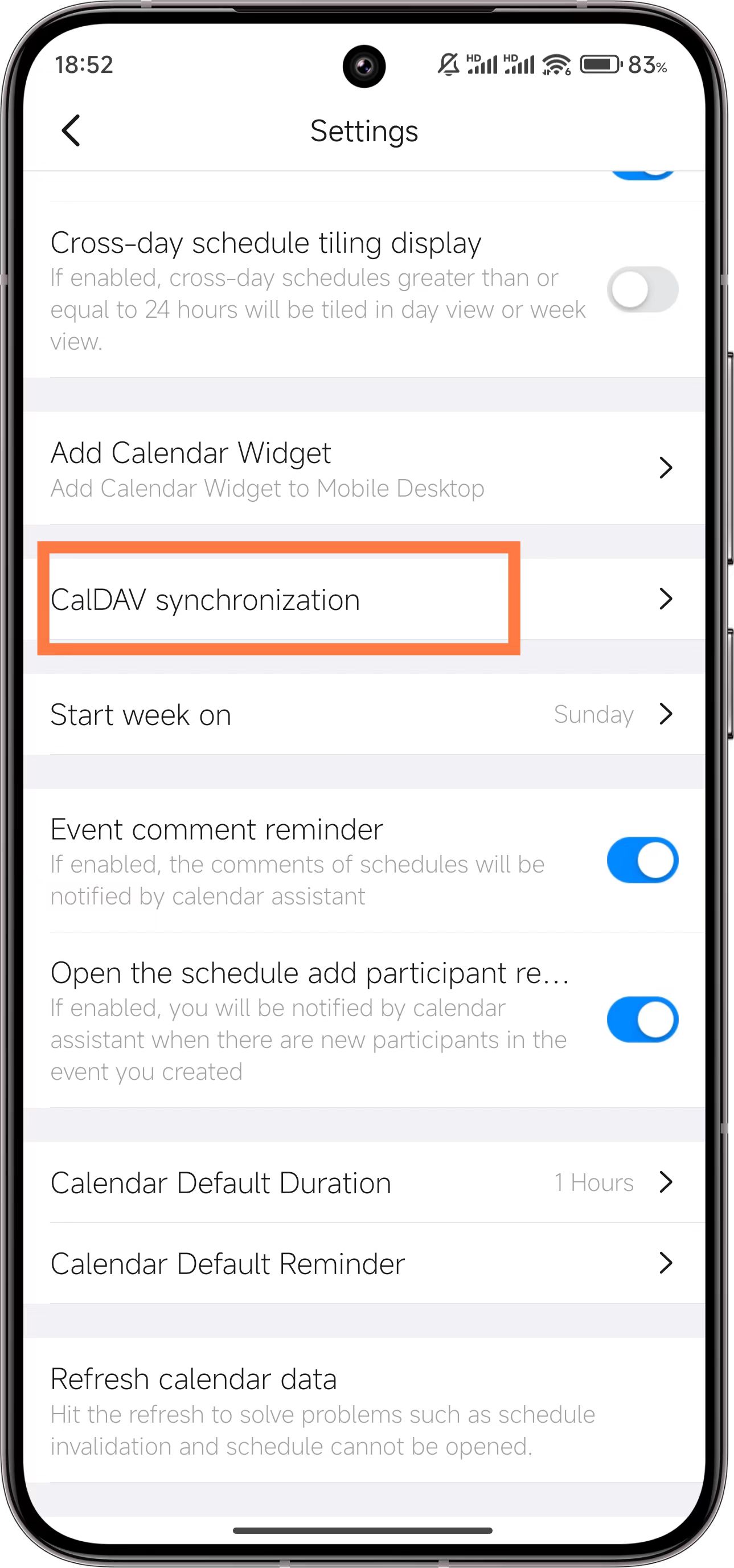
5. Click the "Get CalDAV Account" button at the bottom of the "CalDAV Sync" page.
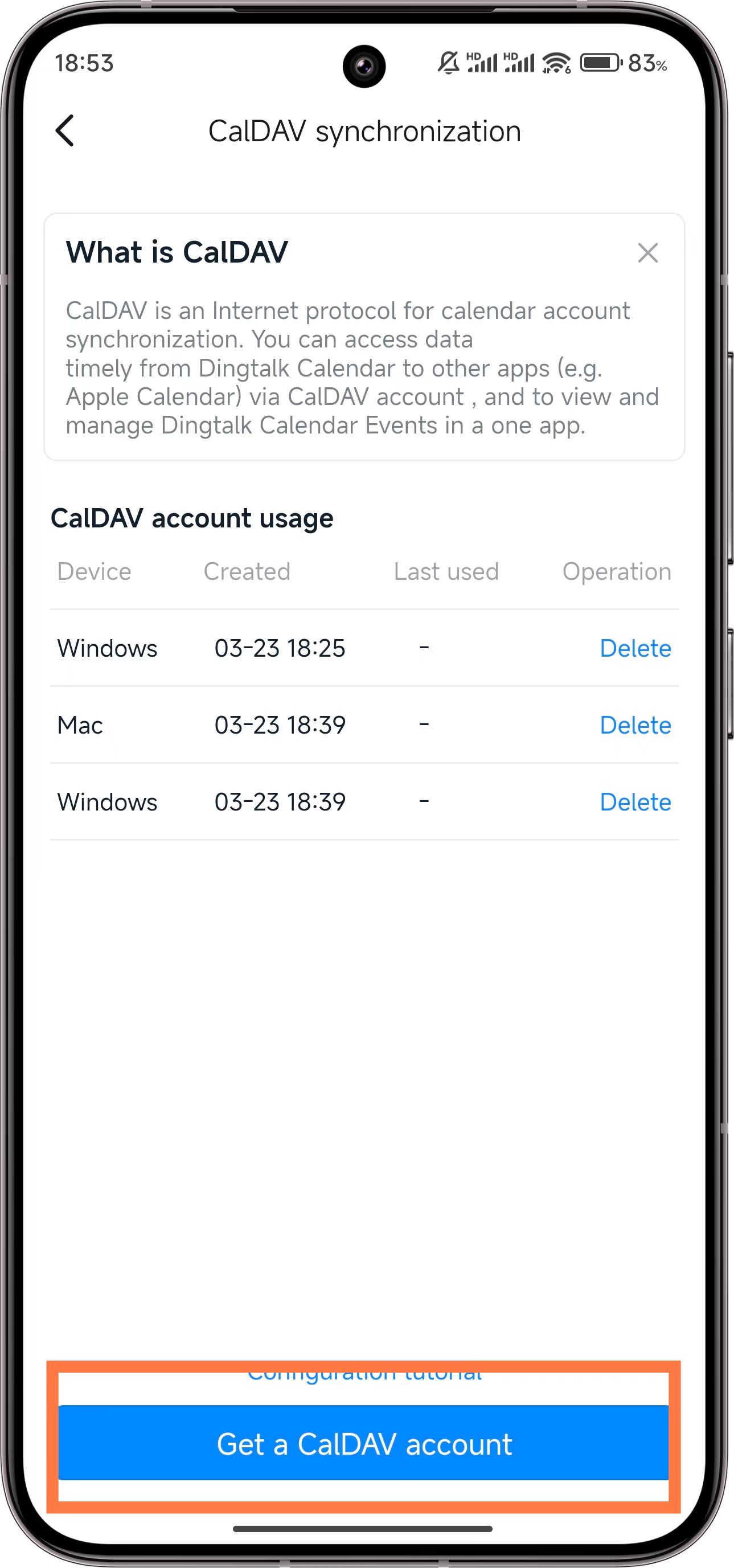
6. Select your device type.
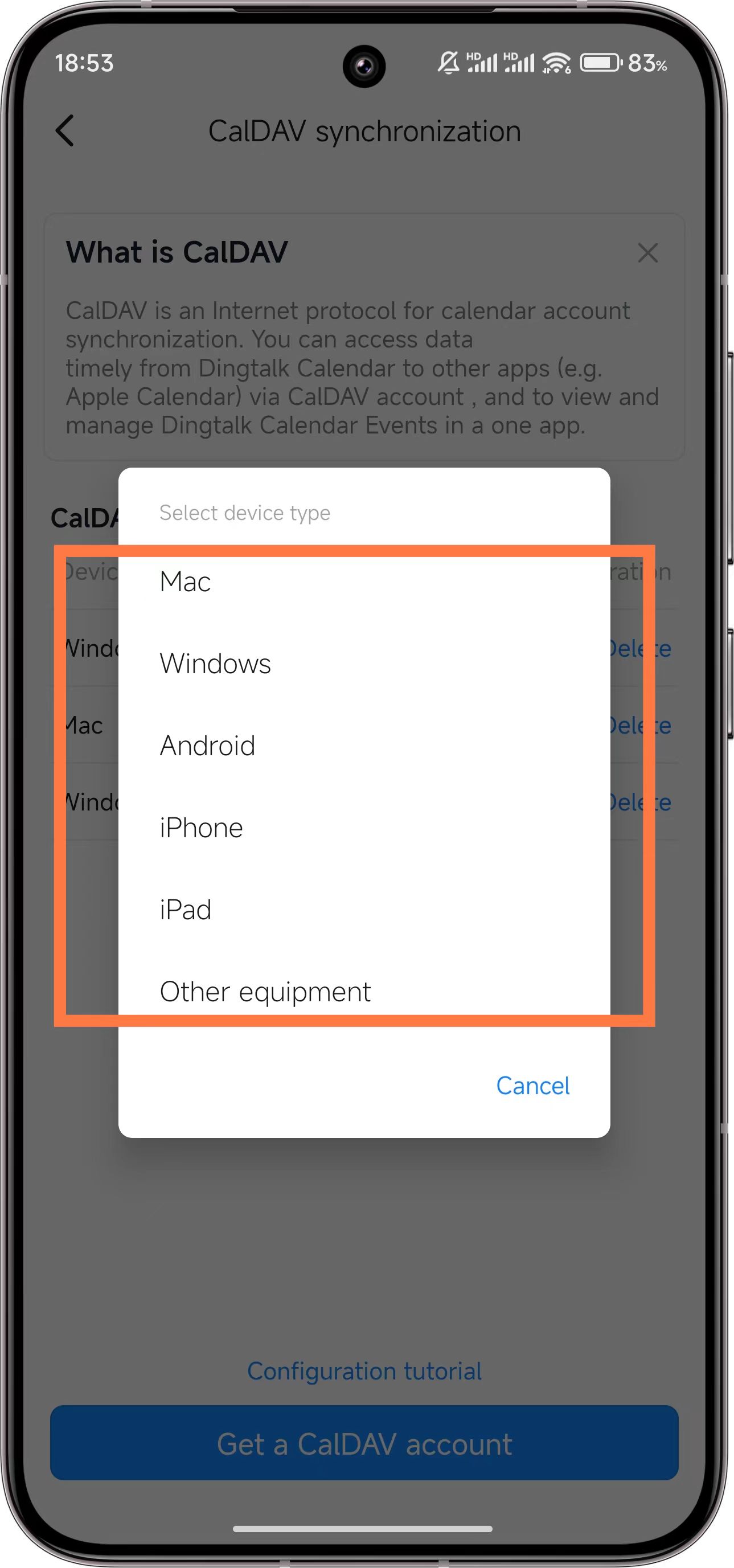
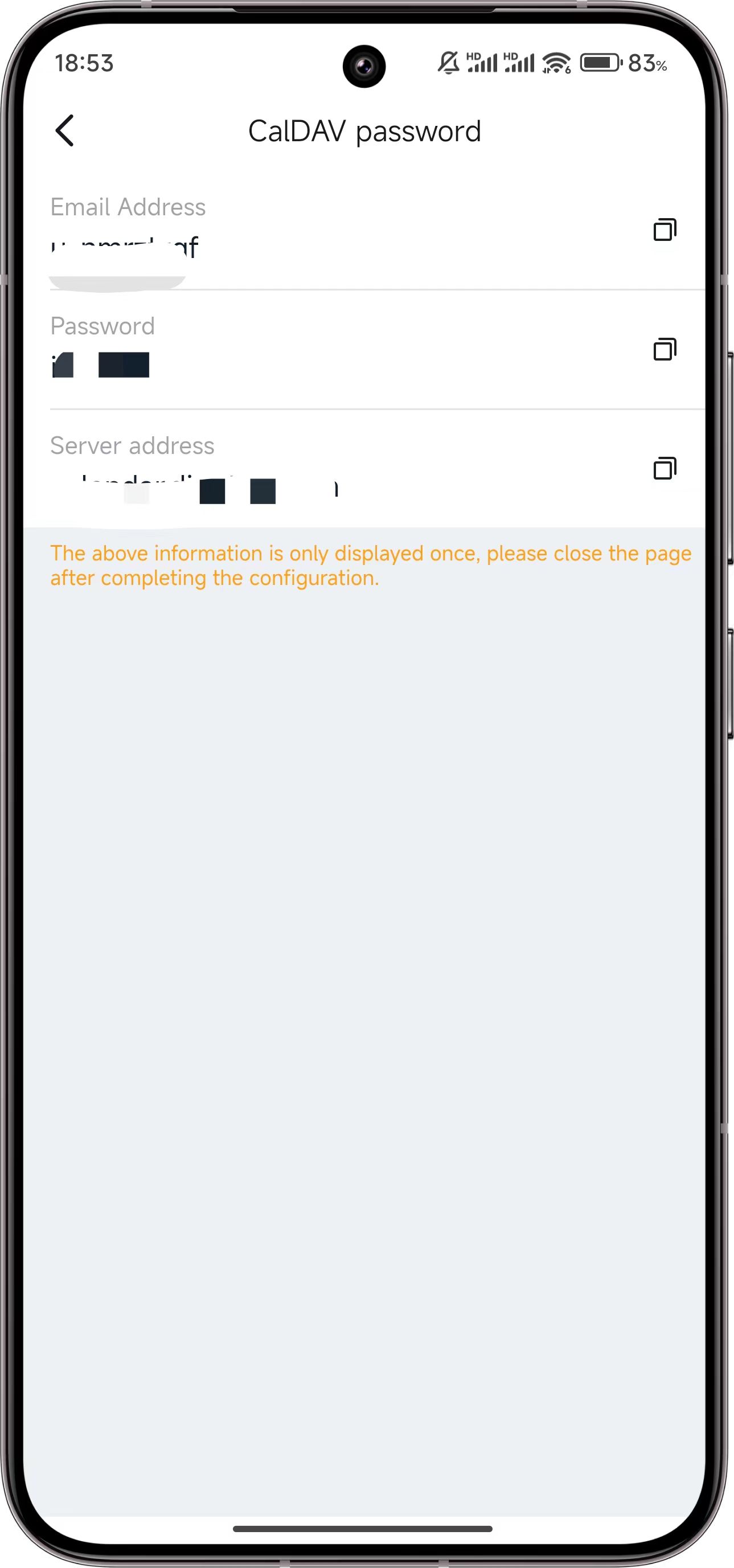
7. Record the generated username/password for configuration.